
Paint Editor Interface Guide
Hover over numbers on the image to learn more about different parts of the interface!
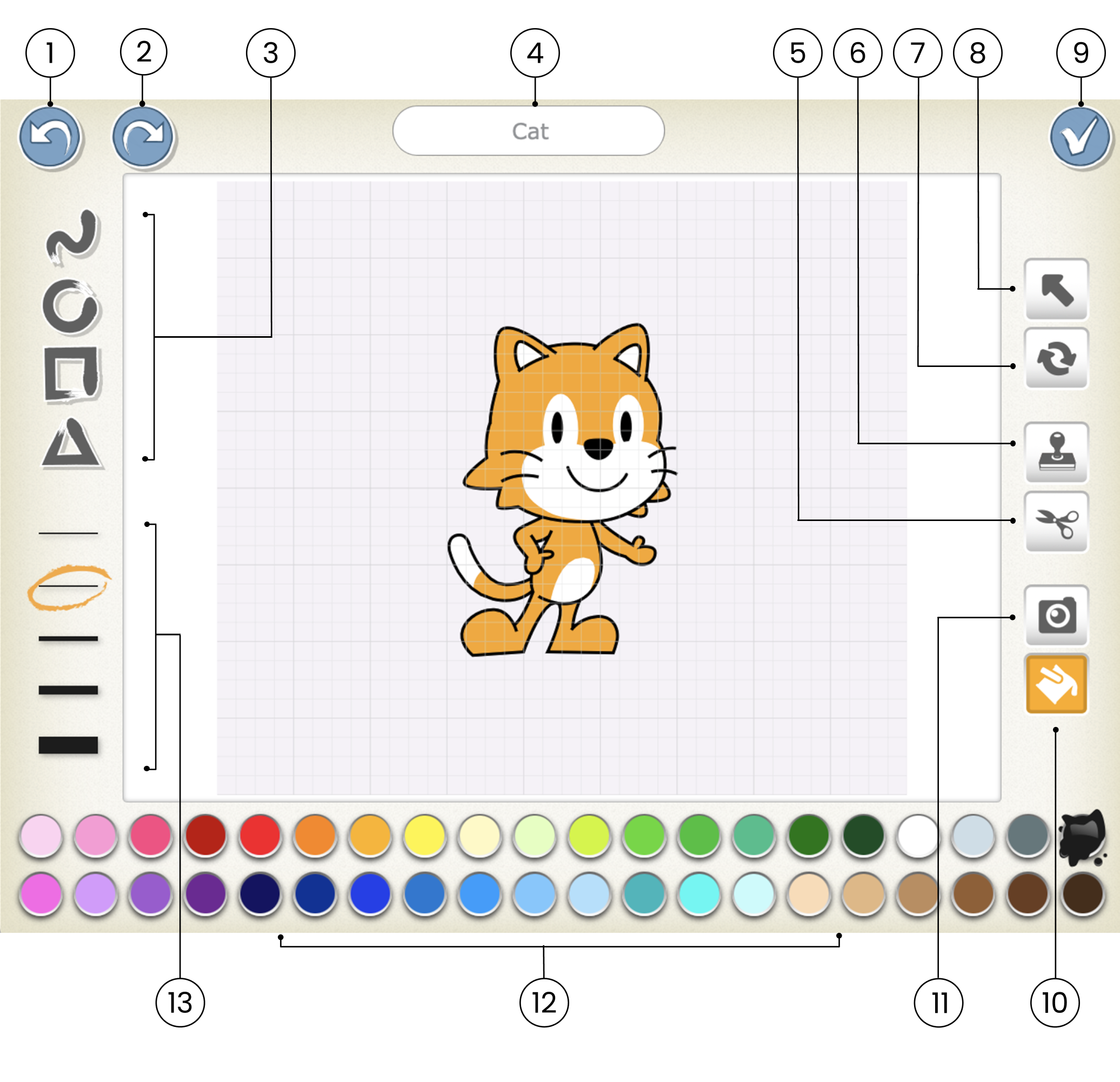
Undo
Reverses the most recent change
Redo
Reverses the most recent Undo
Shape
Choose a shape to draw: line, circle/ellipse, rectangle, or triangle
Character Name
Edit the name of the character
Cut
After selecting the Cut tool, you can tap a character or shape to remove it from the canvas
Duplicate
After selecting the Duplicate tool, you can tap a character or shape to create a copy of it
Rotate
After selecting the Rotate tool, you can rotate a character or shape around its center
Drag
After selecting the Drag tool, you can drag a character or shape on the canvas. If you tap on a shape, you can then edit the shape by dragging the dots that appear
Save
Save changes and leave the Paint Editor
Fill
After selecting the Fill tool, you can tap any section of a character or shape to fill it with the currently selected color
Camera
After selecting the Camera tool, you can tap any section of a character or shape, and then tap the camera button to fill the section with a new photo taken with the camera
Color
Select a new color to use for drawing and filling in shapes
Line Width
Change the width of the lines in the shapes you are drawing