
Interface
Hover over numbers on the image to learn more about different parts of the interface!
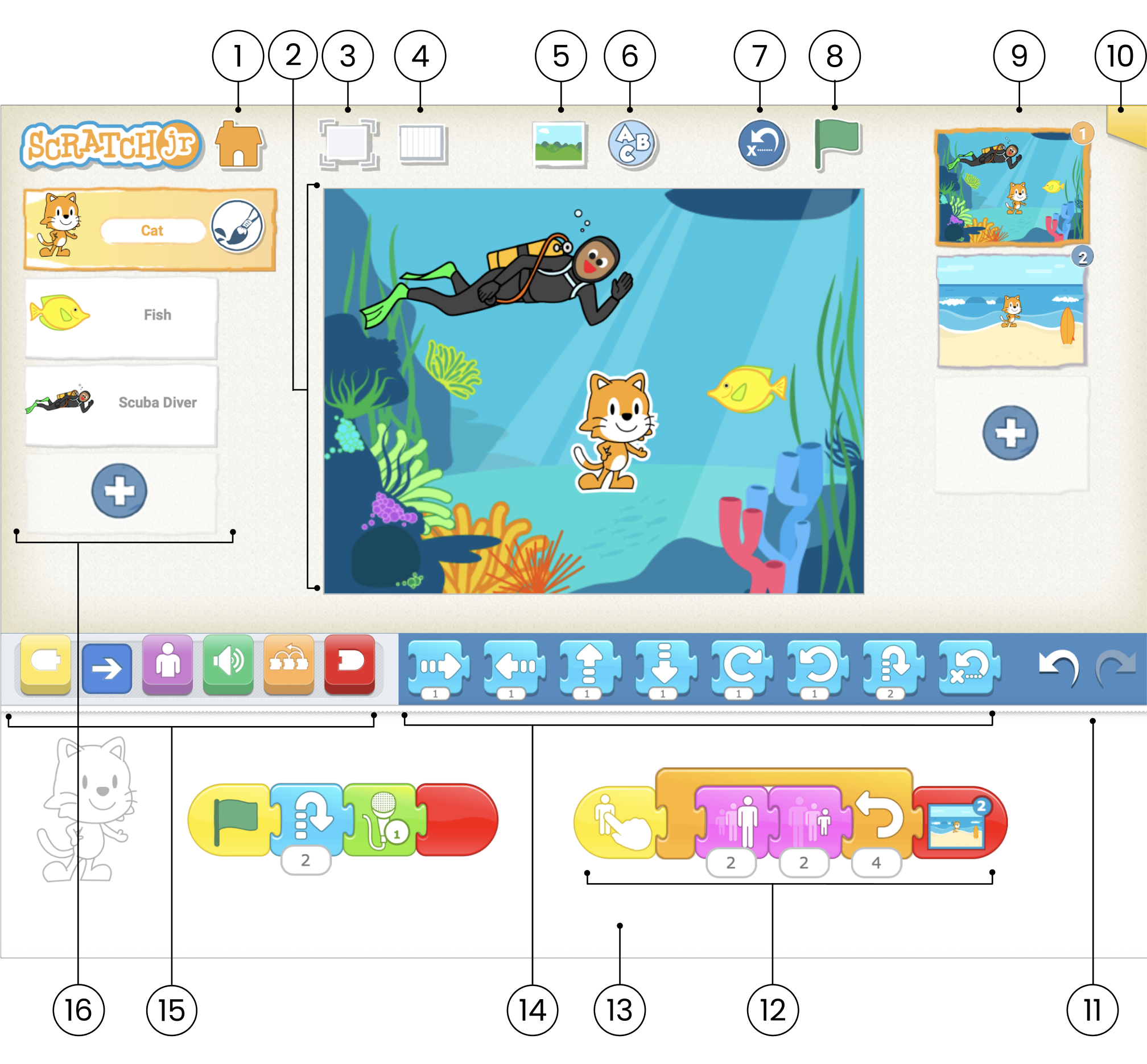
Stage
This is where the action takes place in the project. To delete a character, press and hold it.
Save
Save the current project and exit to the Home page
Presentation Mode
Expand the stage to the full screen
Grid
Toggle on (and off) the x-y coordinate grid
Change Background
Select or create a background image for the stage
Add Text
Write titles and labels on the stage
Green Flag
Start all programming scripts that begin with a "Start on Green Flag" block by tapping here.
Reset Characters
Reset all characters to their starting positions on the stage. (Drag characters to set up new starting positions.)
Pages
Select among the pages in your project — or tap the plus sign to add a new page. Each page has its own set of characters and a background. To delete a page, press and hold it. To reorder pages, drag them to new positions
Project Information
Change the title of the project, see when the project was created, and share the project (if supported by your device).
Undo and Redo
If you make a mistake, tap Undo to go back in time, reversing the last action. Tap Redo to reverse the last Undo.
Program
Snap blocks together to make a program, telling the character what to do. Tap anywhere on a script to make it run. To delete a block or script, drag it outside the programming area. To copy a block or script from one character to another, drag it onto the character's thumbnail.
Programming Area
This is where you connect programming blocks to create programs, telling the character what to do.
Blocks Palette
This is the menu of programming blocks. Drag a block into the programming area, then tap on it to see what it does.
Block Menu
This is where you can select a category of programming blocks: Triggering Blocks (Yellow), Motion (Blue), Looks (Purple), Sounds (Green), Control (Orange), End Blocks (Red)
Character Menu
Select among the characters in your project — or tap the plus sign to add a new one. Once a character is selected, you can edit its scripts, tap its name to rename it, or tap the paintbrush to edit its image. To delete a character, press and hold it. To copy a character to another page, drag it to the page thumbnail.