BC Law Canvas Documentation
Importing the AI Policy Templates Module into Your Course
This page provides step-by-step instructions for bringing the AI Policy Template module into your Canvas course. The module includes guidance, examples, and editable templates to help you communicate clear expectations around AI use in your course. Whether you’re planning to prohibit AI, allow it with guardrails, or embrace it fully, the resources are designed to be flexible and easy to adapt.
Before You Begin
Before importing, we recommend reviewing the module contents in Canvas or via the CDIL badge guide. The module includes:
- Editable assignment, discussion, and quiz items
- AI policy design guidance and starter prompts
- Templates with three levels of AI permission (AI-Free, AI-Assisted, AI-Friendly)
Option 1: Import from Canvas Commons
Step 1
Log in to Canvas at bc.edu/lms using your primary BC credentials.
Step 2
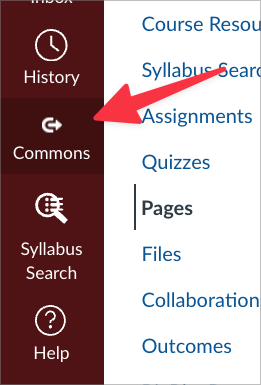
Click the Canvas Commons icon in the global Canvas navigation.
Step 3
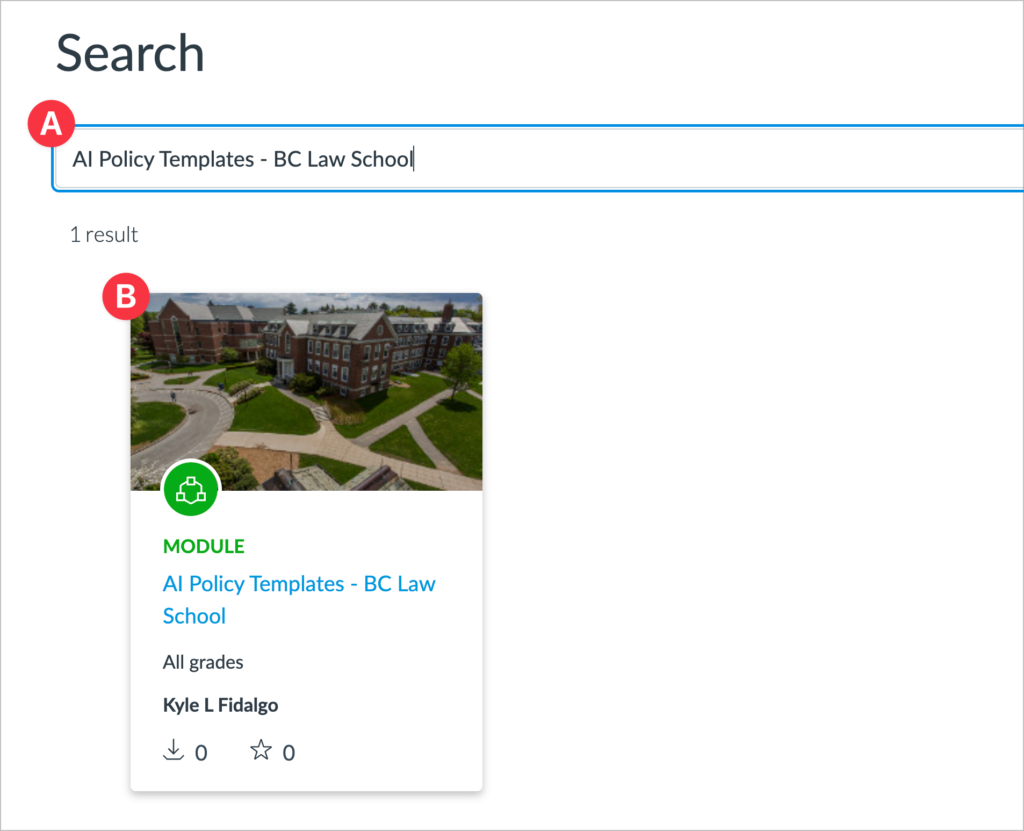
In the search textbox, type in “AI Policy Templates – BC Law School” (A).
Then select the module item that appears (B).
Step 4
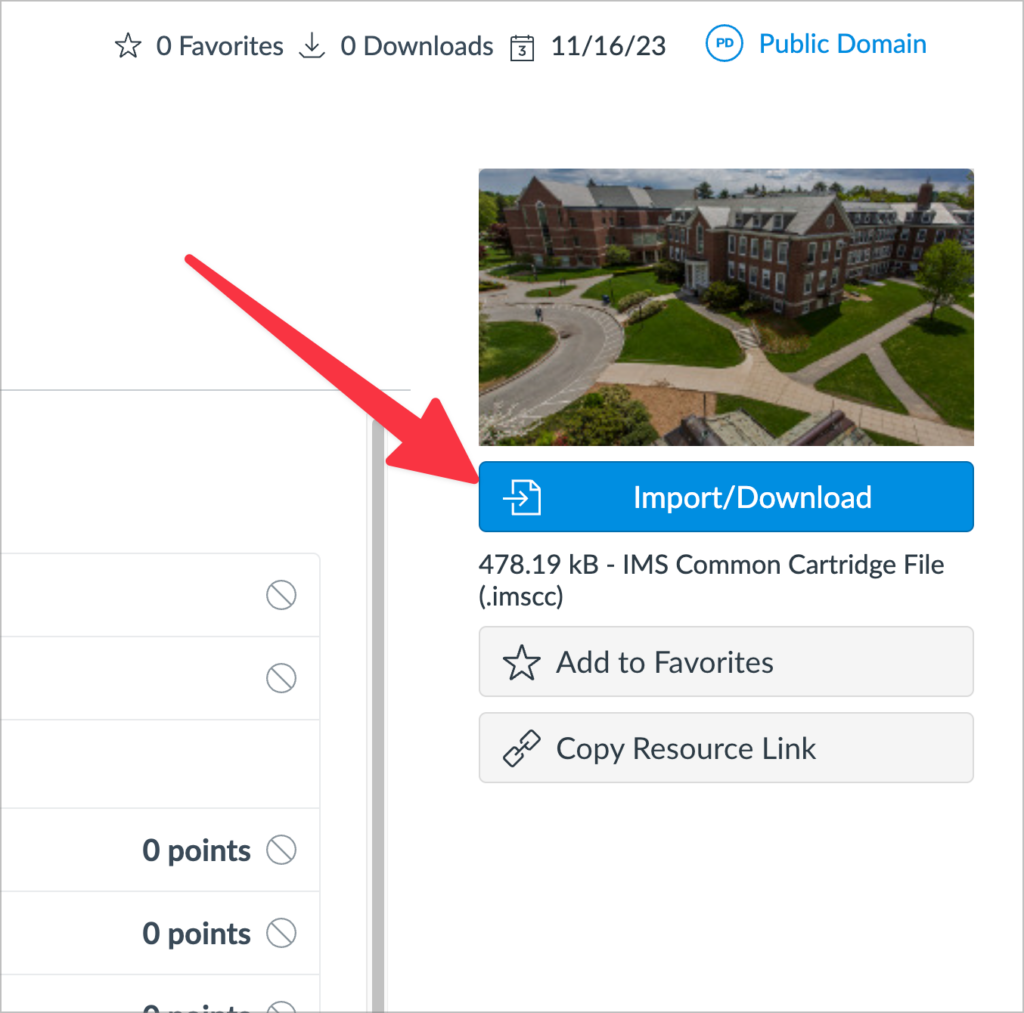
Next, after the page loads, click the “Import/Download” button on the right side of the screen.
Step 5
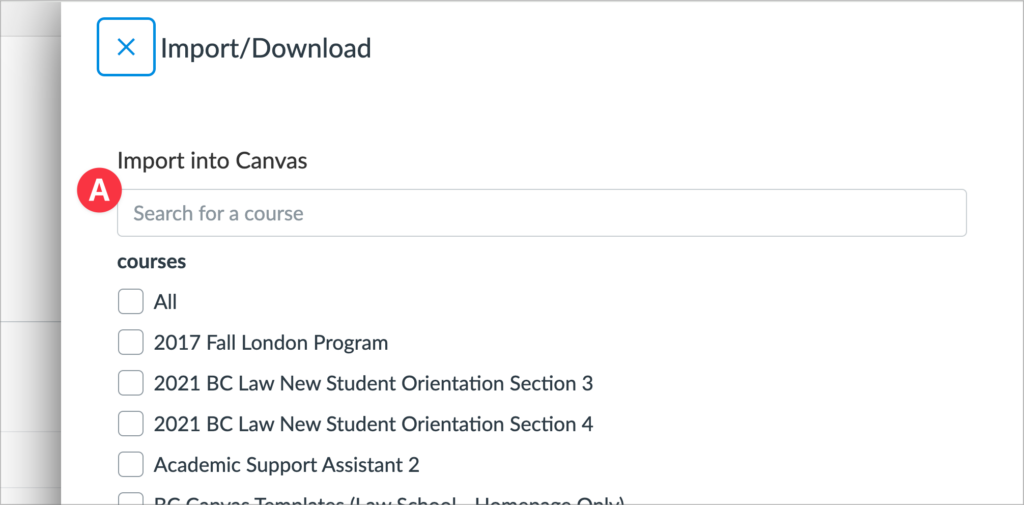
Select the checkbox next to the course(s) you want to import the module into. Click Import into Course.
If you don’t see your course listed, or if you’d prefer to manually import, follow the alternate method below.
First: Search for your course name
Second: After selecting your course, click “Import into Course”
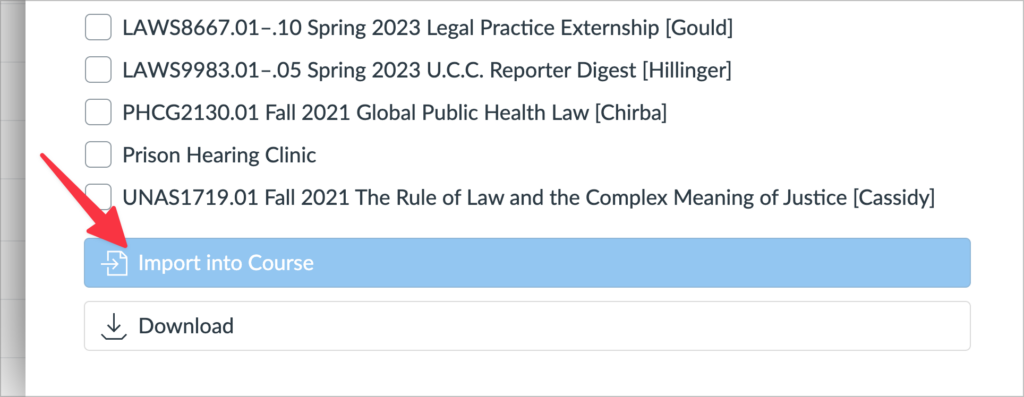
Note: If you don’t see your course you can use the alternate method outlined in the alternate import method below. Those steps resume from this point in the guide.
Option 2 – Manual Import with Download
Step 1
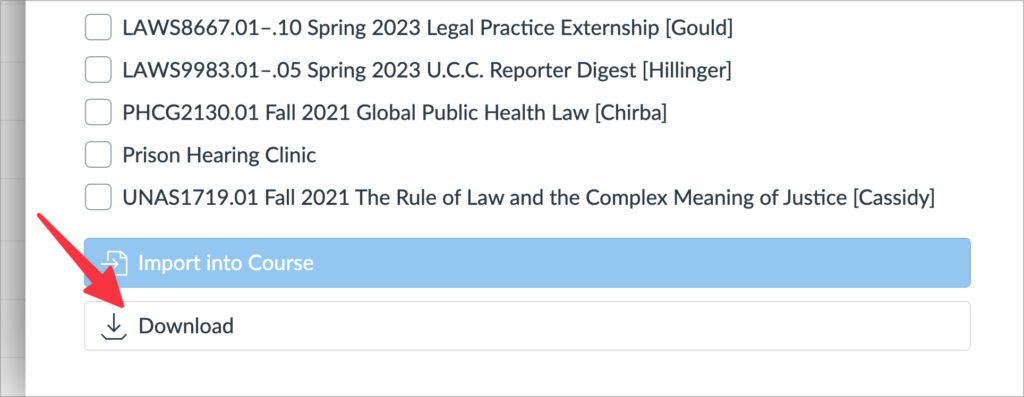
Instead of choosing a course in Step 5 above, click the Download button. This will save a .zip file with the module content to your computer.
Step 2
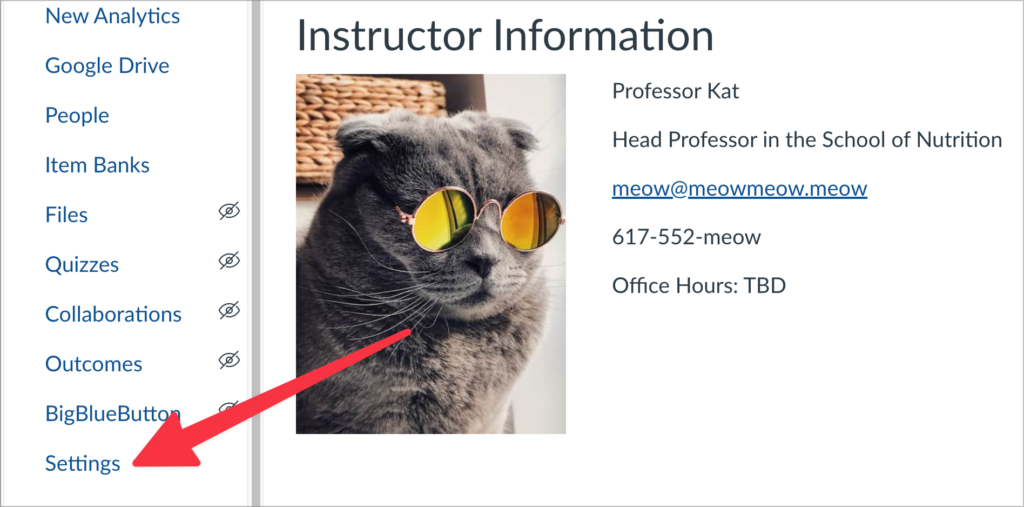
Navigate to the course in Canvas where you want to add the module. In the course navigation, go to Settings.
Step 3
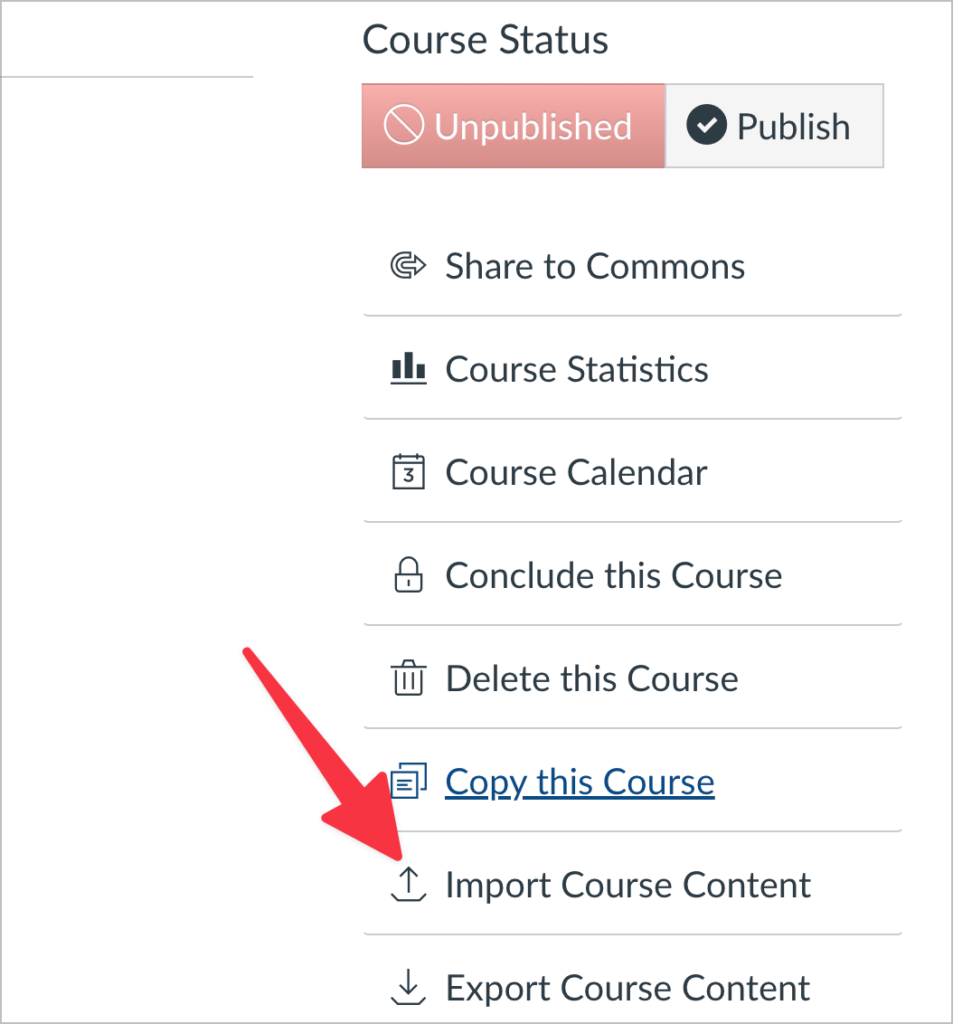
Click Import Course Content in the right sidebar.
Step 4
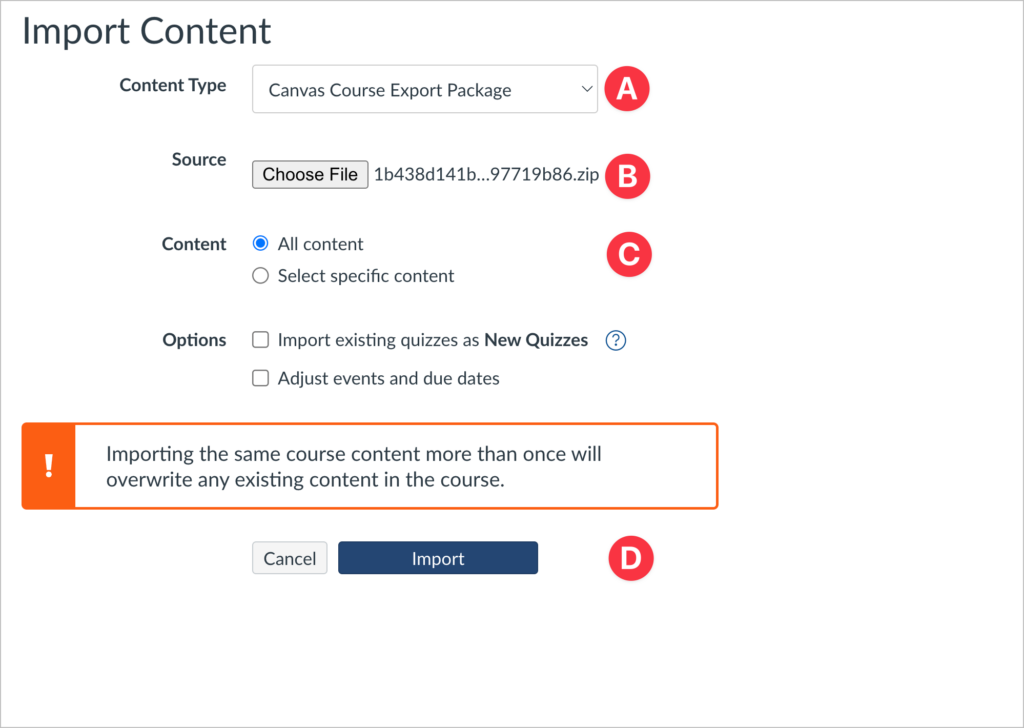
- For Content Type, choose Canvas Course Export Package
- Click Choose File and upload the .zip file you downloaded
- For Content, choose All Content
Then click Import. The content will be added to your Modules area once complete.
That’s it you’re done! If you would like to read more about importing content into your Canvas course you can view their documentation here.
Need Help? Reach out to atrinbox@bc.edu if you get stuck or need assistance reviewing or customizing the templates.