

1st Grade
Idiomes addicionals
Plan de Estudios para Primer Grado en Español – Itinerari de primer curs en castellà
תכנית לימודים לכיתה א’ בעברית – Itinerari de primer curs en hebreu
Πρόγραμμα Σπουδών Α’ Δημοτικού στα ελληνικά – Itinerari de primer curs en giego
Ensimmäisen luokan opetussuunnitelma suomeksi- Itinerari de primer curs en finès
Currículo Primeiro Ano em Português – Itinerari de primer curs en portuguès (Portugal)
First Grade Curriculum in English – Itinerari de primer curs en anglès
El currículum La Programació com un Altre Idioma (Coding As Another Language – CAL) per ScratchJr (CAL-ScratchJr) presenta idees poderoses de la informàtica, en relació amb l’alfabetització d’una manera lúdica, estructurada, i apropiada pel desenvolupament dels infants. L’enfocament de Coding as Another Language (CAL), desenvolupat per la professora Marina Umaschi Bers i membres del grup de recerca DevTech, entén l’aprenentatge de la informàtica com a una nova alfabetització pel segle XXI que ajuda els infants a desenvolupar noves maneres de pensar en si mateixos i en el món que els envolta.
En català, ens referirem a aquest document com a Itineraris CAL-ScratchJr, en lloc de Currículum CAL-ScratchJr, ja que el terme itinerari s’ajusta millor al significat i l’enfocament que té en el nostre context educatiu. Així i tot, en aquest document i en altres materials de suport, també es pot fer servir la denominació original Curriculum CAL-ScratchJr per mantenir la coherència amb la versió en anglès. En qualsevol cas, ambdós termes fan referència a una proposta pedagògica estructurada en 24 sessions.
L’itinerari CAL-ScratchJr per 1r curs de primària té 24 Sessions, dissenyades per 18 hores, però es pot adaptar a un altre entorn d’aprenentatge. Els infants aprendran informàtica i desenvoluparan habilitats per solucionar problemes i pensament computacional mentre creen els seus propis projectes. A més, per enfortir la connexió amb l’alfabetització, el currículum s’integra amb dos llibres, Petita & Gran Ada Lovelace de Laurie Wallmark i Allà on viuen els monstres de Maurice Sendak.
Tot i que proposem dos contes concrets (respectant la versió original), us animem a utilitzar els contes que considereu més adequats i que ja feu servir habitualment a l’aula. Aquests contes poden servir com a punt de partida per llegir-los en veu alta, reflexionar sobre la història que explica i connectar amb temes significatius per als infants. Aquestes històries les connectarem amb projectes en ScratchJr. Us convidem a adaptar-los a la vostra realitat educativa. Els contes originals que proposem —un de ficció i una biografia— comparteixen un rerefons social amb valor educatiu.
Download the entire unit document, or edit by making a copy to adapt to your teaching context.
View a video of Professor Marina Umaschi Bers describing the CAL ScratchJr curriculum and its pedagogical approach.
La Pedagogia
L’itinerari CAL-ScratchJr s’implementa seguint l’enfocament pedagògic desenvolupat per la professora Marina Bers que es pot trobar en els seus llibres Coding as a Playground i Beyond Coding: Teaching Human Values to Children. Aquesta pedagogia s’emmarca en quatre metàfores:
La Programació com un parc infantil (un lloc per jugar): En involucrar les nenes i nens en una experiència d’aprenentatge amb la informàtica donem la benvinguda al joc. Mitjançant el joc podem afectar totes les àrees del desenvolupament humà: cognitiu, socioemocional, lingüístic, moral, físic i fins i tot espiritual. En contrast amb les experiències d’aprenentatge que un infant experimenta al parc infantil que podríem tenir a l’habitació de casa (playpen) (un lloc segur per l’infant, però limitat quant a descobriment, els parcs infantils de l’exterior (playground) promouen oportunitats per a l’exploració oberta, la creació de projectes personalment significatius, la imaginació, la resolució de problemes, la resolució de conflictes i la col·laboració.



La Programació com un Altre Idioma: Caracteritzar la programació com una activitat STEM és limitant. En canvi, si posicionem l’ensenyament i l’aprenentatge de la programació com una nova forma de pensar i expressar-nos, estem en el domini del llenguatge. Dominar un sistema de representació simbòlica amb funcions comunicatives i expressives obre moltes oportunitats. Aprendre a programar es converteix en una activitat creativa i expressiva, per produir quelcom significatiu i compartible, i no només un conjunt d’habilitats per resoldre problemes. La pedagogia CAL promou l’exploració de les semblances i diferències entre els llenguatges naturals i artificials per al procés de creació, la seva sintaxi i gramàtica, i el seu potencial per empoderar les persones. Quan la programació s’ensenya com un llenguatge i no només com a STEM, entra en joc també la dimensió humana.
La Programació com un Pont: La programació és un acte semiòtic, una activitat de generació de significats que utilitza i combina símbols per representar idees abstractes. Quan aprenem a programar, aprenem un nou idioma. Les llengües poden crear o destruir i poden servir per construir ponts o murs. Al parc infantil de la programació, la intenció és construir ponts. L’itinerari CAL-ScratchJr proposa aprendre el llenguatge artificial de les màquines mentre també aprenem el llenguatge humà que ens serveix per interactuar amb els altres, connectar-nos de manera profunda (establir una relació amb una altra persona que vagi més enllà de la comunicació superficial) i construir relacions significatives. La metàfora de la programació com a pont promou el diàleg i les trobades significatives amb els altres i situa la programació com un aprenentatge socioemocional i no només una activitat cognitiva.
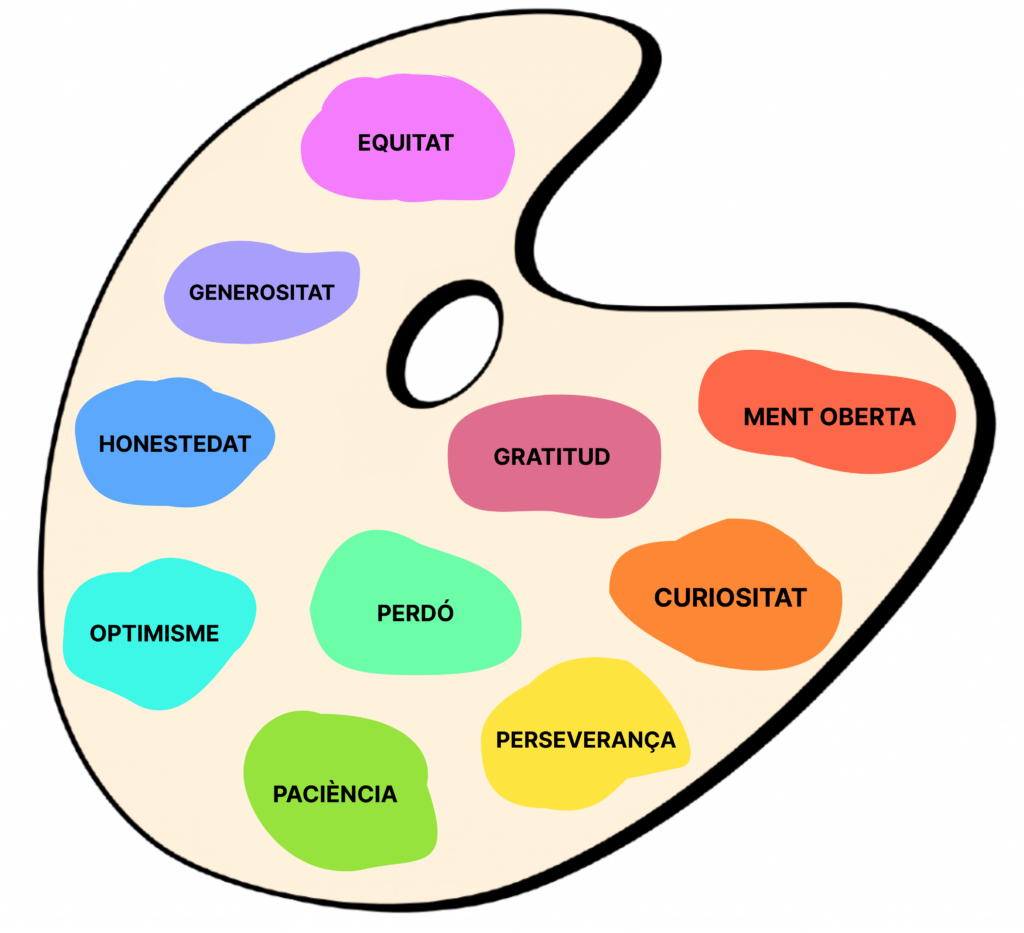
La Programació com una Paleta de Virtuts: Qualsevol activitat humana implica valors humans. Prendre decisions per participar en alguns comportaments i no en altres. Entendre i assumir responsabilitats i conseqüències. A través de la pedagogia CAL, el parc infantil de la programació ofereix una oportunitat intencionada per ensenyar i aprendre valors. La metàfora d’una paleta de virtuts recorda la paleta del pintor. Com l’artista que amb la seva paleta pot fer nous colors i els barreja i combina, la programació també té una paleta de virtuts dinàmiques que posa en pràctica. Al parc infantil de la programació s’exploren de manera explícita deu valors: equitat, generositat, honestedat, optimisme, gratitud, perdó, paciència, ment oberta, curiositat i perseverança. Tanmateix, se’n poden afegir de nous. La programació creativa pot ser una via per al desenvolupament del caràcter, per explorar la dimensió socioemocional, i la dimensió ètica de l’aprenentatge. En definitiva, entendre que les nostres accions, com les de qualsevol persona que crea, tenen conseqüències.
| Valor | Definició | Activitats |
 | Un fort desig de saber o aprendre alguna cosa; recerca del que és nou. | Dues estrelles i un desig |
 | Persistència en el curs de l’acció malgrat dificultats o adversitats; determinació en la consecució dels objectius; fermesa de propòsit; la creença que podem millorar. | Tauler de depuració Soc un C.O.D.E.R (programador) |
 | La capacitat d’acceptar o tolerar el retard, els problemes o el patiment sense enfadar-se o molestar-se. | Tauler de depuració Soc un C.O.D.E.R (programador) |
 | Esperança i confiança en el futur o en un resultat exitós; esperar el millor. | Dues estrelles i un desig Ballant al voltant de la classe |
 | La qualitat de ser honorable; rectitud; noblesa; integritat. | Tauler de depuració Transmetre les normes |
 | Tracte imparcial i just sense favoritismes ni discriminacions; justícia | Transmetre les normes Intercanvi |
 | La qualitat de ser amable; donar i rebre, ajudar-se a si mateix i als altres. | Crea una xarxa Intercanvi |
 | La qualitat de ser agraït; disponibilitat per mostrar agraïment; ser conscient de les coses bones. | Dues estrelles i un desig Crea una xarxa Intercanvi |
 | L’acció de perdonar i acceptar, donar una segona oportunitat a un mateix i als altres. | Soc un C.O.D.E.R (programador) |
 | La qualitat d’estar disposat a considerar idees, opinions i sentiments que són nous o diferents dels vostres; flexibilitat per adoptar diferents perspectives. | Tauler de depuració Ballant al voltant de la classe |
Les idees poderoses
L’itinerari CAL-ScratchJr s’organitza al voltant d’idees poderoses relacionades amb la informàtica i l’alfabetització. Les idees poderoses fan referència a coneixements o habilitats que són alhora útils a escala personal, connectats amb altres àrees del saber i arrelats en el pensament intuïtiu que els infants han anat desenvolupant al llarg del temps. Són idees que ajuden a entendre el món i que poden ser aplicades en diferents contextos d’aprenentatge.
Les idees poderoses de la informàtica són els algorismes, els processos de disseny, la representació, la depuració, les estructures de control, la modularitat i el maquinari/programari. Les idees poderoses de l’alfabetització que es relacionen amb les idees poderoses de la informàtica són: la seqüenciació, el procés d’escriptura, l’alfabet, la correspondència lletra-so, l’edició i tenir en compte a qui ens adrecem, els recursos literaris, la consciència fonològica i les eines de comunicació i llenguatge.
La taula que hi ha a continuació mostra com les diferents sessions de l’itinerari integren les idees poderoses de la informàtica i de l’alfabetització, alhora que es vinculen amb les competències del currículum vigent a Catalunya, especialment en els àmbits digital, matemàtic i lingüístic. Aquesta anàlisi evidencia l’enfocament transversal i competencial de la proposta educativa.
Taula 1: Idees poderoses i competències curriculars













Aprendre el funcionament dels blocs d’ScratchJr
Els blocs d’instruccions i eines més importants d’ScratchJr que es fan servir a cada sessió es mostren a continuació (vegeu la Taula 2). Cal tenir en compte que aquesta no és una llista completa perquè cada activitat està pensada per ser creativa i, en general, força oberta. Aquesta taula està destinada a indicar els blocs i eines sense els quals seria difícil completar una sessió. Sempre s’anima als infants a utilitzar qualsevol bloc o habilitat que aprenen a classe o pel seu compte en qualsevol projecte.
Taula 2: Blocs i eines d’ScratchJr
Blocs i eines d’ScratchJr | Sessions rellevants |
|---|---|
| Començar en prémer la bandera verda | 4*, 5 |
| Començar en prémer el personatge | 14* |
| Començar en tocar-se | 14* |
| Començar amb missatge | 18* |
| Enviar un missatge | 18* |
| Moure a la dreta | 4*, 5 |
| Moure a l’esquerra | 4*, 5 |
| Moure amunt | 4*, 5 |
| Moure avall | 4*, 5 |
| Gira a la dreta | 4*, 5 |
| Gira a l’esquerra | 4*, 5 |
| Salta | 4*, 5 |
| Torna a l’inici | 15* |
| Digues una cosa | 13* |
| Creix | 10* |
| Encongeix | 10* |
| Restableix la mida original | 10* |
| Amaga | 10* |
| Mostra | 10* |
| Pop (so) | 6* |
| Gravar un so/reprodueix so gravat | 13* |
| Espera | 16* |
| Atura | 14* |
| Estableix velocitat de moviment | 15* |
| Repeteix | 17* |
| Finalitza | 4*, 5 |
| Repeteix per sempre | 6* |
| Ves a la pàgina | 10*, 19, 20 |
| Posar nom al projecte | 3*, 23 |
| Eina de quadrícula | 5*, 15 |
| Mode presentació | 4* |
| Bandera verda | 4* |
| Eina afegir text | 8*, 9 |
| Eina editor gràfic | 8* |
| Començar un nou projecte | 3* |
| Afegir personatges | 4*, 8, 21, 22 |
| Afegir fons | 9*, 19, 20, 22 |
| Afegir pàgina | 9*, 19, 20, 22 |
| Crear un programa | 4* |
| Esborrar un personatge | 4* |
| Esborrar una pàgina | 9* |
| Copiar un programa | 20*, 21 |
| Ajustar paràmetres | 5*, 10, 17 |
| Programació en parallel | 16* |
Disseny integrat de l’itinerari d’aprenentatge
L’enfocament CAL permet als nens i nenes establir connexions entre la programació i l’alfabetització, així com entre la programació i les matemàtiques. Aquest itinerari convida l’alumnat a expressar els seus pensaments, idees i aprenentatges mitjançant activitats ScratchJr. L’itinerari CAL està dissenyat per dur-se a terme en 18 hores, però es pot adaptar a entorns d’aprenentatge particulars. Cada sessió conté diferents activitats, com ara:
- [Iniciació] Activitats per introduir o reforçar conceptes de manera lúdica.
- [Obrir i tancar el cercle] Cercles tecnològics amb inici i tancament per discutir, compartir i reflexionar sobre activitats i conceptes.
- Reptes estructurats amb ScratchJr per presentar les idees poderoses de la informàtica.
- Exploracions expressives amb ScratchJr per practicar habilitats i destreses d’una manera creativa i oberta.
- [Temps desendollat] Jocs/activitats per promoure les interaccions socials i el moviment.
- [Temps de paraules] per introduir les idees poderoses de l’alfabetització.
Al final de l’itinerari es proposa un projecte obert per compartir amb familiars i amics. De la mateixa manera que els infants petits poden llegir llibres adequats a l’edat, la programació informàtica es pot fer accessible proporcionant als infants petits eines adequades com ScratchJr. Aquest itinerari integra la informàtica i la programació en el context de l’alfabetització. Els infants aprendran a explorar dos llibres, Petita & Gran Ada Lovelace de Laurie Wallmark i Allà on viuen els monstres de Maurice Sendak, per escriure projectes divertits i creatius en ScratchJr.
Organització temporal
Aquest itinerari de 18 hores està dividit en 24 sessions d’aproximadament 45 minuts cadascuna. Alguns infants poden necessitar (i beneficiar-se) de dividir encara més les activitats en passos més petits o dedicar més temps per explorar cada concepte abans de passar al següent, sigui en exploració lliure o amb reptes dissenyats per la mestra. Les idees poderoses presents en aquest itinerari es poden ampliar amb activitats complementàries que permetin als infants aprofundir i explorar nous camins d’aprenentatge.
Materials
Com que aquest itinerari es basa en ScratchJr, el material principal per als infants són els dispositius, iPads, Androids, o Chromebooks (vegeu https://www.ScratchJr.org/about/faq per dispositius compatibles amb ScratchJr) perquè els infants puguin programar i dissenyar projectes. A més, hi ha materials d’ScratchJr (com ara els blocs) que es poden imprimir per ajudar a l’aprenentatge dels infants. Trobareu més informació sobre aquests recursos en les sessions que els utilitzen. Aquest itinerari també fa servir els llibres Petita & Gran Ada Lovelace de Laurie Wallmark i Allà on viuen els monstres de Maurice Sendak.
Altres materials fets servir a l’itinerari són de baix cost i reciclats. Les manualitats i l’ús de materials reciclats, unes pràctiques ja habituals en altres àmbits de l’educació, ofereixen oportunitats als infants d’utilitzar materials que coneixen i amb els quals ja se senten còmodes.
La gestió de l’aula
Durant l’itinerari CAL, l’alumnat estarà cantant, movent-se, parlant entre ells, mostrant el treball i fent preguntes. La pedagogia CAL ofereix pautes i activitats per ajudar a desenvolupar comportaments positius (que els ajudin a créixer com a persones) a l’aula mitjançant activitats relacionades amb la programació i la tecnologia. El Desenvolupament Tecnològic Positiu (PTD en anglès) és un marc teòric que serveix per promoure, mitjançant les tecnologies i la programació, l’aprenentatge de comportaments positius que ajudin al desenvolupament individual i comunitari. A més, a través de l’ensenyament de la programació com una paleta de virtuts, s’encoratja als i les mestres a incorporar i explicitar el llenguatge de les virtuts i fomentar el debat sobre aquestes dins de les activitats de l’aula. Suggerim fer referències a les virtuts per guiar i ajudar l’alumnat perquè prengui decisions positives durant les activitats de programació. Més informació sobre el Desenvolupament Tecnològic Positiu i la programació com a Paleta de Virtuts, incloses les activitats per promoure-les, s’ha esmentat a la descripció de la Pedagogia en un apartat anterior.
Mida del grup
En l’itinerari es fa referència al treball en gran grup versus el treball en grup petit o individual. El fet que els grups reduïts siguin factibles depèn del nombre de mestres disponibles per supervisar els grups i de les capacitats en tecnologia les quals poden estar limitades per diverses raons. Tanmateix, s’ha de fer un esforç perquè l’alumnat treballi en grups tan reduïts com sigui possible perquè tinguin l’oportunitat de participar activament. Si no es poden fer grups reduïts, s’han de fomentar les sessions de treball individual durant tota la sessió. Els i les mestres estan presents durant la sessió mentre tothom treballa amb els seus dispositius i estaran disponibles per a l’alumnat. Al mateix temps, l’itinerari inclou nombroses oportunitats per promoure converses que s’enriquiran amb múltiples veus, punts de vista i experiències. Algunes classes poden tenir aquestes discussions en gran grup. Altres classes poden dividir-se en grups més petits per permetre que més nens tinguin l’oportunitat de parlar i mantenir-se concentrats. Sigui en grups reduïts o en debats de tota la classe, cal posar èmfasi en la comunicació durant tot el curs. Quan aprenen a programar, l’alumnat aprèn a expressar les seves idees. Verbalitzar aquestes idees i connectar amb altres infants és una part important del CAL.
Concordança amb altres marcs acadèmics internacionals
Aquest apartat descriu com l’itinerari CAL s’alinea amb estàndards i marcs acadèmics internacionals en l’àmbit de l’educació i l’aprenentatge digital. L’itinerari CAL ScratchJr fomenta les competències tecnològiques generals de l’alumnat, el pensament computacional i les habilitats d’enginyeria. També dona suport a les habilitats bàsiques de matemàtiques, lectura i arts del llenguatge que s’ensenyen habitualment a les aules de la primera infància. L’itinerari CAL està específicament alineat amb els estàndards internacionals K-12 Informàtica Frameworks, ISTE Standards for Students, i el Common Core Math & English Language Arts (ELA) Frameworks. La taula següent mostra com les sessions de l’itinerari CAL ScratchJr pel 1r curs s’alineen amb els estàndards i marcs de 1r curs particulars.
Table 3: Alignment of Academic Framework
The full document can be downloaded here.
| ISTE Student Standards | K-12 Computer Science Frameworks | Common Core 1st Grade ELA Standards | Common Core 1st Grade Math Standards |
|---|---|---|---|
| ISTE Student Standards #1Empowered Learner- 1a, 1c Relevant Lessons: 5, 21, 22 ISTE Student Standards #4Innovative Designer- 4a, 4b, 4c, 4d Relevant Lessons: 5, 6, 7, 8, 10, 11, 19, 20, 21, 22, 23, 24 ISTE Student Standards #5 Computational Thinker – 5a, 5c, 5d Relevant Lessons: 2, 5, 6, 7, 9, 13, 14, 15, 16, 17, 18, 19, 20, 21, 22, 23 ISTE Student Standards #6 Creative Communicator- 6b, 6c, 6d Relevant Lessons: 21, 22, 23, 24 | K–2.Computing Systems.Devices Relevant Lessons: 1, 2, 3, 4 K–2.Computing Systems.Hardware and Software Relevant Lessons: 1, 3, 4, 5, 13 K–2.Computing Systems.Troubleshooting Relevant Lessons: 10, 11, 12, 22 K–2.Algorithms and Programming.Control Relevant Lessons: 13, 14, 15, 16, 17, 18 K–2.Algorithms and Programming.Algorithm Relevant Lessons: 2, 5, 6, 9, 16, 17, 19 20, 21, 22, 23 K–2.Algorithms and Programming.Modularity Relevant Lessons: 20, 21 | CCSS.ELA-LITERACY.RL.1.1 Relevant Lessons: 7, 8, 9, 19 CCSS.ELA-LITERACY.RL.1.2 Relevant Lessons: 7, 8, 9, 19 CCSS.ELA-LITERACY.RL.1.3 Relevant Lessons: 7, 8, 9, 13, 22 CCSS.ELA-LITERACY.RL.1.7 Relevant Lessons: 9, 13, 22 CCSS.ELA-LITERACY.SL.1.4 Relevant Lessons: 13, 24 CCSS.ELA-LITERACY.SL.1.1 Relevant Lessons: 6, 9, 11 22, 24 | CCSS.MATH.CONTENT.1.NBT.A.1 Relevant Lessons: 5, 6, 16 CCSS.MATH.CONTENT.1.G.A.1 Relevant Lessons: 10, 22 |
Assessments
The CAL curriculum understands assessment as a critical component of the teaching and learning process. It is a chance to stop the work and evaluate how things are going. Assessment provides opportunities for revisiting ideas, content, and skills, to adjust and modify instructional practices, and to gather the needed information to communicate with parents. It can serve to eliminate achievement gaps and to modify pedagogical strategies. CAL assessments are rooted in the observation of children’s behaviors, the listening of children’s stories and reasoning, and the analysis of the work they produce. CAL includes both formative assessments that are integrated throughout the lessons (these are called Check for Understanding and can be found in lessons 4, 9, 14, 16, 17, 18) and summative assessments (called Show What You Know) that are conducted at the end of the curriculum. In addition, children’s projects are evaluated following the ScratchJr project rubric to identify coding skills as well as the expressiveness and purposefulness of the created projects. (Rubric for teachers, which includes instructions, etc).
When CAL is used in the context of research projects, there are three other forms of assessments commonly used.
First, the Coding Stages Assessment (CSA) which happens before starting the curriculum, and after its completion. The CSA assesses progress in learning the ScratchJr programming languages (Bers, 2019). This assessment is conducted one-on-one by asking the child interactive and open-ended programming questions. The assessment probes the five Coding Stages (Emergent, Coding and Decoding, Fluency, New Knowledge, and Purposefulness) that children go through when engaging in the CAL curriculum. CSA is administered as a game before and after the CAL curriculum and takes under 45 minutes to complete.
Second, TechCheck (Relkin, de Ruiter, Bers, 2020) is an “unplugged” assessment of Computational Thinking (CT) that presents children with challenges analogous to those that arise in the course of computer programming but does not require coding experience to complete. The assessment probes six domains of CT described by Bers (2018) as developmentally appropriate for young children (Algorithms, Modularity, Hardware/Software, Debugging, Representation, and Control Structures). The format is multiple choice and the assessment can be administered individually or to groups in 20 minutes or less. TechCheck is administered before and after the CAL curriculum.
Third, the PTD checklist evaluates six positive behaviors (“six C’s”) supported by programs such as CAL that implement educational technologies. These are communication, collaboration, community building, content creation, creativity, and choice of conduct (Bers, 2012; Bers, 2020). The PTD checklist is divided into six sections, each one representing a behavior described in the PTD framework. It is scored on a 5-point Likert scale based on approximately 20-30 minutes of observation. The PTD checklist is used at various points throughout the CAL curriculum to rate the extent to which learning environments/facilitators and child behaviors are contributing to positive technological development.
Copyright
The Coding As Another Language for ScratchJr (CAL – ScratchJr) – 1st Grade – Curriculum © [2020 – 2025] DevTech Research Group. Some Rights Reserved.
The Coding As Another Language for ScratchJr (CAL – ScratchJr) – 1st Grade – Curriculum is licensed under Creative Commons Attribution-NonCommercial-ShareAlike 4.0 International. To view a copy of this license, visit https://creativecommons.org/licenses/by-nc-sa/4.0/
This license requires that reusers give credit to the creator. You may distribute, remix, adapt, and build upon the material in any medium or format, but must license the modified material under identical terms and indicate what has changed from the original. You may not use or adapt this work for commercial purposes.
Anchor




Powerful Ideas of Computer Science
Representation
Powerful Ideas of Literacy
Tools of Communication and Language
Children will be able to:
- Understand languages as means of communication
- Recognize that we use programming languages to communicate with computers
- Recognize that there are many different programming languages
Vocabulary covered:
- Programming languages
- Code
- Communication
- Human languages
- ScratchJr
Necessary Materials: Hello Around the World
Warm Up
How Many Languages Do You Know? (Suggested Time: 5 minutes)
- Ask children what languages they know. Then brainstorm as a class all of the languages they’ve heard.
- Once the children can’t think of any more languages, play Hello Around the World. Ask children, were there any new languages that we hadn’t thought of?
- Discuss with the children how there are many languages, but they’re all used for the same thing: sharing thoughts and ideas!
Opening Tech Circle
Programming Languages (Suggested Time: 5 minutes)
- Discuss what is a language, why we need languages, and what happens when people don’t speak the same language.
- Explain that computers also use languages.
- Computers use languages called programming languages.
- If children have not heard of programming languages, explain that different types of computers like iPhones or Alexa use different languages.
- What are examples of programming languages children have heard? (C, JAVA, etc?)
Note: If children ask about smart speakers etc.: Explain that with Siri, Alexa, Google etc. the computers don’t actually speak English, but someone translated English into the computer’s language
ScratchJr Time
Structure Challenge
Check Out This ScratchJr Project (Suggested Time: 10 minutes)
- Share that you know one programming language called “ScratchJr.”
- Share your ScratchJr project with the class.
- Note: Make sure to show the code, and not only the stage.
- To promote curiosity, in pairs or small groups, give children 5 minutes to ask questions about the app. Then, ask them if there is something new they want to learn or are curious about. For example, what feature on ScratchJr are you most excited to use or learn more about? Why?”
- Ask children guiding questions about how to explore the app and what they notice in the code (e.g., colors, symbols, words).
- Point to the programming area of the screen: How many colors do you see here? Tap on each color to show all blocks: What do you think the colors mean?
- Select a Start block and a motion block: Why are some blocks shaped differently than others?
- Select two different motion blocks: Do you have any guesses as to what the symbols on these blocks mean? How are they different?
- Point to the staging area: What else do you see on other parts of the screen?
- Explain that next time children will learn how to program with ScratchJr.
Word Time
Starting Design Journals (Suggested Time: 15 minutes)
Note: Design Journals will be sent to children ahead of time, we will ask teachers or parents to print them out so that children have them ready for the class
- Provide individual Design Journals to each child and explain that they will be used to write ideas, draw, plan, to remember things. Programmers use design journals to keep track of their projects. Each child will become a programmer and get their own Design Journal.
- Children will start by writing their names on the front cover and then answering the prompts for Lesson 1:
- Write a list of all the human languages you have heard of…
- Write what language or languages you speak at home…
- What is the name of the programming language we will learn?
Closing Tech Circle
Design Journal Share (Suggested Time: 10 minutes)
- Children share what they have written in their Design Journals.
Anchor


Powerful Ideas of Computer Science
Algorithms
Powerful Ideas of Literacy
Sequencing
Children will be able to:
- Compare and contrast humans and computers in terms of their characteristics and language used to communicate with them
- Identify the role of order in algorithms
- Use prior knowledge to write a How-to-Book
Vocabulary covered:
- Order
- Algorithm
Necessary Materials: Cut Out Words
Warm Up
Did that Sentence Make Sense? (Suggested Time: 5 minutes)
- Remind children that ScratchJr is a programming language: a language we use to talk to computers. Explain that all different types of languages need words to be put in a certain order to make sense.
- Use Cut Out Words of the sentence (“The cat is on the mat”), scramble them, and read out/have someone read the scrambled sentence (e.g, “mat the on is cat the”).
- Discuss if this makes sense and ask children to put the words into the right order.
- Explain that language needs to be in the right order to be understood.
Opening Tech Circle
What is an Algorithm? (Suggested Time: 5-10 minutes)
- Explain that language with computers is a lot like giving instructions to a friend. You have to tell the computer exactly what to do, in the right order, to make the computer work. Explain that instructions for computers are called algorithms.
- Explain what an algorithm is:
- A sequence of steps in the right order
- Collect examples of activities that need to be done in a certain order.
- E.g., brushing your teeth, putting on socks and shoes
ScratchJr Time
Structure Challenge
What is Cat Doing? (Suggested Time: 5-10 minutes)
- Explain that in ScratchJr, our programming blocks are our algorithms, and our ScratchJr characters are the computer we’re talking to. Our programs tell Cat what to do!
- Share your ScratchJr project again with the class.
- Have children look at a few different programs and guess what the instructions will tell Cat to do, then run the programs so the children can see if their guesses are right!
- Remind children that algorithms are all about the order of steps.
- Ask children to suggest a new program using at least three motion blocks.
- Then, ask another student to suggest changes to the used blocks. What happens? What’s similar or different?
Unplugged Time
Program the Teacher (Suggested Time: 10 minutes)
- Tell children that the teacher will now be the computer and they will get to program them! Remind them that they need to say all the steps in the right order!
- Children will be responsible for verbally directing their teacher to special destinations in the classroom (e.g. to a bookcase or a closet) or doing a task (e.g. making a sandwich).
- The instructions the children give to the teacher must be specific. For example, children should not simply say, “Move forward.” They should instead say, “Move forward ____ steps.” or “Put the peanut butter on the bread” should be “Open the peanut butter jar and use your knife to scoop the peanut butter onto the bread.”
- When sequences of instructions do not work (perhaps because the number of steps taken were incorrect), children should alter their instructions.
- If you have time, ask children to try the same programming exercise with a partner.
- Discuss how important it is to be specific and how important order is in programming.
Word Time
How-To Book (Suggested Time: 10-15 minutes)
- In the Lesson 2 Design Journal, children write instructions for a younger sibling who doesn’t know how to brush their teeth. Remind them they need to be specific and put all the steps in the right order, just like when they were programming the teacher!
Closing Tech Circle
Design Journal Share (Suggested Time: 5 minutes)
- Ask for one or two volunteers to read what they wrote in their Design Journal.
- If time, discuss the differences between how-to-books as everyone brushes their teeth a little differently.
Opportunities for Differentiation
Virtual Learning
- Children give the teacher instructions to do something (e.g., “raise your arm”), and the teacher asks clarification questions (e.g., “Which arm? How high?”) to get children to be as precise and orderly as possible.
Anchor




Powerful Ideas of Computer Science
Representation, Hardware/Software
Powerful Ideas of Literacy
Tools of Communication and Language
Children will be able to:
- Safely handle a tablet
- Open the ScratchJr app on a tablet.
- Navigate the basics of the ScratchJr interface.
- Save a project under a name.
Vocabulary covered:
- Programmer
- Interface vocabulary
- Stage
- Programming Script
- Programming Area
- Blocks Palette
- Software (interface)
- Hardware (tablet)
Necessary Materials: Pictures of Programmers, Clean-Up Song, ScratchJr Interface Guide
Warm Up
Who Are These People? (Suggested Time: 5-10 minutes)
- Illustrate that programmers can be of all different backgrounds (gender, race, ethnicity, age) with pictures (including one of yourself!) asking: “What do you think these people have in common?”
- Answer: “They’re all programmers!”
- Explain that today, everyone will be a programmer.
Opening Tech Circle
Starting ScratchJr (Suggested Time: 10 minutes)
*Note: If children in the class already have ScratchJr experience, ask them to remind the class about these steps.
- Introduce the tablet and explain how to handle it safely with two hands.
- Show children how to open the ScratchJr app.
- Show children how to create a new project. To begin, project one tablet onto a screen so that all children can watch the following introduction to the ScratchJr interface.
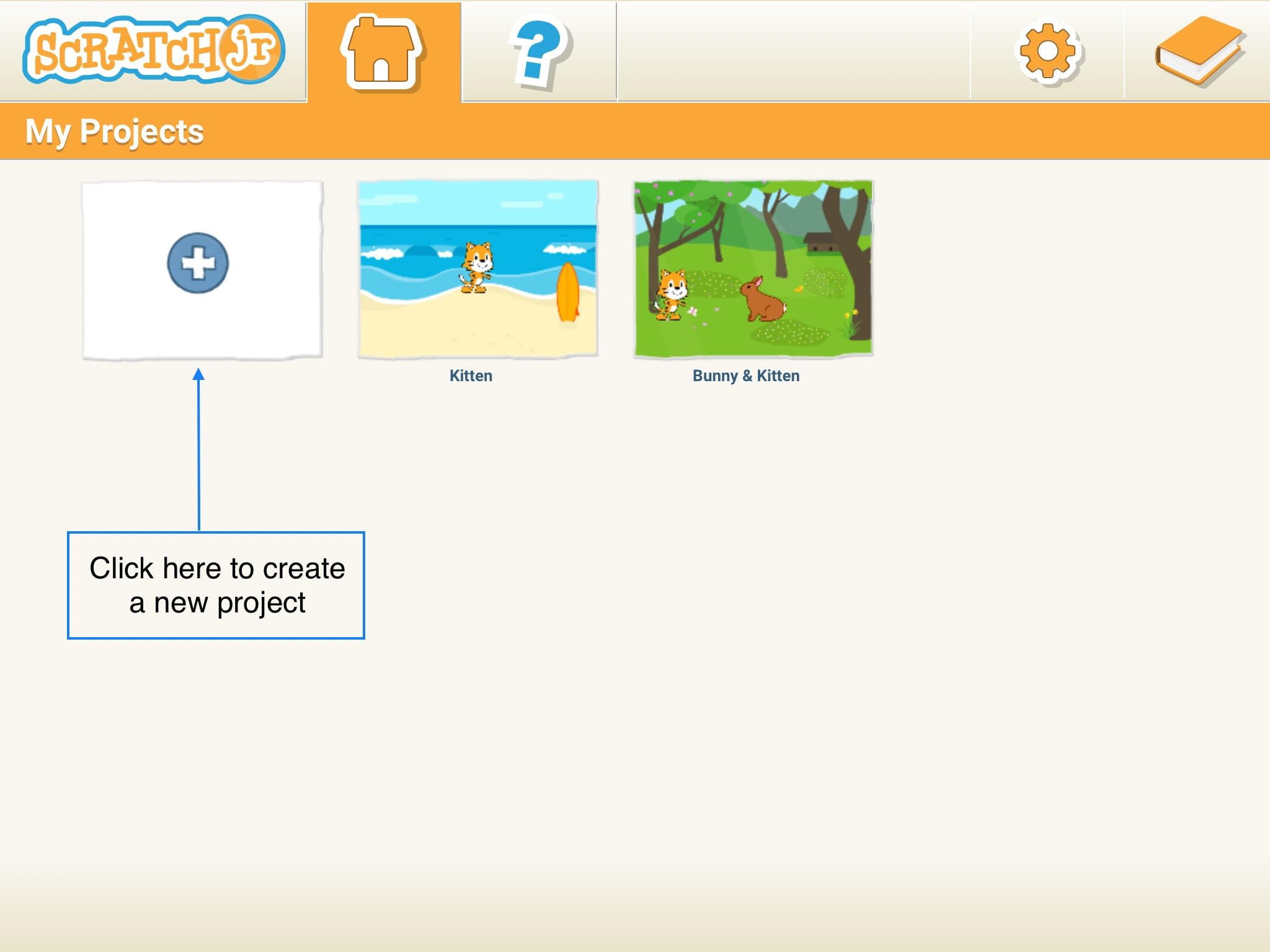
- Open the ScratchJr app.

- Click the plus sign to open a new project under “My Projects.”
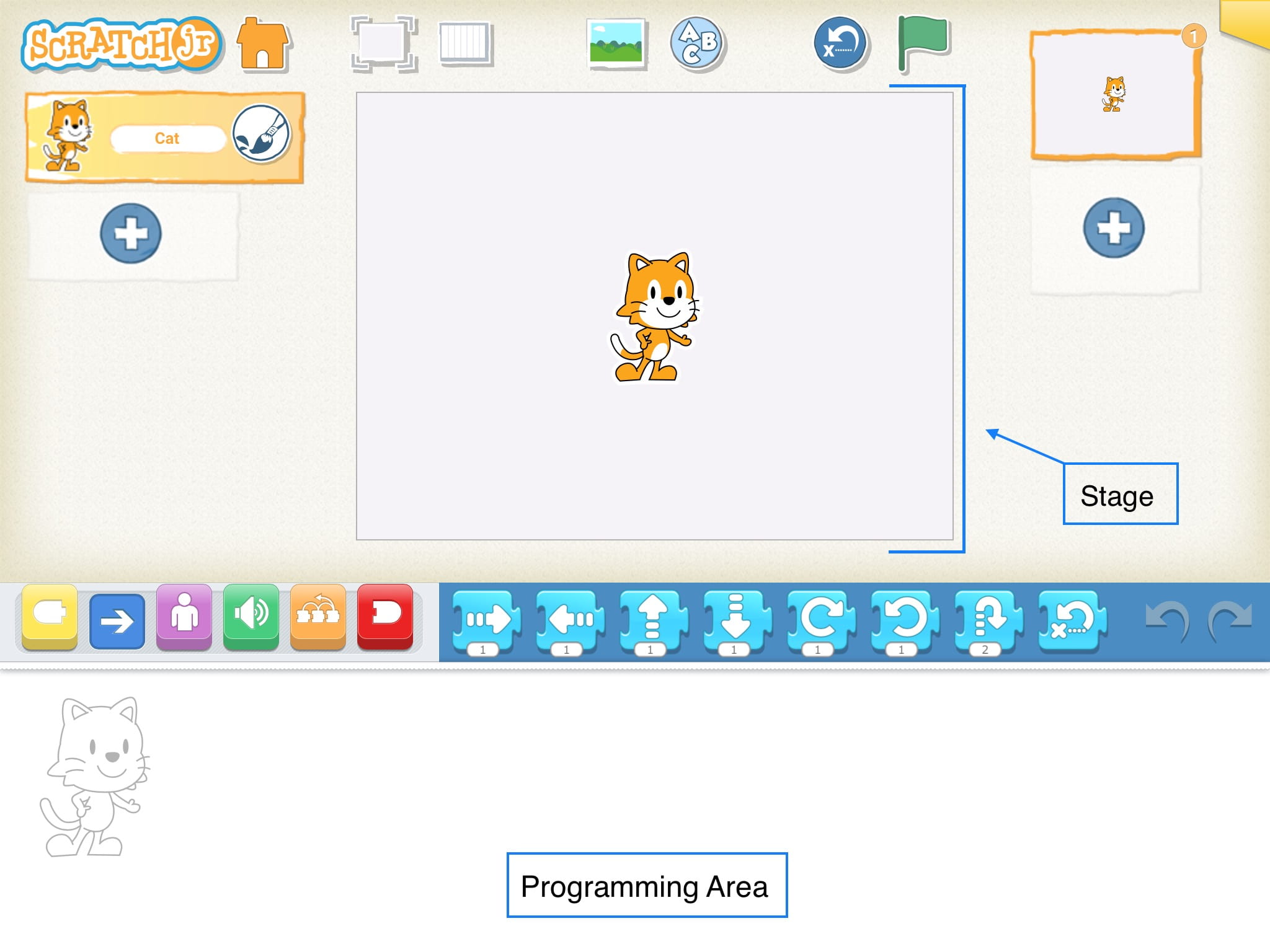
- Show children the Stage (where the action happens) and the Programming Area (where the character’s actions are stored in order).
ScratchJr Time
Structure Challenge
Explore ScratchJr (Suggested Time: 10 minutes)
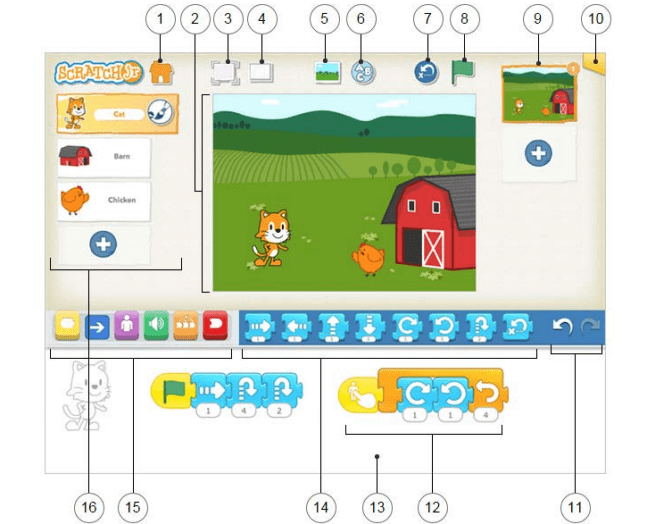
- Explore the platform with children as they discover parts of ScratchJr and introduce important vocabulary (stage, programming area, programming script, etc.). Use the ScratchJr Interface Guide below to point out key interface features.
Saving Projects (Suggested Time: 5 minutes)
- Show children how to save a project under a name using the steps below:
- Open the project you want to share.
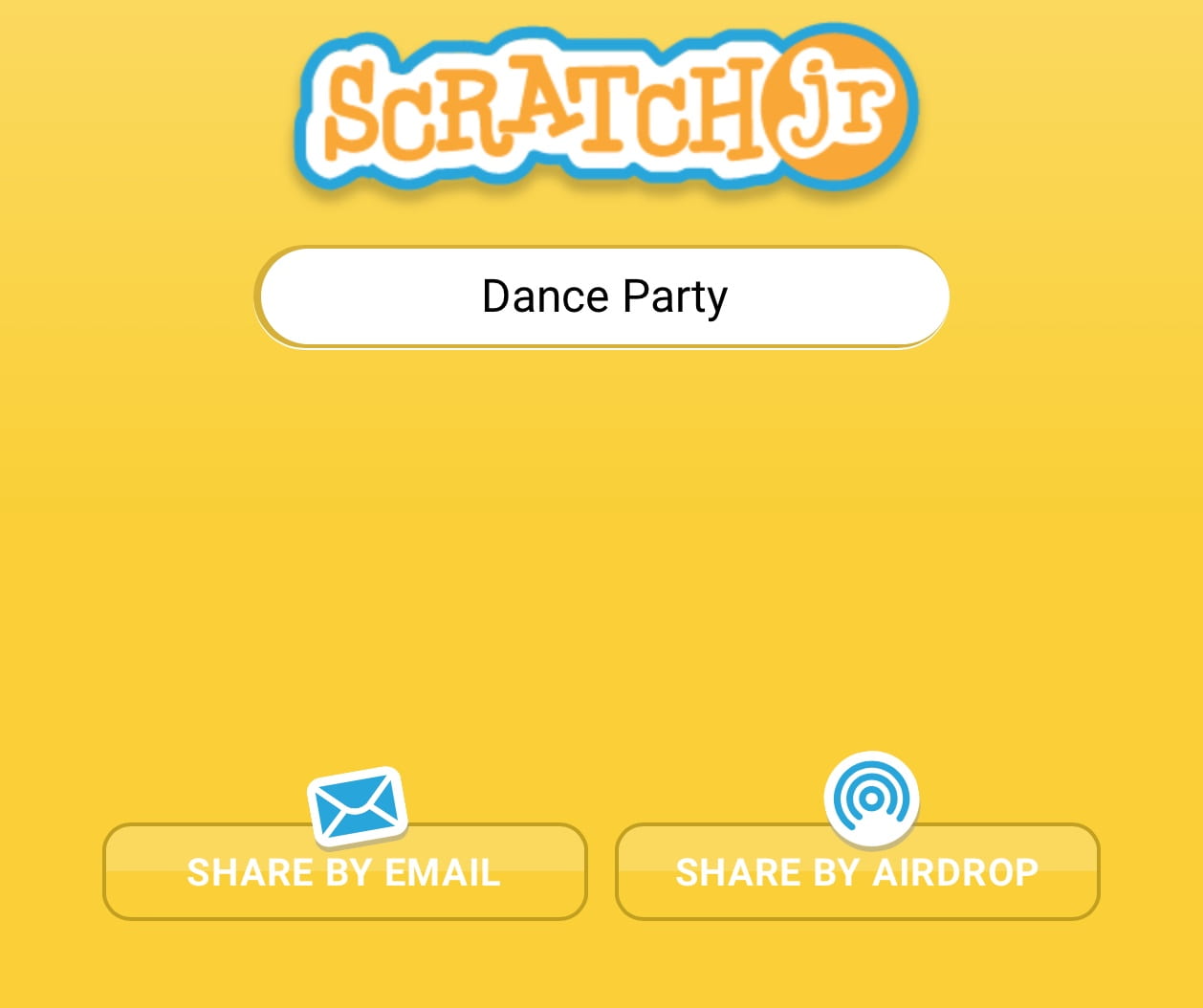
- Tap the yellow rectangle in the top right corner of the screen to see the Project Information Screen.
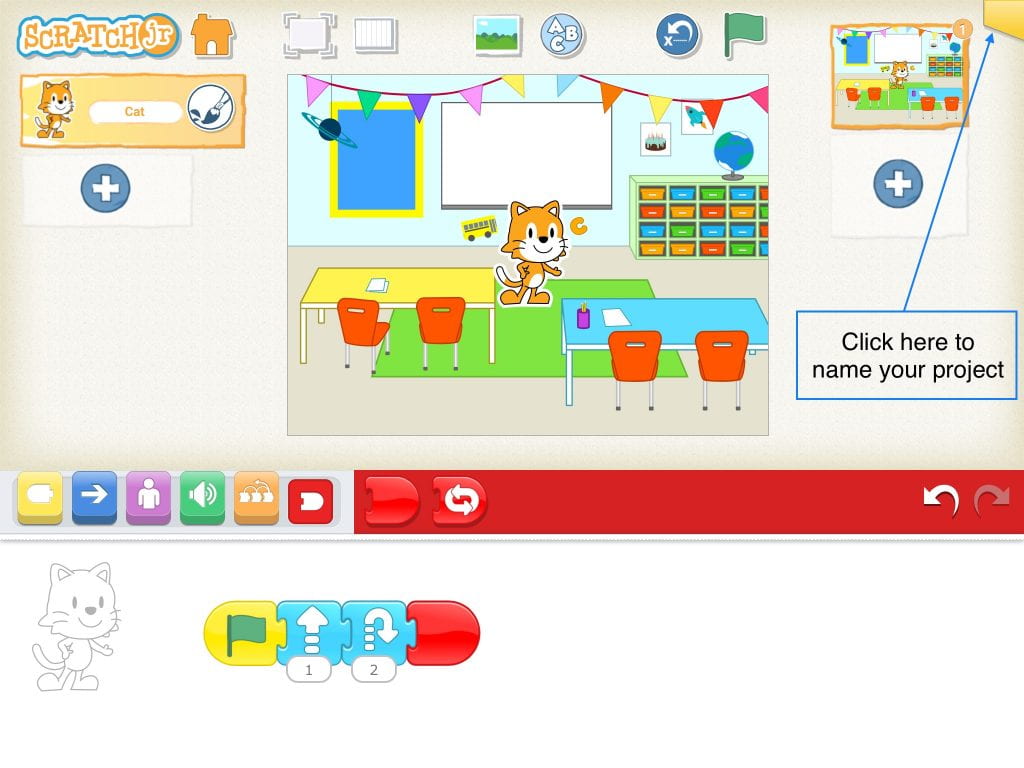
- Type a specific name for this project (e.g. “Dance Party”). If children are still developing their typing skills, you can invite them to type something simple like their own name, and you can rename the project when you receive it.
Expressive Explorations
Free Play (Suggested Time: 10 minutes)
- Individually, in pairs, or in small groups, children play around and explore the ScratchJr interface further.
- To promote fairness, remind children to practice taking turns sharing the device. Suggest children set a time limit for each partner (e.g., 5 minutes)
- Children practice saving their projects with their names.
Closing Tech Circle
Clean-Up Song (Suggested Time: 5-10 minutes)
- Introduce the tablet clean up song and explain how to store tablets safely in the classroom or virtually.
(sing to the tune of the Itsy Bitsy Spider)
We’re turning off our tablets and putting them away
We had so much fun but we’re finished for the day
We’re using both our hands and we walk instead of run
We put away our tablets and now the song is done
Opportunities for Differentiation
Virtual Learning
- Children may not be able to put away their tablet and remain in front of the camera. If staying at their seat, children are recommended to clap along to redirect attention to the lesson.
Anchor

Powerful Ideas of Computer Science
Representation
Powerful Ideas of Literacy
Alphabet and Letter-Sound Correspondence
Children will be able to:
- Define symbols as images that represent or mean something
- Use a touchscreen tablet to effectively tap, drag, and release blocks.
- Identify the Start, End and Motion Blocks in ScratchJr.
- Order the Start, End, and Motion Blocks to create programs in ScratchJr
- Create a new character in ScratchJr
Vocabulary covered:
- Symbol
- Programming block
- Character
Necessary Materials: Pictures of Signs, Scavenger Hunt, ScratchJr Block Cut Outs, Check for Understanding L4, Check for Understanding L4 Slides
Warm Up
Scavenger Hunt for Symbols (Suggested Time: 5 minutes)
- Show Pictures of Signs.
- Ask children if they know what each sign means?
- How do they know?
- Show a picture or two of a street and go on a Scavenger Hunt for symbols.
- Ask children to look around the picture and locate other signs on the street.
Opening Tech Circle
ScratchJr Symbols (Suggested Time: 10 minutes)
- Ask children “How do you know what ScratchJr blocks mean? What clues can you find about what they do?”
- Shapes: Pull up a Start block, an Motion block and an End block. Discuss the shapes of blocks and ask if the shapes mean anything?
- Colors: Discuss the significance of the block colors. Focus on the representation of color into groups. Explain that each color represents a certain type of block (e.g., blue = motion, green = sound, pink = looks)
- Symbols: What do the symbols tell us?
- Discuss the importance of the Green Flag and the End block. These blocks have specific purposes within the programming language. Start blocks are like capital letters at the beginning of a sentence, and End blocks are like periods. All the blocks in the middle are the words of your sentence!
Unplugged Time
Programmer Says (Suggested Time: 5 minutes)
- This activity is played like the traditional “Simon Says” game, in which children repeat an action if Simon says to do something. Use the ScratchJr Block Cut Outs for this activity to focus on step by step instructions and order matters.
- Briefly introduce each programming instruction and what it means (use only the blocks listed in the Teacher Preparation section for this lesson).
- Have the class stand up. Hold up one big ScratchJr Block Cut Out at a time and say, “Programmer says _________.” Each instruction should be included more than once.
- Optional expansion 1: Children take turns as the “Programmer” and give instructions to their peers.
- Optional expansion 2: Include start and end blocks to each instruction, so each instruction will be “Programmer says __________,” with a full program.
ScratchJr Time
Structure Challenge
How to Make a Program? (Suggested Time: 10 minutes)
- Show simple motion blocks to the class and introduce how to make a program in ScratchJr using the steps below:
- Drag blocks into the programming area and tap on them to show how Cat moves. Some important motion blocks are left, right, up, down, rotate left/right, and jump.
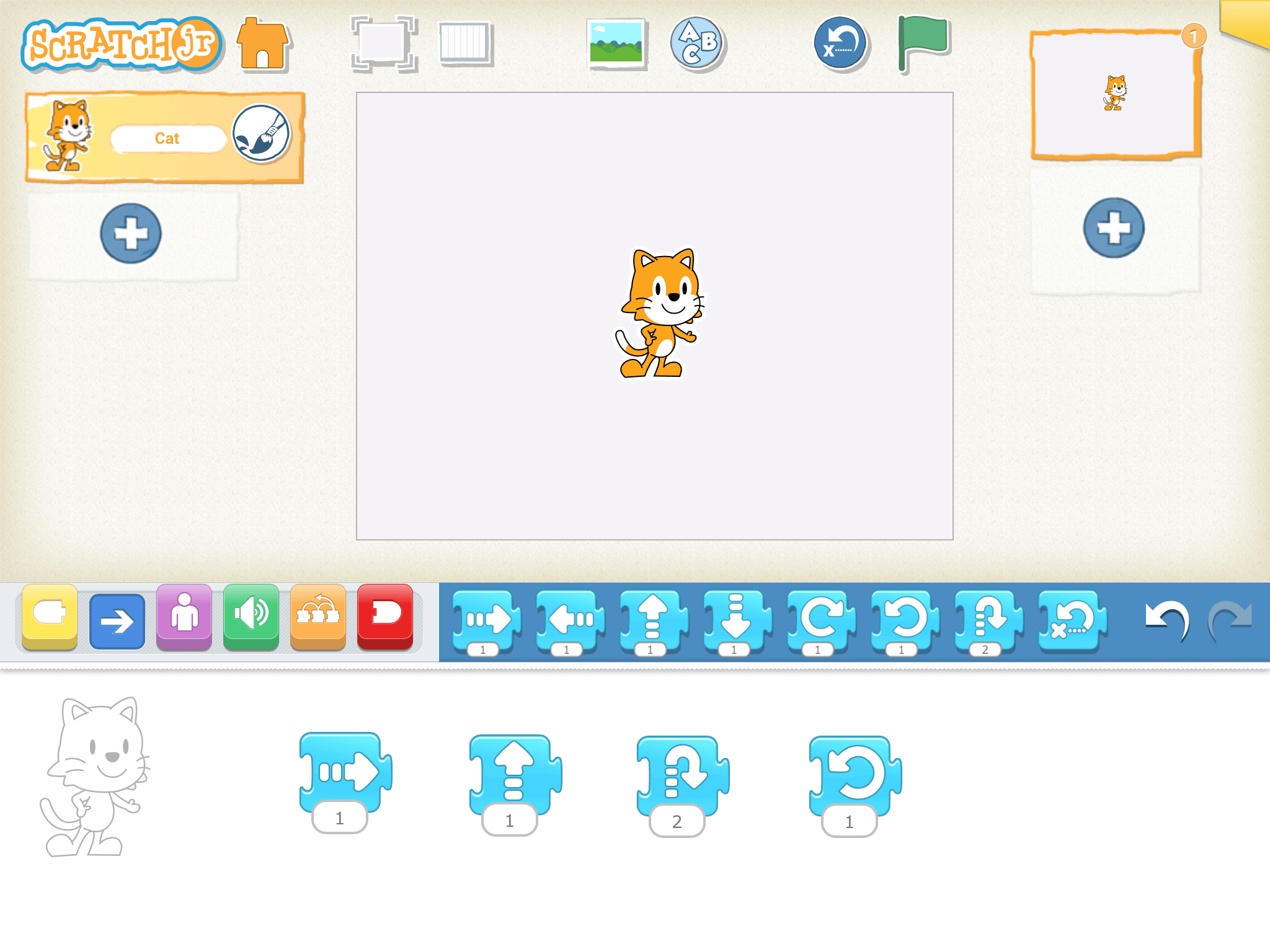
- Show how to snap blocks together to make a sequence of movements.
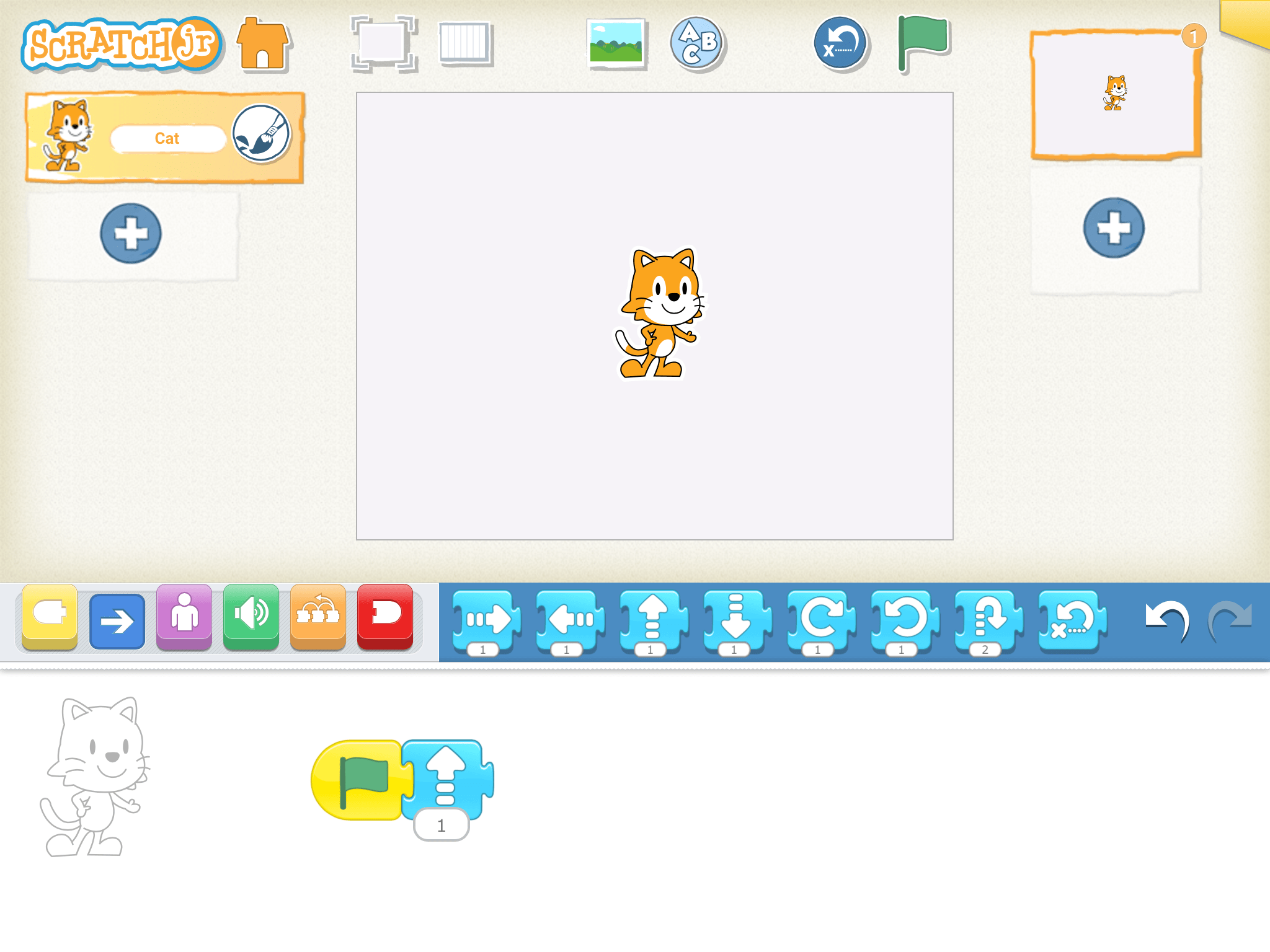
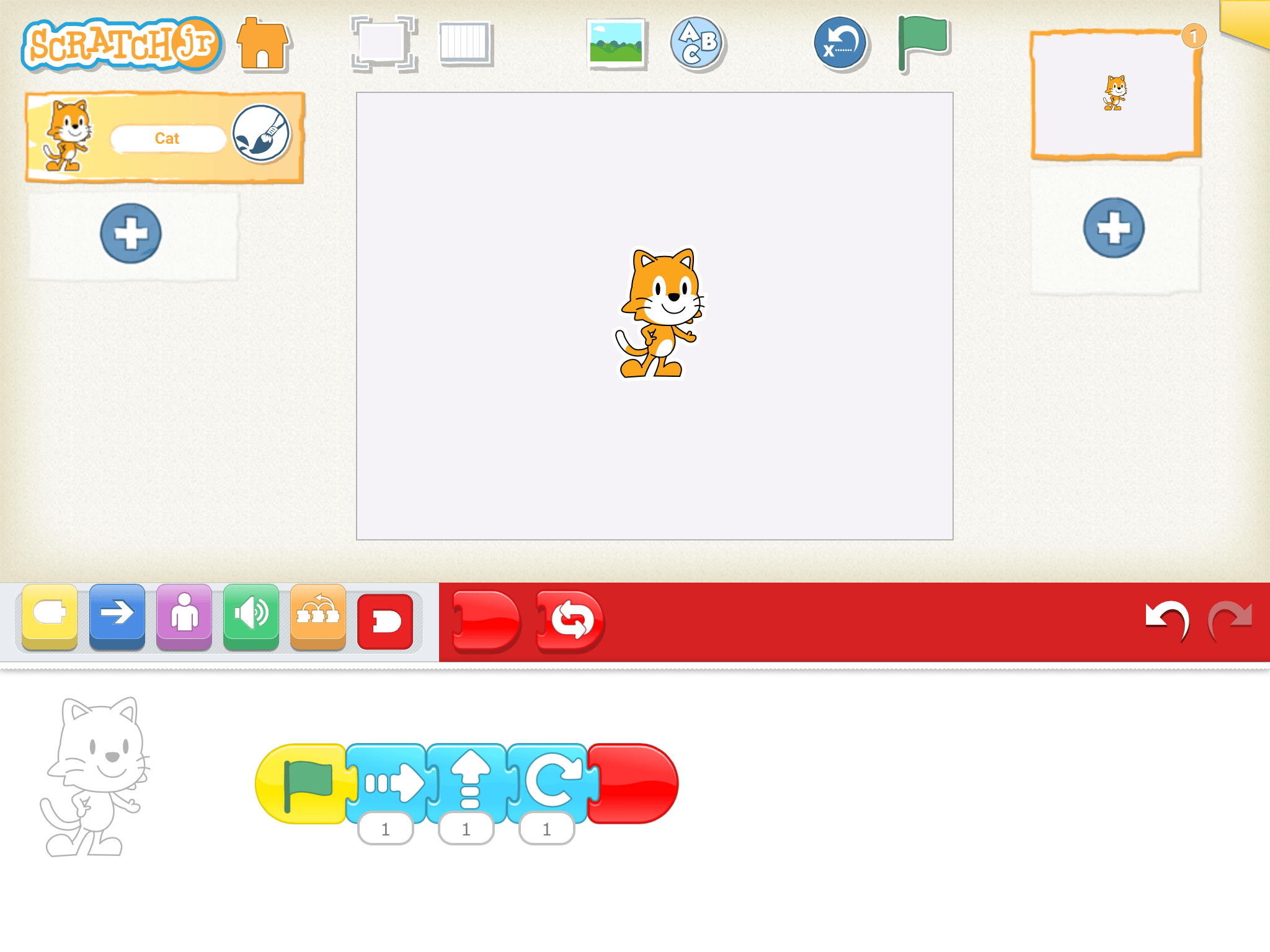
- Demonstrate how to create a program using Start and End blocks that runs by clicking the Green Flag. Note that Start and End blocks are necessary when using presentation mode or when running a program with multiple parts (so they start simultaneously).
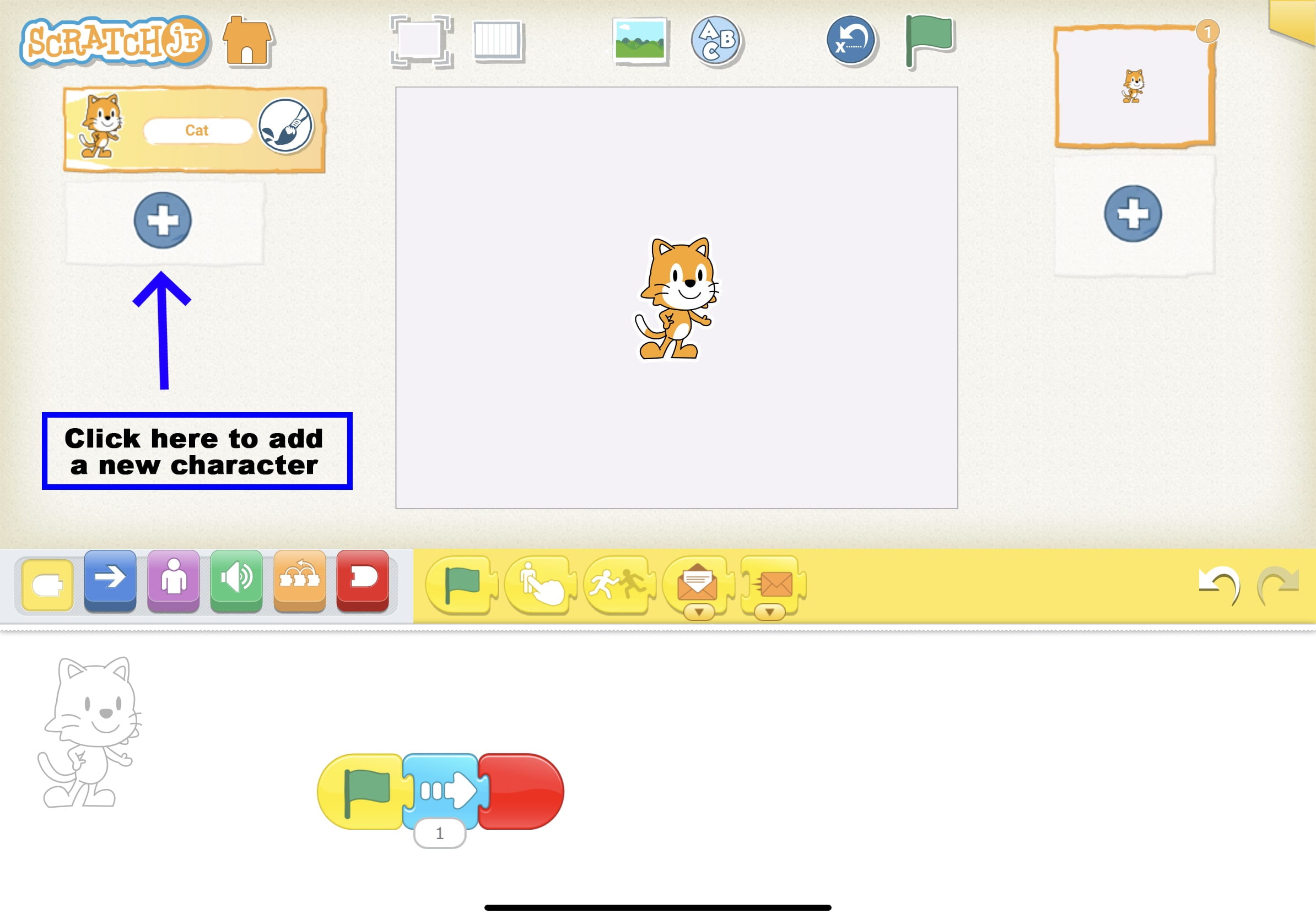
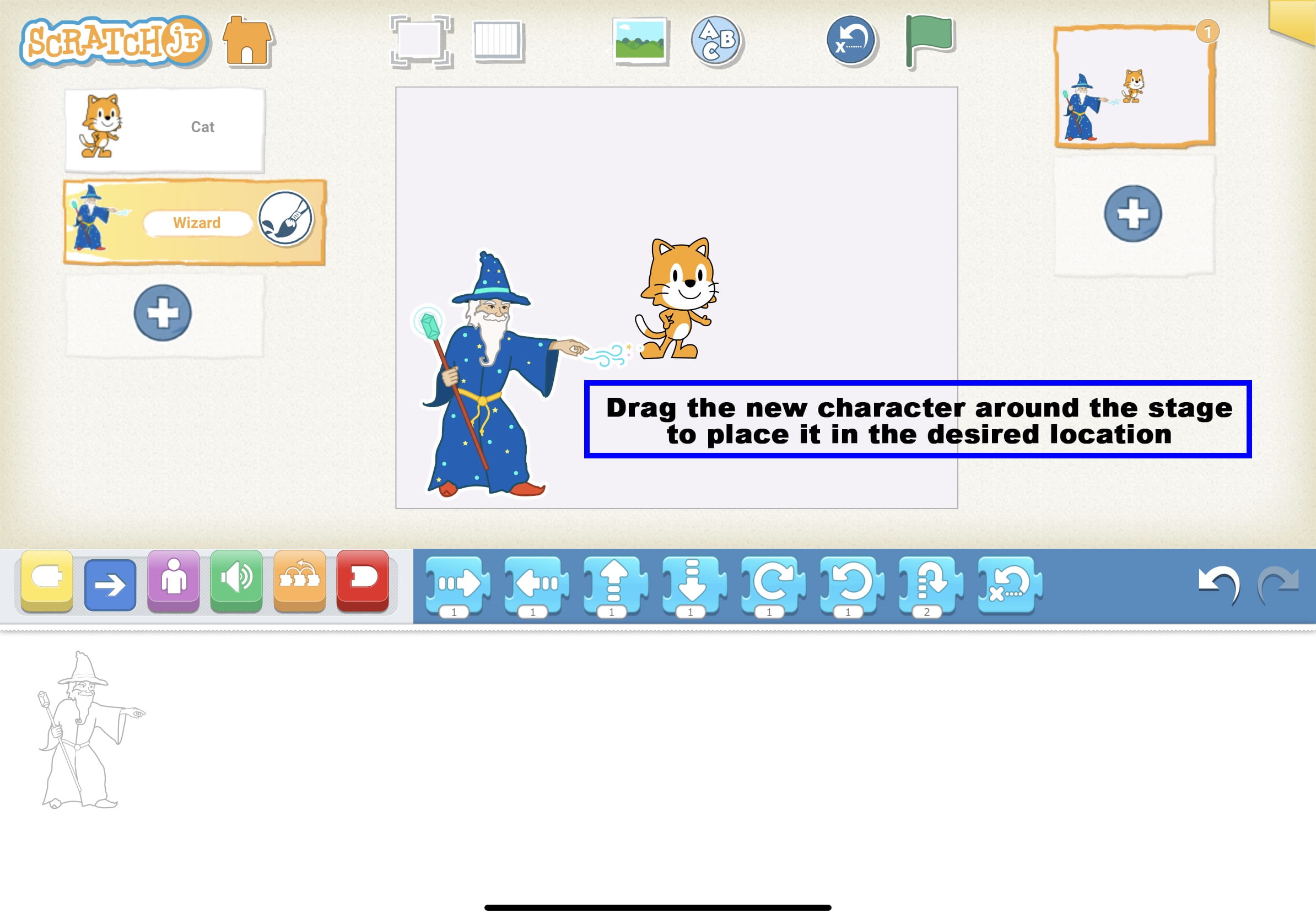
- Next, show children how to add a new character using the steps below:
- Tap on plus sign to the left side of the screen.
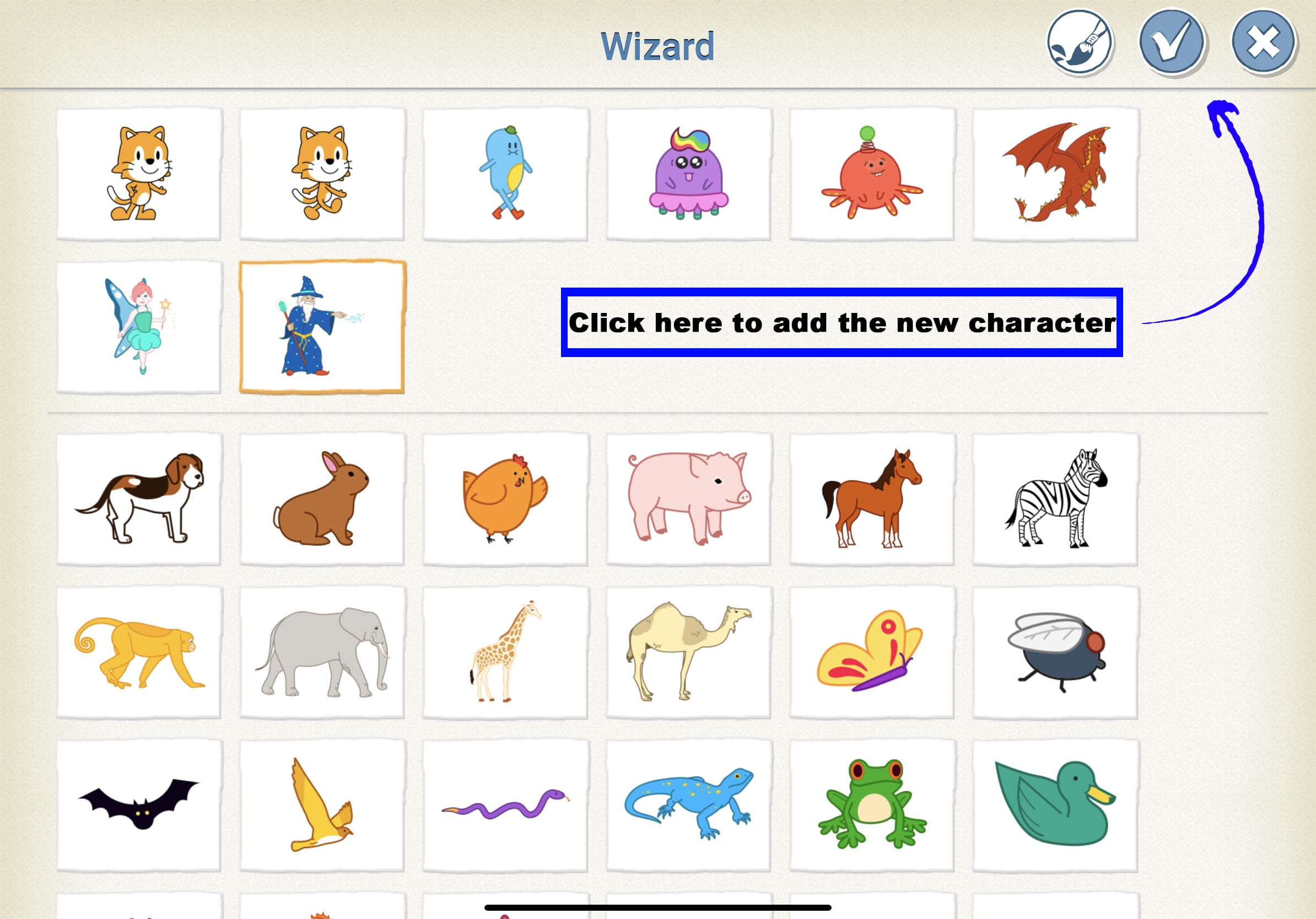
- Select the desired character and tap the check mark to continue.
- Drag it around the stage area to place it in desired location.
- To remove a character, press and hold your finger on the box with the character’s name on it. A red “x” will appear at the top of the character box.
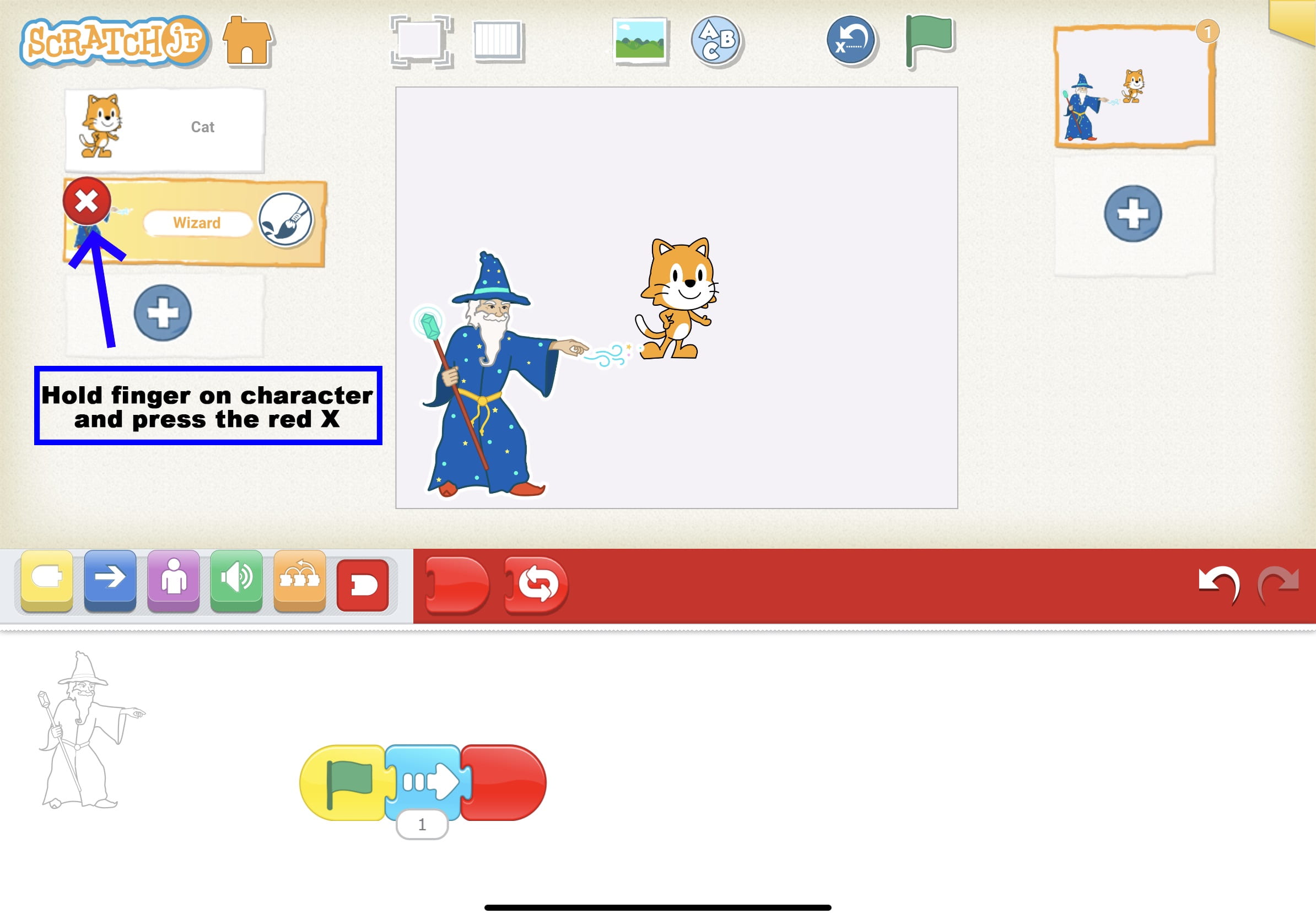
Lesson 4 Check for Understanding: Before starting a project, check your children’s understanding of the new concepts they’ve just learned. Read each question to the children and have the children respond with a thumbs up for “yes” or a thumbs down for “no.” Stop and re-explain concepts as needed.
Expressive Explorations
Cat Dance! (Suggested Time: 10 minutes)
- Tell children they will use all the motion blocks to program Cat dancing!
- Children will create a program using blocks learned so far (Start block, Motion blocks, End block).
- If children have already used ScratchJr, allow them to program a different character, add other blocks, or help other friends in need with their programs.
Closing Tech Circle
Learning Cat’s Dance (Suggested Time: 5 minutes)
- Ask for volunteers to share their projects.
- Have the other children give compliments about the project being shared.
- If they programmed another character, ask them why they chose that one and ask them to show what blocks they used.
- Discuss sharing procedures – (e.g., listening while others present their programs).
- When sharing projects, remind children to show the class their code and their work
Opportunities for Differentiation
Extra Challenge
- For children that need more of a challenge, give them the following prompts:
- Add another character to Cat’s dance party.
- Can you make them do the same dance?
- Can you make them do different dances?
Virtual Learning
- For sharing projects, have children hold tablet in front of screen or utilize screen sharing if working on a Chromebook
Anchor



Powerful Ideas of Computer Science
Algorithms, Design Process
Powerful Ideas of Literacy
Sequencing, Phonological Awareness
Children will be able to:
- Use the Grid in ScratchJr
- Brainstorm and plan for a program
- Create a program in ScratchJr to accompany a dance
- Change parameters in ScratchJr
Vocabulary covered:
- Grid
- Brainstorm
- Parameter
Necessary Materials: Hokey-Pokey, Hokey-Pokey Anchor Chart, ScratchJr Block Cut Outs , Hokey-Pokey Planning Sheet (optional)
Warm Up
Dance the Hokey-Pokey (Suggested Time: 5 minutes)
- Explain to children that today they will create a program in ScratchJr to do the Hokey-Pokey. Sing and dance the Hokey-Pokey (0-1:42) as a class to make sure everyone knows and remembers it.
Word Time
Read Aloud the Hokey-Pokey (Suggested Time: 5 minutes)
- Children read/sing together the written Hokey-Pokey using the anchor chart and introduce the ScratchJr part at the end (1:42-2:00).
You put your right hand out,
You put your right hand in,
And you shake it all about,
You do the Hokey-Pokey and you turn yourself around
That’s what it’s all about. (Clap, clap!)
2) left hand
3) right foot
4) left foot
5) head
6) whole self
Now, we’re going to dance with our Cat!
You put your Scratch Cat in, you put your Scratch Cat out,
You put your Scratch Cat in, and you shake it all about.
You do the Hokey-Pokey, and you turn your Cat around.
And that’s what it’s all about. (Clap, clap.)
Opening Tech Circle
Hokey-Pokey on ScratchJr (Suggested Time: 5-10 minutes)
- Point to the written Hokey-Pokey to guide your discussion with the children.
- Discuss how you can translate the movements into ScratchJr blocks.
- Show ScratchJr Block Cut Outs to help brainstorm the many different movements children could use to program the Hokey-Pokey
- Ask the children what they might do for the line “do the Hokey-Pokey,” it could be anything they want!
ScratchJr Time
Structure Challenge
The Grid Tool (Suggested Time: 5 minutes)
- ScratchJr has many different tools to help create and modify your projects. Introduce the Grid Tool to guide children with the number of ScratchJr steps Kitten takes while dancing the Hokey-Pokey.
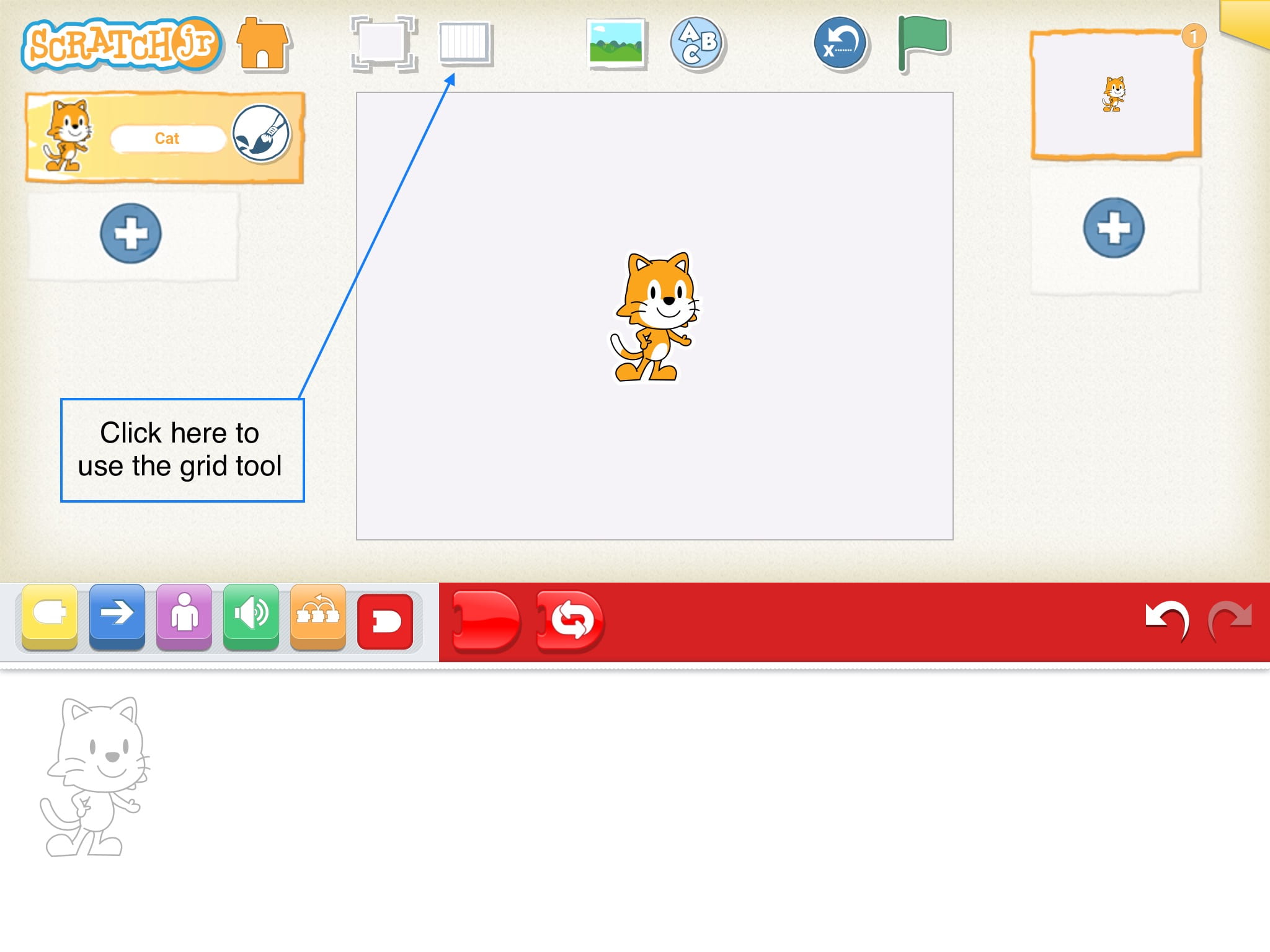
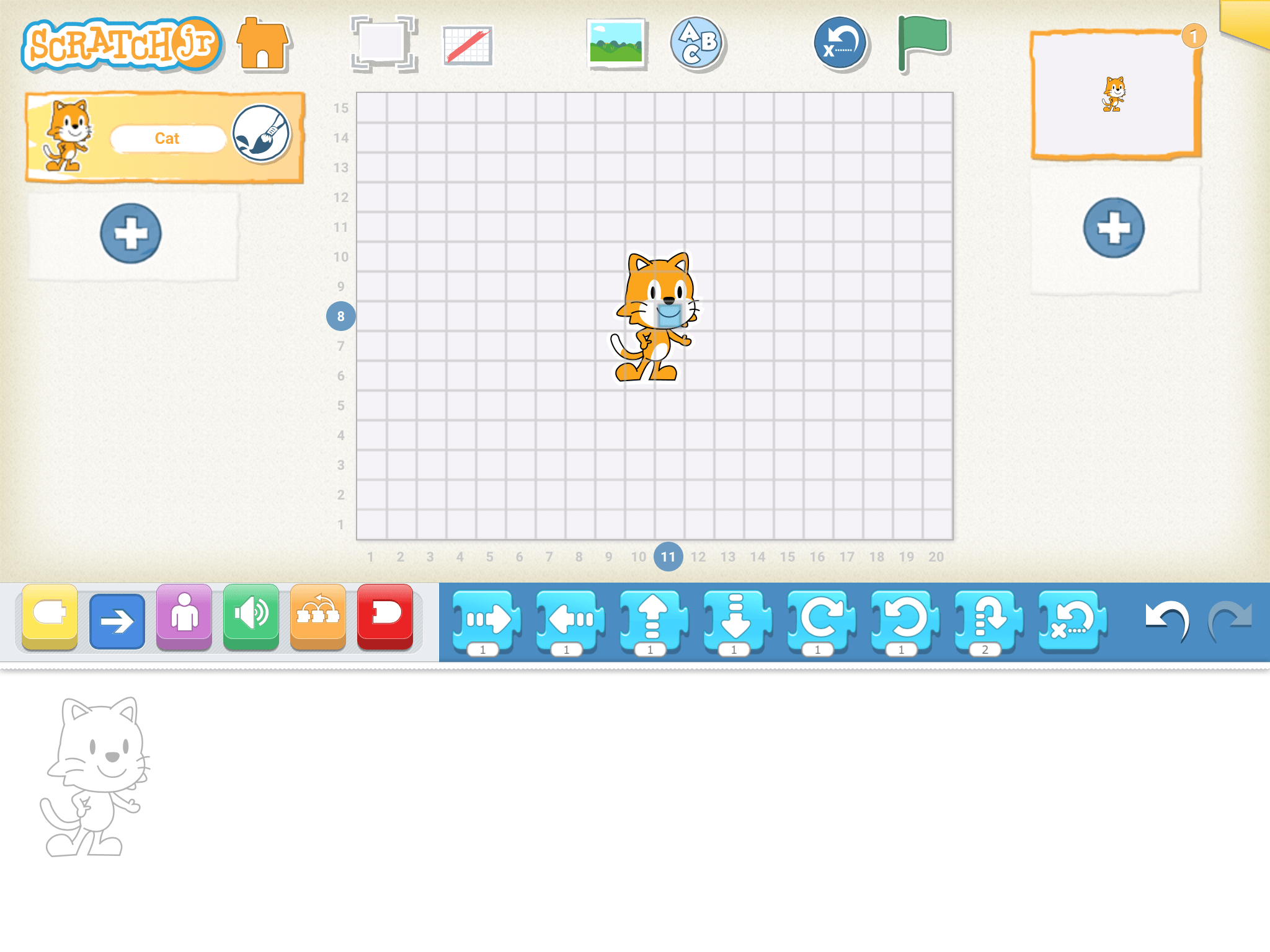
- To remove the grid tool, click on the same icon again
What is a Parameter? (Suggested Time: 10 minutes)
- Explain what a parameter..
- Tells a computer how many times to do that action
- Ask children why parameters are useful…
- Allow students to share their thoughts before explaining that parameters make our code more efficient (e.g., instead of having 12 turn blocks, we can just change the parameter on one turn block to the number 12)
- Ask students to explain how they think parameters work in ScratchJr
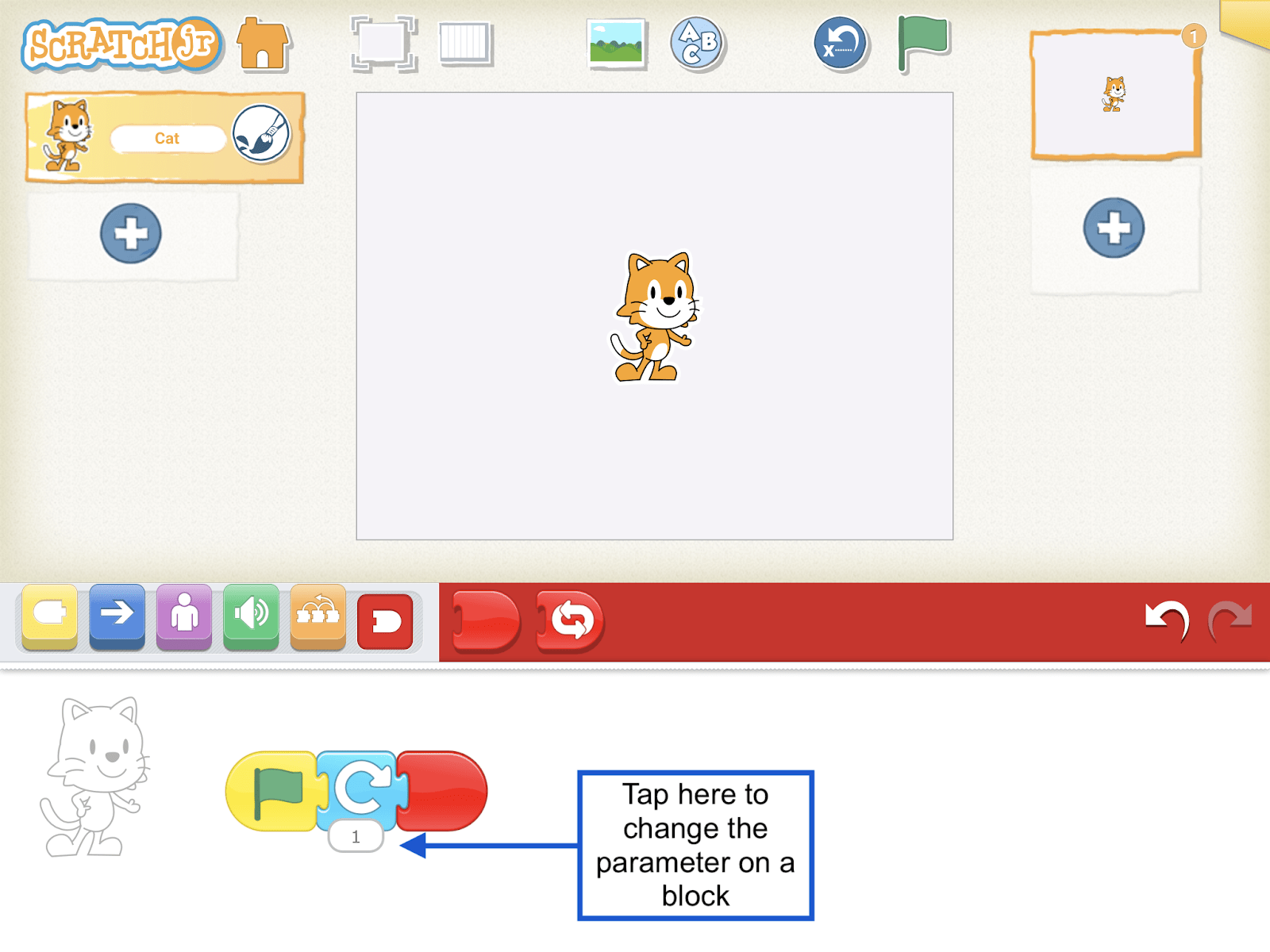
- Demonstrate to students how parameters work using the steps below:
- Select the block you wish to change the parameter on. Tap on the bubble with a number to use the keypad to change the number.
- The keyboard will appear on the right side of the screen.
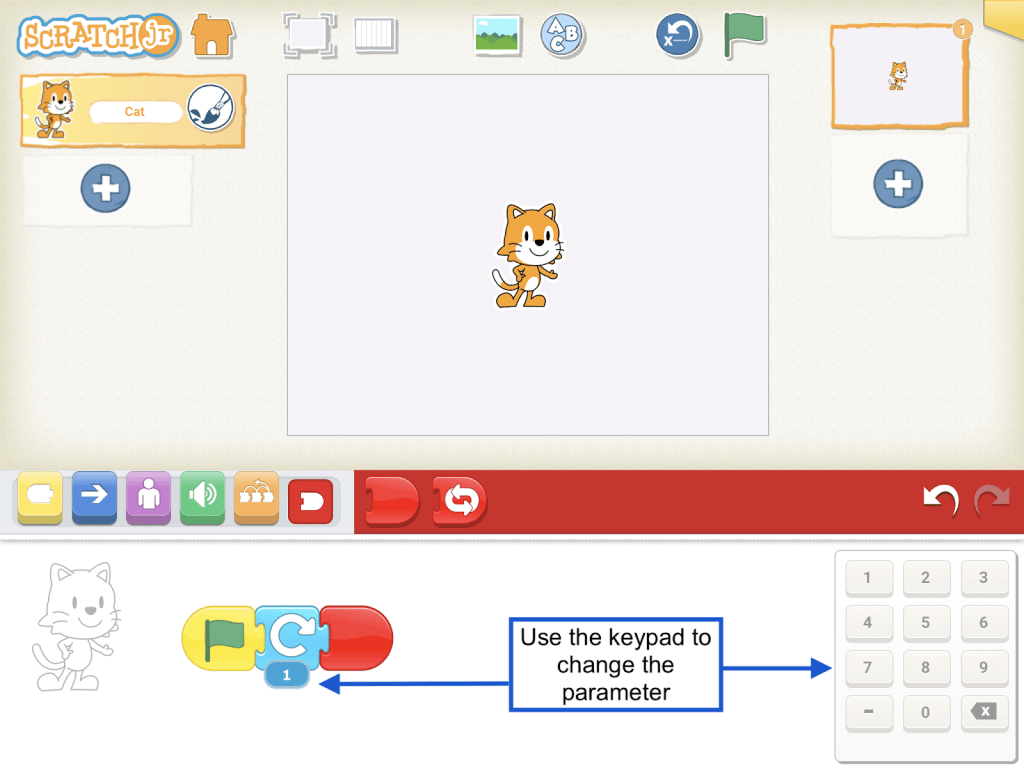
- Use the keyboard to change the parameter (max two-digit number).
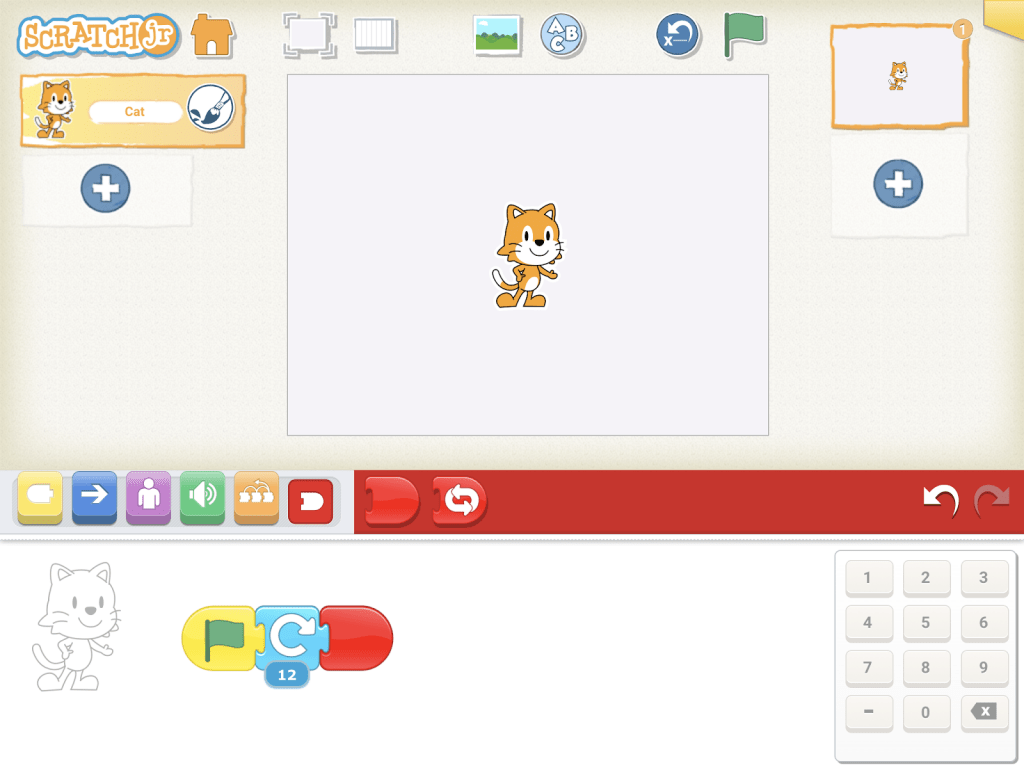
- Once you’ve entered the new parameter, tap anywhere on the screen and the key will disappear.
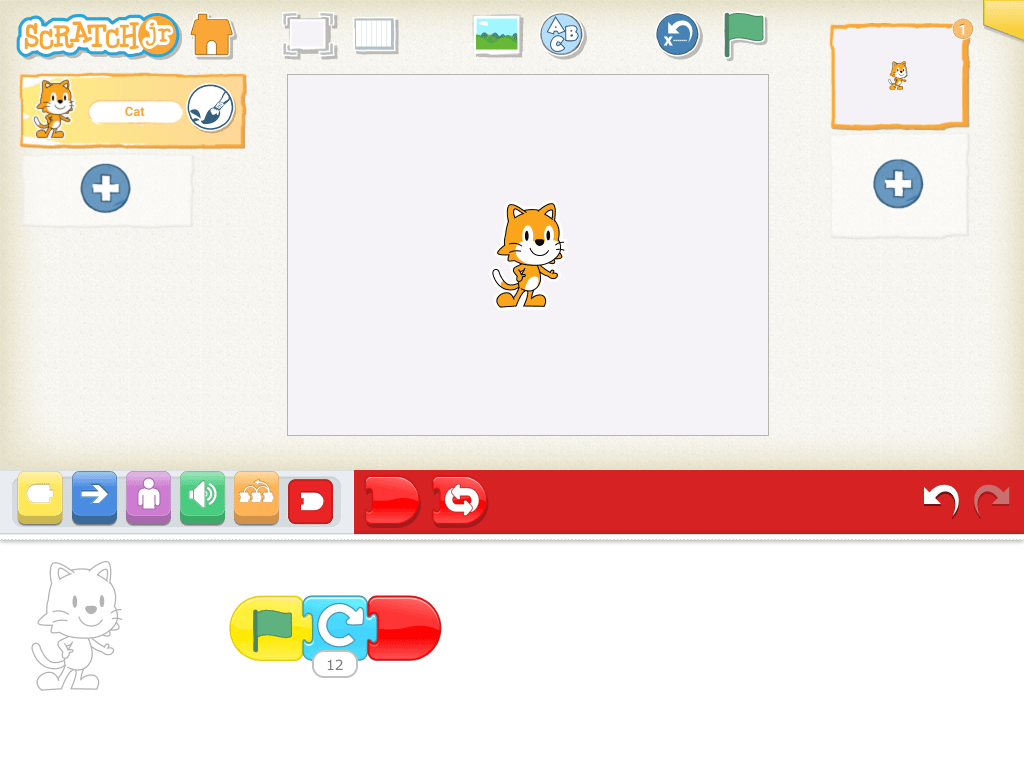
- Now bring it back to the Hokey-Pokey! Ask children – How might you show the “turn yourself around” part of the song? Using the Cut-Out blocks, allow them to collaboratively create a code for this part of the song.
Expressive Explorations
- Program the Hokey-Pokey (Suggested Time: 10 minutes)
- Take out tablets and remind children of any rules or procedures. Tell children that we are going to be programming Cat in ScratchJr to do the Hokey-Pokey. Have several children share their strategies for programming. Children will program Cat to do the Hokey-Pokey. Tell children they will also get to work on their programs next class, so it is okay if they aren’t done.
- Ask children to try out different parameters to see what happens with the character’s dance and the music. The number they put in was enough? Do they need to edit it?
Closing Tech Circle
Share Creations (Suggested Time: 5-10 minutes)
- Pair-Share-Ask: Pair children and ask them to share their Hokey Pokey programs. Encourage them to ask questions about their partner’s program.
- Children share how they represented “shake” in their program.
- Discuss that there are multiple ways to express the same thing. Encourage children to identify some differences in their programs.
Opportunities for Differentiation
Additional Activities
- Play a short game where the children can explore how the grid tool works. Have children program their Cat to move 1 space then 2 spaces and so on…
Anchor

Powerful Ideas of Computer Science
Algorithms, Design Process
Powerful Ideas of Literacy
Sequencing, Phonological Awareness, Editing and Audience Awareness
Children will be able to:
- Use the Repeat Forever block in ScratchJr
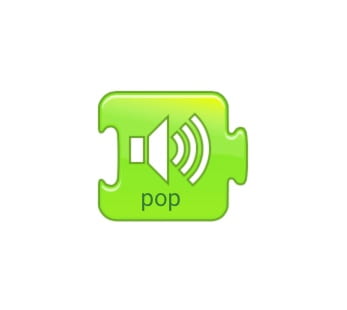
- Use the Pop Block in ScratchJr
Vocabulary covered:
- Revise
Necessary Materials: Hokey-Pokey Anchor Chart, Hokey-Pokey
Warm Up
Dance the Hokey-Pokey (Suggested Time: 5 minutes)
- Sing and dance the Hokey-Pokey again as a class to make sure everyone knows and remembers it.
You put your right hand in,
You put your right hand out,
You put your right hand in,
And you shake it all about,
You do the Hokey-Pokey and you turn yourself around
That’s what it’s all about. (clap, clap!)
2) left hand
3) right foot
4) left foot
5) head
6) whole self
Now, we’re going to dance with our Cat!
You put your Scratch Cat in, you put your Scratch Cat out,
You put your Scratch Cat in, and you shake it all about.
You do the Hokey-Pokey, and you turn your Cat around.
And that’s what it’s all about. (Clap, clap.)
Opening Tech Circle
Adding to the Hokey-Pokey (Suggested Time: 5 minutes)
- Explain to the children that they will be revising their Hokey-Pokey programs by adding more blocks and finishing their programs.
ScratchJr Time
Structure Challenge
Introduce the Pop Block (Suggested Time: 5 minutes)
- Tell the children that this new block could be a fun thing to add when Cat “does the Hokey-Pokey.” Demonstrate that by adding the Pop block into a character’s code a “pop” noise will happen. If you don’t hear a “pop” sound when running your character’s code then check the volume on your device!
Introduce the Repeat Forever Block (Suggested Time: 5 minutes)
- Tell children they can use a new block to make Cat dance the Hokey-Pokey Forever! Demonstrate that by adding the Repeat Forever block to the end of a character’s code will have that character run the code continuously.

Expressive Explorations
Re-code the Hokey-Pokey (Suggested Time: 15 minutes)
- Take out tablets and remind children of any rules or procedures.
- Children can continue programming their Hokey-Pokey. Encourage children to incorporate the Pop and Repeat blocks in their programs.
- Optional prompts: To practice changing the parameters, try these prompts:
- If we sing the Hokey-Pokey really slowly then how many steps would you need the Cat to do?
- If we sing the Hokey-Pokey really fast then how many steps would you need the Cat to do?
Closing Tech Circle
Share Creations (Suggested Time: 10 minutes)
- Call out 2 or 3 children to share their revised projects..
- Children explain how they changed or improved their programs.
- Review sharing procedures.
- E.g., listening while others are presenting
- Use guiding questions:
- In what ways do you think you made your program better?
- Did you add any new blocks? If so, what were they?
Example Projects
Example Projects
Here is a brief selection of example projects. We’ve included examples from first graders, college students, and adults to show the range of possibilities that this project offers.
Anchor

Powerful Ideas of Computer Science
Algorithms, Design Process
Powerful Ideas of Literacy
Writing Process, Sequencing
Children will be able to:
- Identify steps of the Design Process and apply them in a real-life scenario
- Compare and contrast the Design Process and Writing Process (e.g., starting with an idea and revise until there is a final shareable project)
- Identify the beginning, middle and end of a story
Vocabulary covered:
- Design Process
- Ask
- Imagine
- Plan
- Create
- Test
- Improve
- Share
- Cycle
Necessary Materials: Anchor Chart for Design Process
Warm Up
Design Process Song (Suggested Time: 5 minutes)
- Introduce that today children will be learning about the design process, but first they’ll learn the Design Process song. Display the Design Process Anchor Chart while playing the song for the children to listen to. Play the Design Process song a second time and invite the children to sing along!
(to the tune of “Twinkle, Twinkle”)
Ask and imagine, plan and create,
Opening Tech Circle
The Design Process (Suggested Time: 10 minutes)
- Explain the Design Process using the Design Process Anchor Chart.
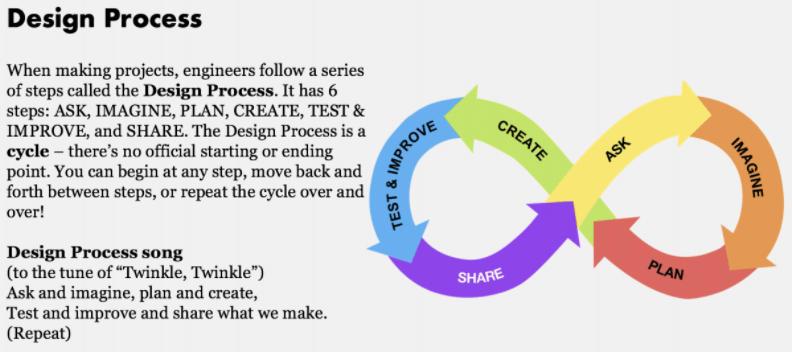
- Walk through the Design Process from the Hokey-Pokey project last class
- Ask: How to make the dance on ScratchJr?
- Imagine: Brainstormed movements like shake, turn and “hokey-pokey”
- Plan: Decided on the parameters needed
- Create: Made the program
- Test and Improve: Added in parameters! Were the parameters right? Do they work with the speed of the song?
- Share: We shared at the end of class!
Unplugged Time
Your Own Design Process (Suggested Time: 25 minutes)
- Explain that the Design Process isn’t just for ScratchJr, it’s for making anything! Today they are going to get to choose what they design using the Design Process!
- Ask: Give the children a prompt of how to make something. This can be a good opportunity to connect to other classroom topics/themes that have opportunities for crafts (example: if the classroom is studying butterflies, ask the question: How could we make a butterfly out of recycled materials?)
- Imagine: Break into small groups to brainstorm ideas for their projects
- Plan: Children think of ideas with their small group
- Create: Give children time to use craft and recycled materials to make their creation!
- Test and Improve: Pause and ask children to evaluate if their creations are following their plan? Are there any changes they want to make now that they’ve started actually making their project?
- Share: Go around and share creations as a class.
Closing Tech Circle
It’s a Cycle! (Suggested Time: 5 minutes)
- Ask the children if seeing everyone’s projects, and working on their own projects, gave them any ideas of new things they want to make!
- Remind the children that the Design Process is a cycle. Sharing just leads to more asking and more creating and then more sharing!
Opportunities for Differentiation
Virtual Learning
- Inform parents ahead of time that children will need craft supplies for this lesson.
Anchor

Powerful Ideas of Computer Science
Design Process
Powerful Ideas of Literacy
Writing Process
Children will be able to:
- Identify similarities between writing and programming
- Identify the characters in a story.
- Design a new character in ScratchJr
- Use the text tool in ScratchJr to add text to a project
Vocabulary covered:
- Title
- Author
Necessary Materials: Anchor Chart for Design Process, Ada Byron Lovelace and the Thinking Machine Read Along Ada Lovelace Vocabulary list
Warm Up
Design Process Song (Suggested time: 5 minutes)
- Display the Anchor Chart for Design Process on the screen again and sing the Design Process song!
(to the tune of “Twinkle, Twinkle”)
Ask and imagine, plan and create,
Opening Tech Circle
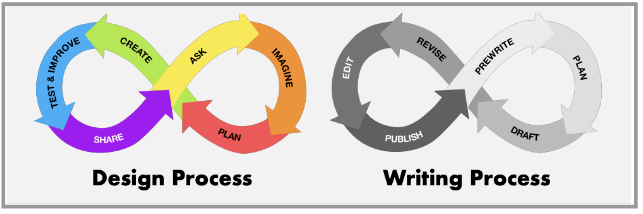
Design Process and Writing Process (Suggested time: 10 minutes)
- Discuss how authors go through a similar process with their writing.
- Show children the Design Process and the Writing Process anchor chart. Explain to children that both are creative processes that require imagination, planning, creating, revising, feedback, and sharing. Both programmers and writers turn ideas into projects that are shared with others. Ask children what other activities require a process (e.g., cooking, painting, getting better at a sport, etc.).
- Discuss what is the same and different between programmers and authors. Writing Process: Just as programmers use the Design Process to design and create projects, writers use the Writing Process to brainstorm ideas, write a draft, make revisions, and share their writing with others. The Writing Process is also a cycle – there’s no official starting or ending point, and you can move back and forth between steps!
Word Time
Read Ada Byron Lovelace & the Thinking Machine (English) (Suggested Time: 10 minutes)
- Use this vocabulary list for quick explanations of vocabulary.
- Pause at various points during the book for comprehension checks.
ScratchJr Time
Structure Challenge
The Paint Editor Tool (Suggested Time: 5 minutes)
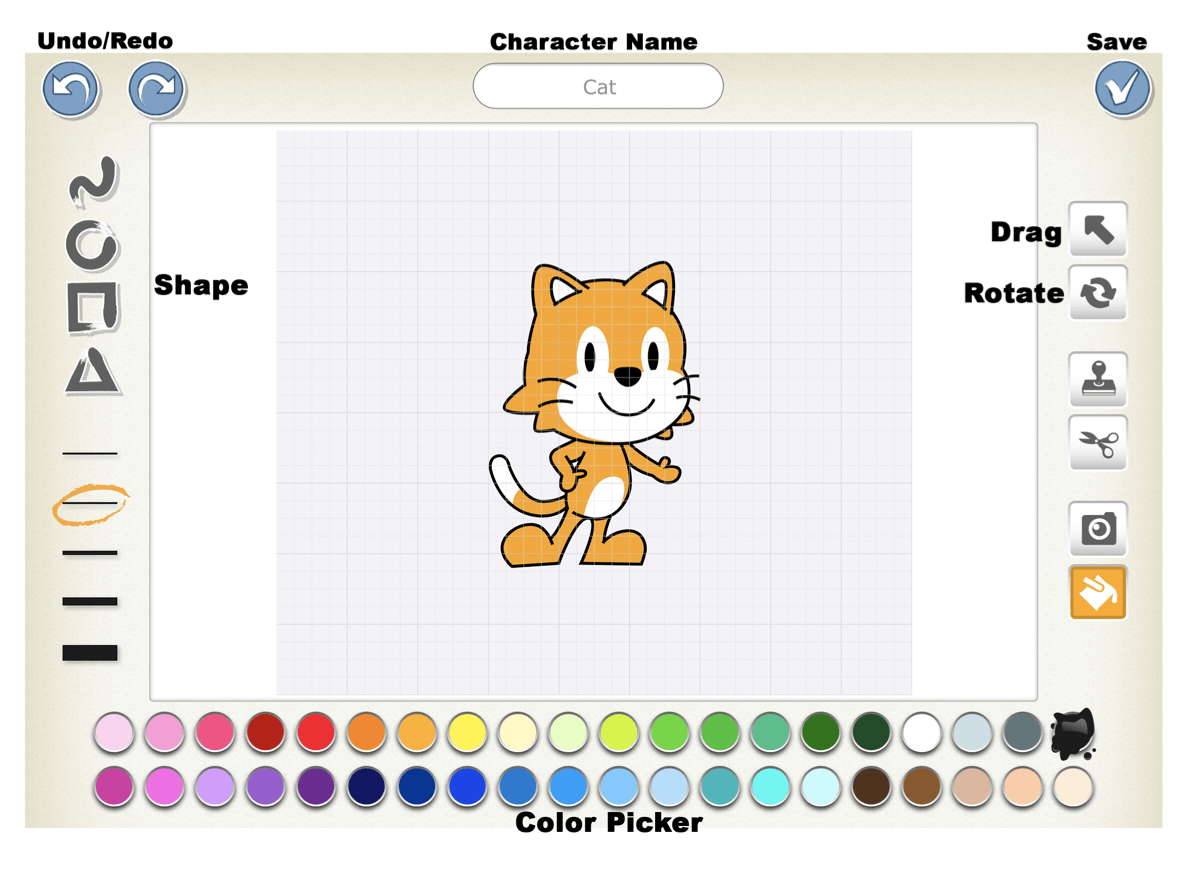
- Tell children that now they will make their own Ada in ScratchJr! Introduce the Paint Editor tool, using the following steps below:
- Tap on the plus sign to add a character.
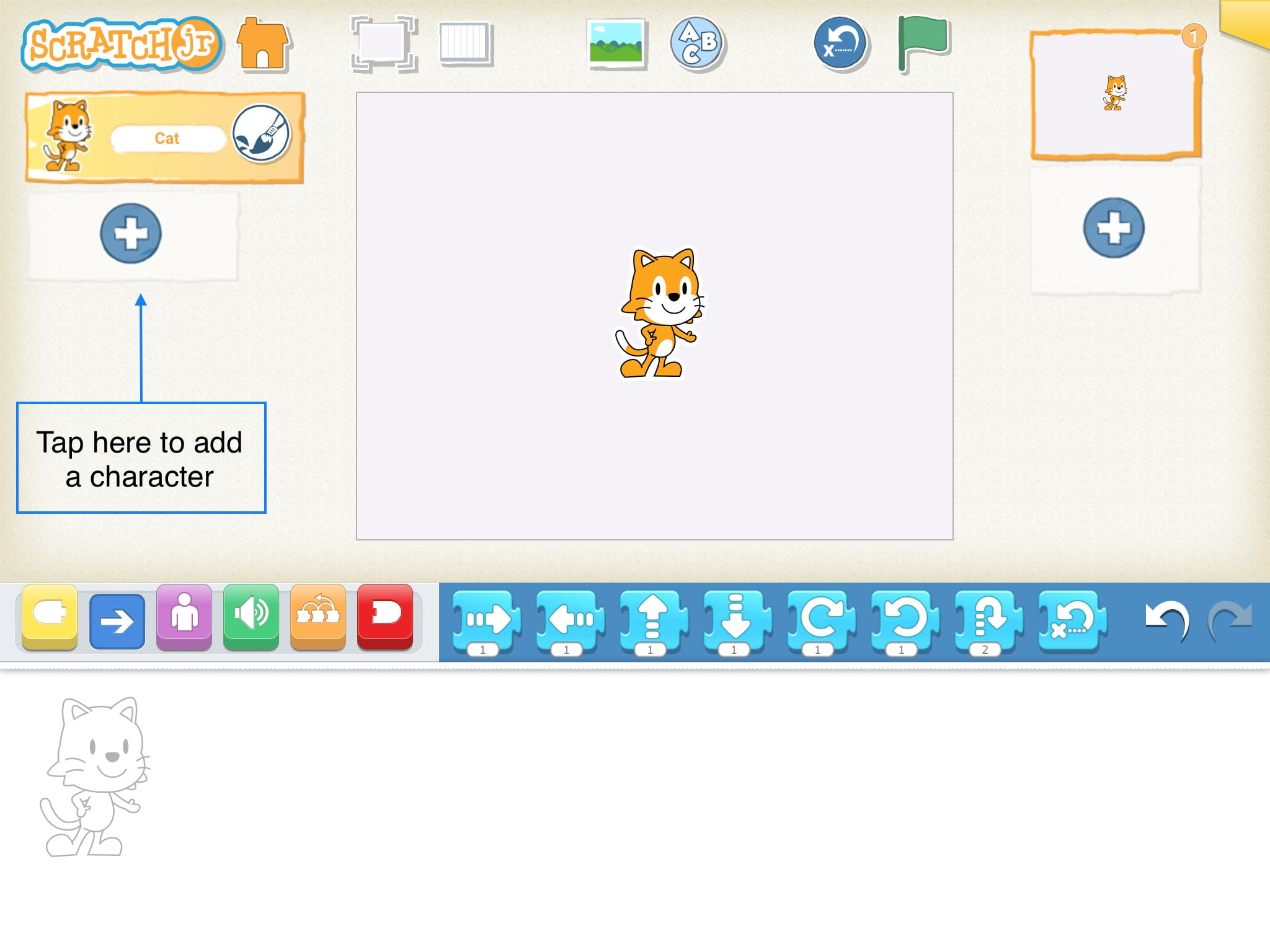
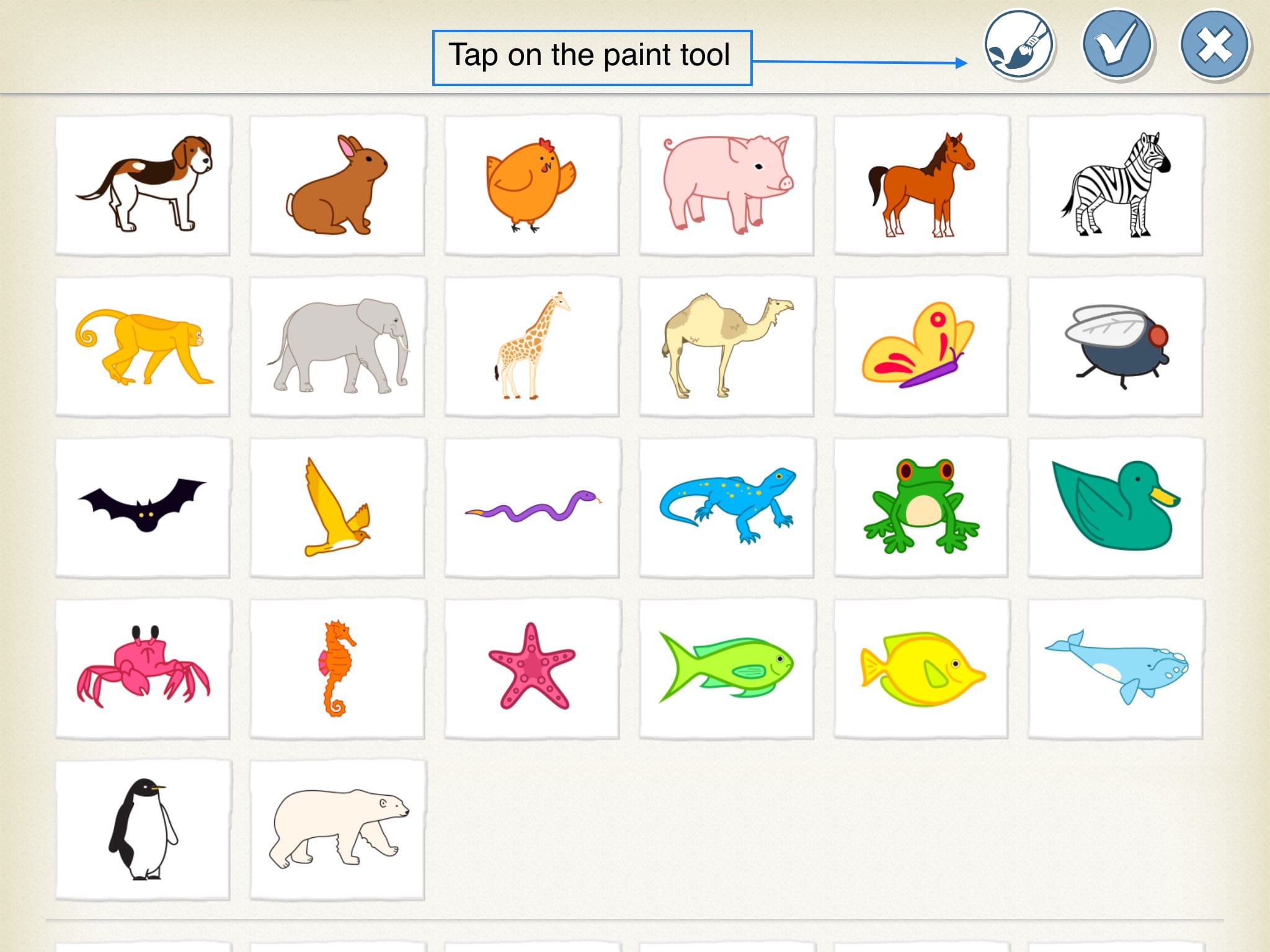
- Select a character to edit or create one from scratch using the Paint Editor.
- Using the guide below, direct children through the Paint Editor.
Adding Text
- Children can use the Add Text button to name their project, add their own name, or give their project a title using the following steps:
- Use the Add Text button to create a text box on the screen.
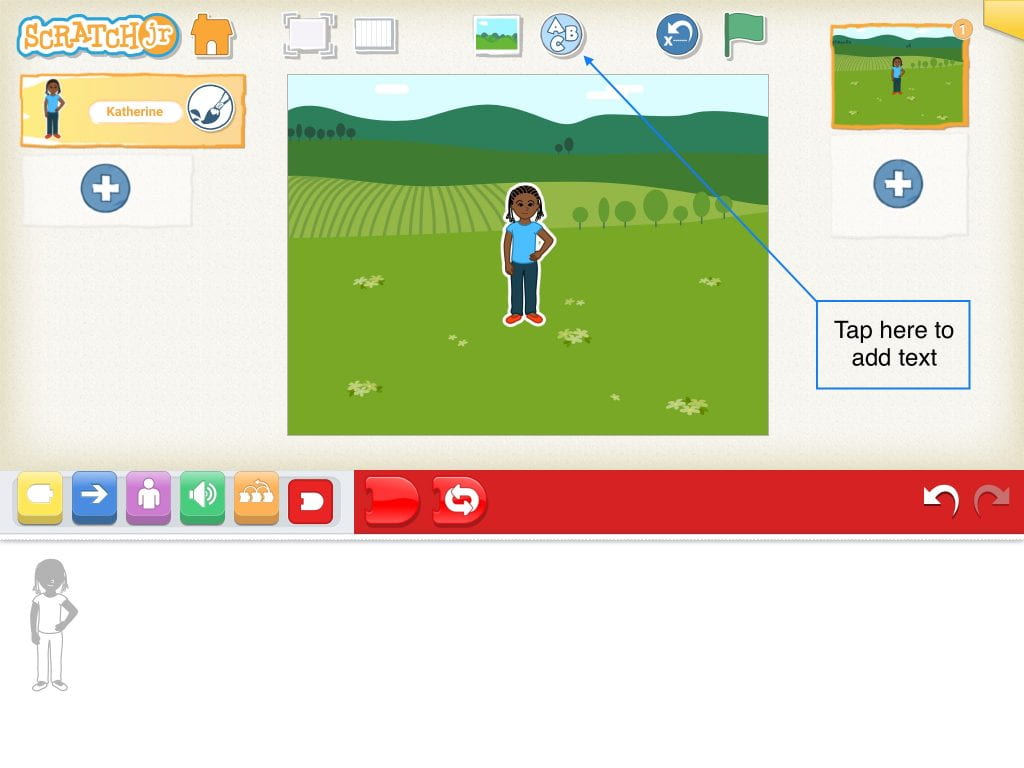
- Using the device keyboard, children can add text.
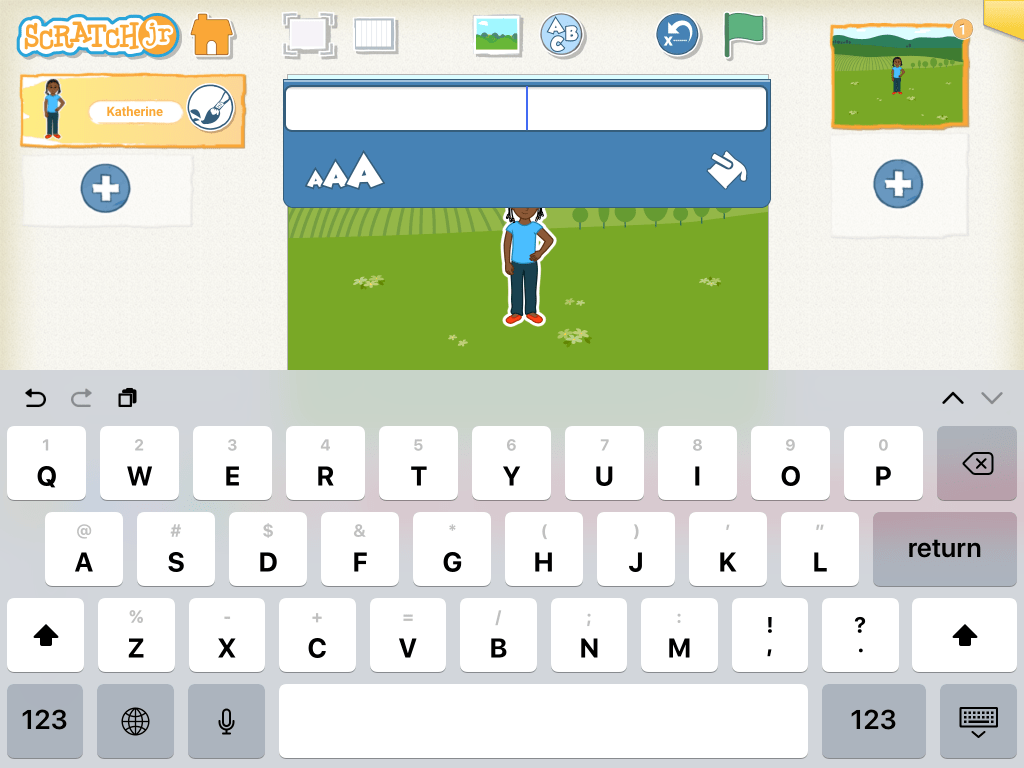
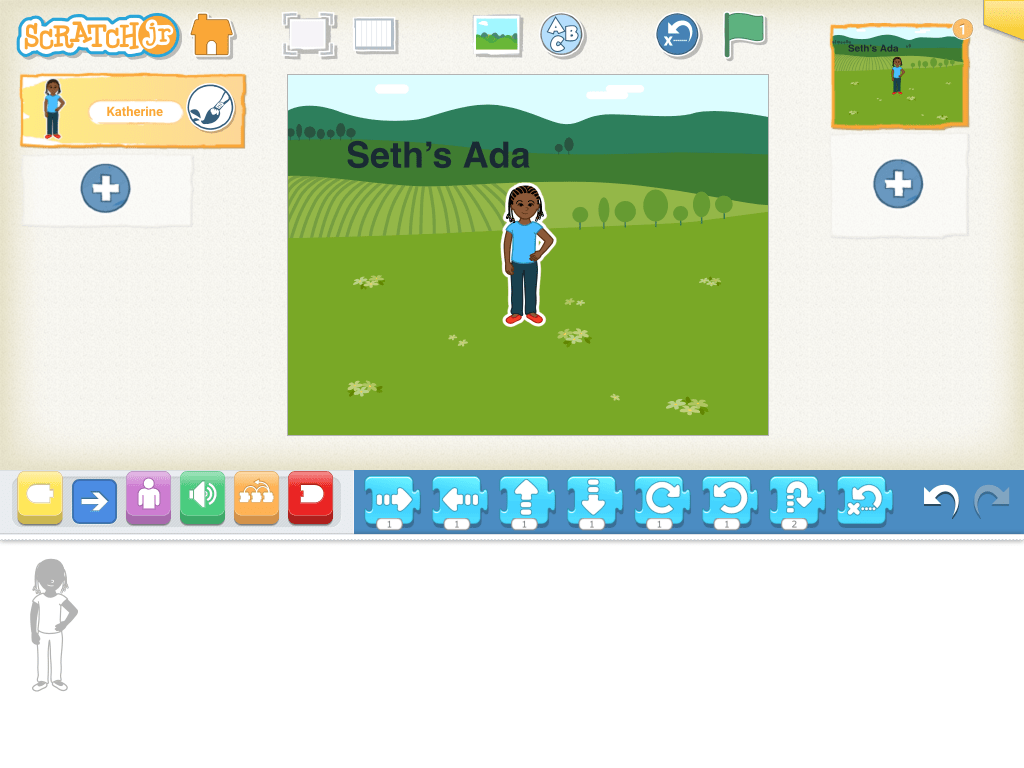
Note: Characters can be moved and programmed; Backgrounds cannot.
Expressive Explorations
Make Your Own Ada (Suggested Time: 10 minutes)
- Display a few scenes from the story for children to reference.
- Ask the children questions about Ada to gather details.
- E.g.,“What color is Ada’s hair?”
- “What is Ada wearing?”
- Children will begin designing their own Ada using the Paint Editor tool.
Closing Tech Circle
Share Creations (Suggested Time: 5 minutes)
- Children share their project with the class. Ask them to share about their Ada’s and to notice how each one is different from the others. Ask them to mention a tool they used in the pain editor to create their character.
Opportunities for Differentiation
Read Along Link
- Refer to Ada Byron Lovelace and the Thinking Machine Read Along, if the physical book cannot be accessed or if teaching in a virtual format.
- Reading starts at 1:08 and ends at 11:34.
Anchor


Powerful Ideas of Computer Science
Algorithms
Powerful Ideas of Literacy
Sequencing
Children will be able to:
- Recall and order scenes from a story
- Identify the importance of order in telling a story
- Add a new page to a project in ScratchJr
- Change the background in ScratchJr
Vocabulary covered:
- Pages
- Background
- Setting
Necessary Material: Check for Understanding L9, Check for Understanding L9 Slides
Warm Up
Act It Out! (Suggested Time: 10 minutes)
- Talk about 4 different events that happened in Ada Lovelace and then make groups of 3-5 children. Each group is going to act out a scene in the order it happened in the story. Let each group know what scene they have and let them practice how they will act out the scene. Then come back together and have each group act out their scene! Have the groups do their scenes out of order from the story.
Opening Tech Circle
Review Scenes (Suggested Time: 5 minutes)
- Talk about the parts of each scene (the characters, action, etc.).
- There was also a setting (or time/location) which we didn’t see while acting.
- All of these pieces (characters, setting, action) are important to telling a story.
ScratchJr Time
Structure Challenge
Change the Setting & Add a Page (Suggested Time: 5 minutes)
- Introduce change setting and add page block using the following steps:
- Show children how to change the background in ScratchJr. Let them adjust the background in ScratchJr by tapping on the Add Background button.
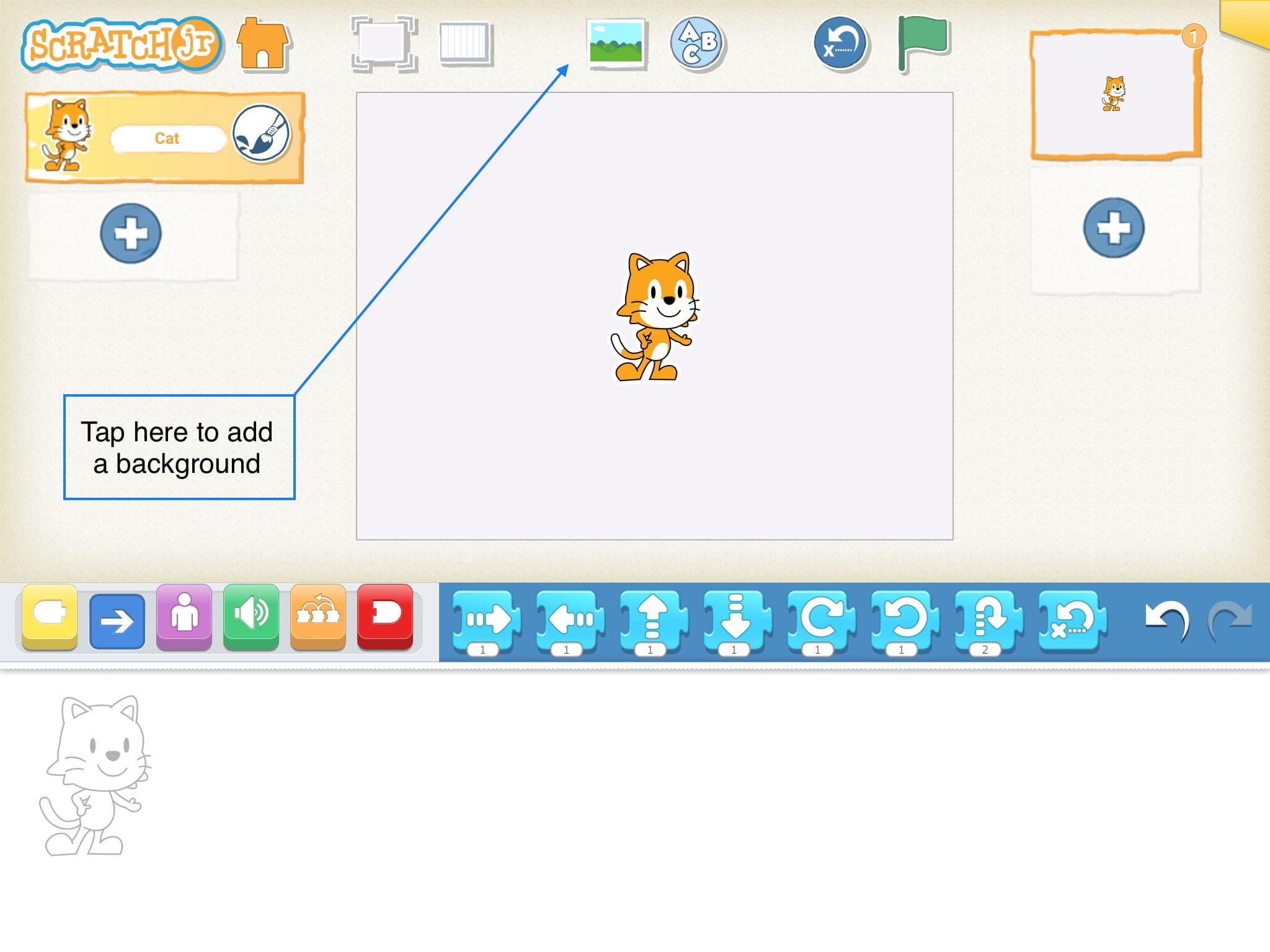
- Select a background and tap on the check to add it to your page!
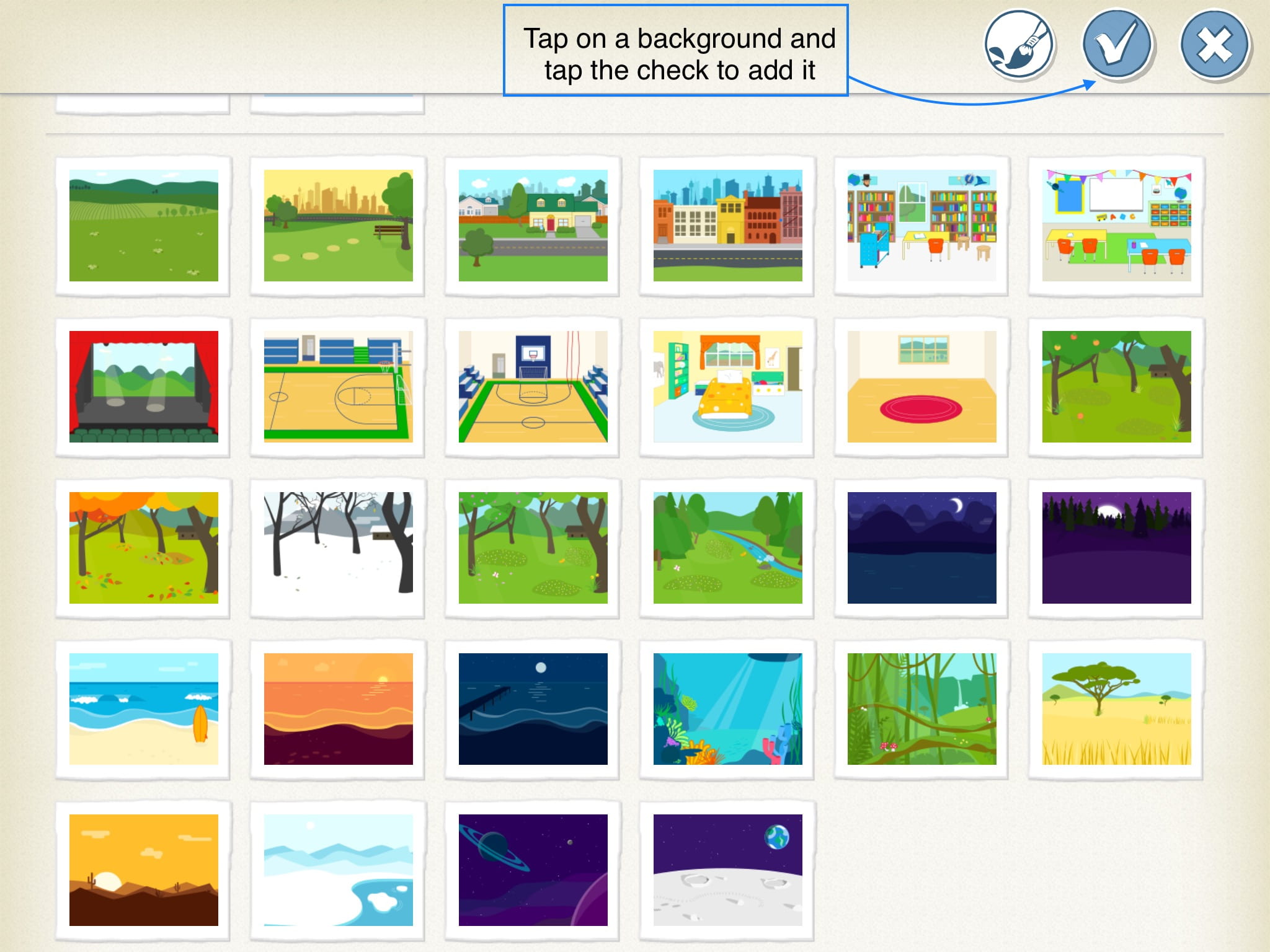
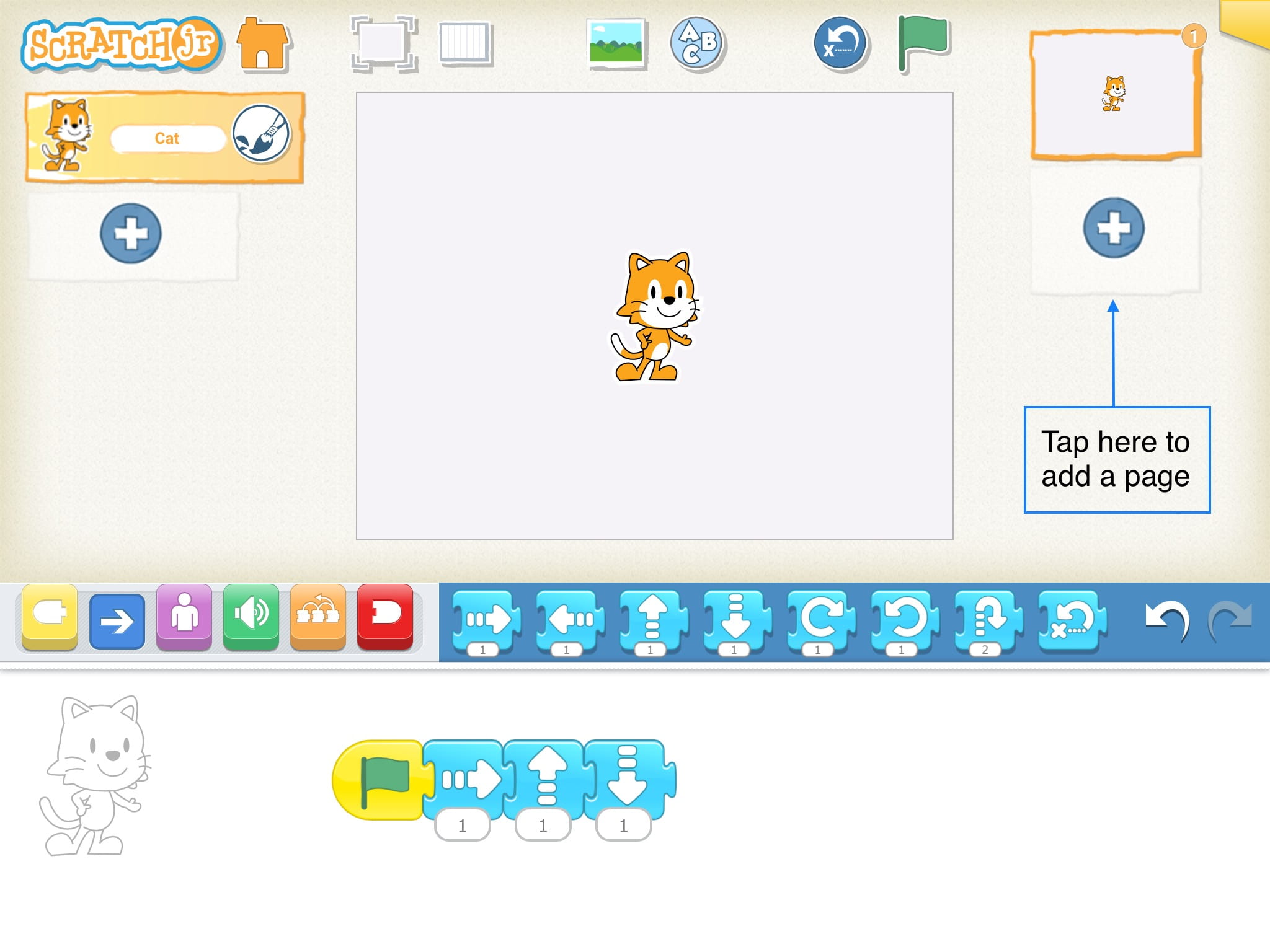
- You’ve added a background! Now let’s add a page.
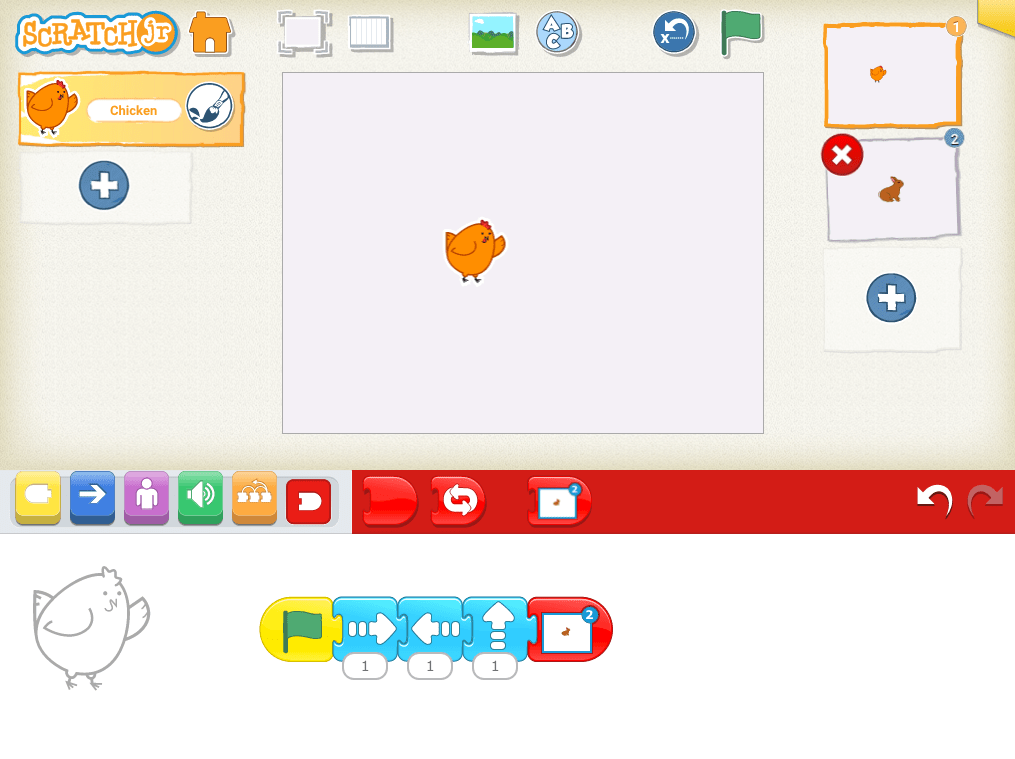
- To remove a page, press and hold your finger on the numbered page that you’d like to remove. A red “x” will appear at the top of the numbered page block. Tap the “x” to remove the page. See example below:
Lesson 9 Check for Understanding: Before starting a project, check your children’s understanding of the new concepts they’ve just learned. Read each question to the children and have the children respond with a thumbs up for “yes” or a thumbs down for “no.” Stop and re-explain concepts as needed.
Expressive Explorations
Making Your Story (Suggested Time: 15 minutes)
- Display some of the scenes from the book for children to see the story.
- Working in groups of three, ask each child to choose and create a different part of Ada’s life: beginning, middle, or end using the Ada character they created in lesson 8.
- Within their group, have children run the story in order. Place the devices next to each other and run the programs sequentially.
- Have children practice using the text tool to create a title page with a story title and the author’s name.
Unplugged Time
Order Matters (Suggested Time: 5 minutes)
- Tell children that their story only has one page right now, but eventually it will have many scenes like the book! Share with the class some scenes from the book.
- Discuss with the class whether everything is in the correct order and if it is not, how would that change the story/how would you fix it?
- Discuss how stories need to have a beginning, middle, and end — in that order!
Closing Tech Circle
When is your scene? (Suggested Time: 5 minutes)
- After talking about the beginning, middle, and end, ask children where the scene that they made falls in the story? Is their scene from the beginning of the story? Or the middle? Or the end?
Anchor


Powerful Ideas of Computer Science
Design Process, Representation, Debugging
Powerful Ideas of Literacy
Writing Process, Editing and Audience Awareness
Children will be able to:
- Use the Go to Page block in ScratchJr
- Use the Grow, Shrink, Hide and Show blocks in ScratchJr
- Reflect on their project using Design Journal prompts
Vocabulary covered:
- Edit
Necessary Material: Design Journal L10
Warm Up
Programmer Says Size Edition (Suggested Time: 5 minutes)
- Instruct children in a game of “Programmer Says” using the prompts:
- Make yourself as big as possible.
- Make yourself as small as possible.
- Make yourself as tall as possible.
- Hide yourself from the camera.
Opening Tech Circle
Ages of Ada (Suggested Time: 5 minutes)
- Display a few scenes from the story to show what was happening in Ada’s life at different ages. Throughout the story, Ada is growing up. The story begins with Ada as a young girl imagining flying and at seventeen years old, her childhood came to an end. At nineteen years old, Ada was married and by the time she was twenty-four she had three children. As Ada is getting older she is growing.
- Explain that today everyone will learn how to make things grow, shrink, hide, and show in ScratchJr.
ScratchJr Time
Structure Challenge
Go To Page (Suggested Time: 5 minutes)
- Introduce the Go to Page block
- To continue a story onto another page, add the red End block with a picture of the next page to one of your programs. This creates a “Turn Page” program function. Use the steps below:
1. Add a new page
2. Once you’ve added a new page the Go to Page block will appear in your red End block palette.
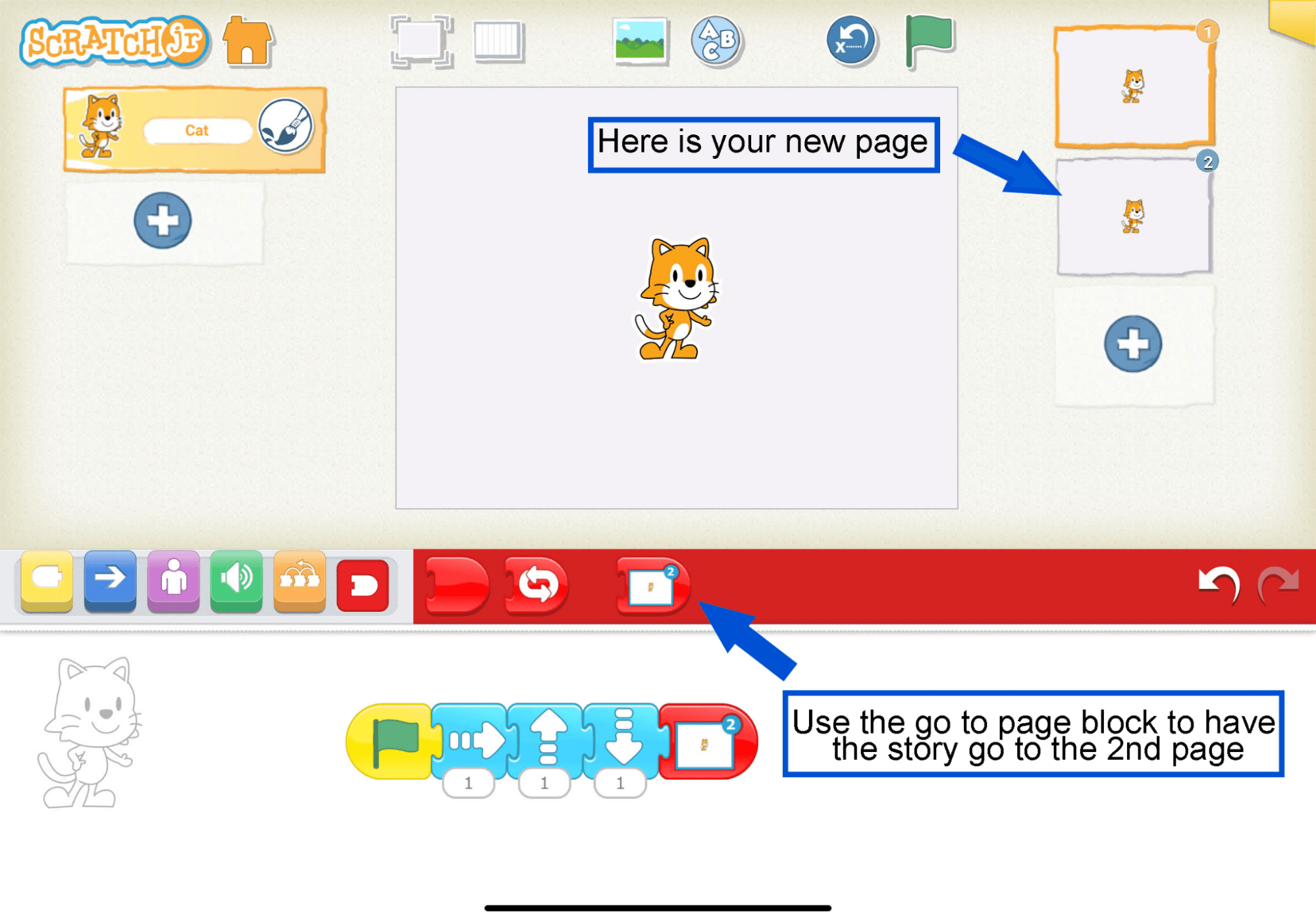
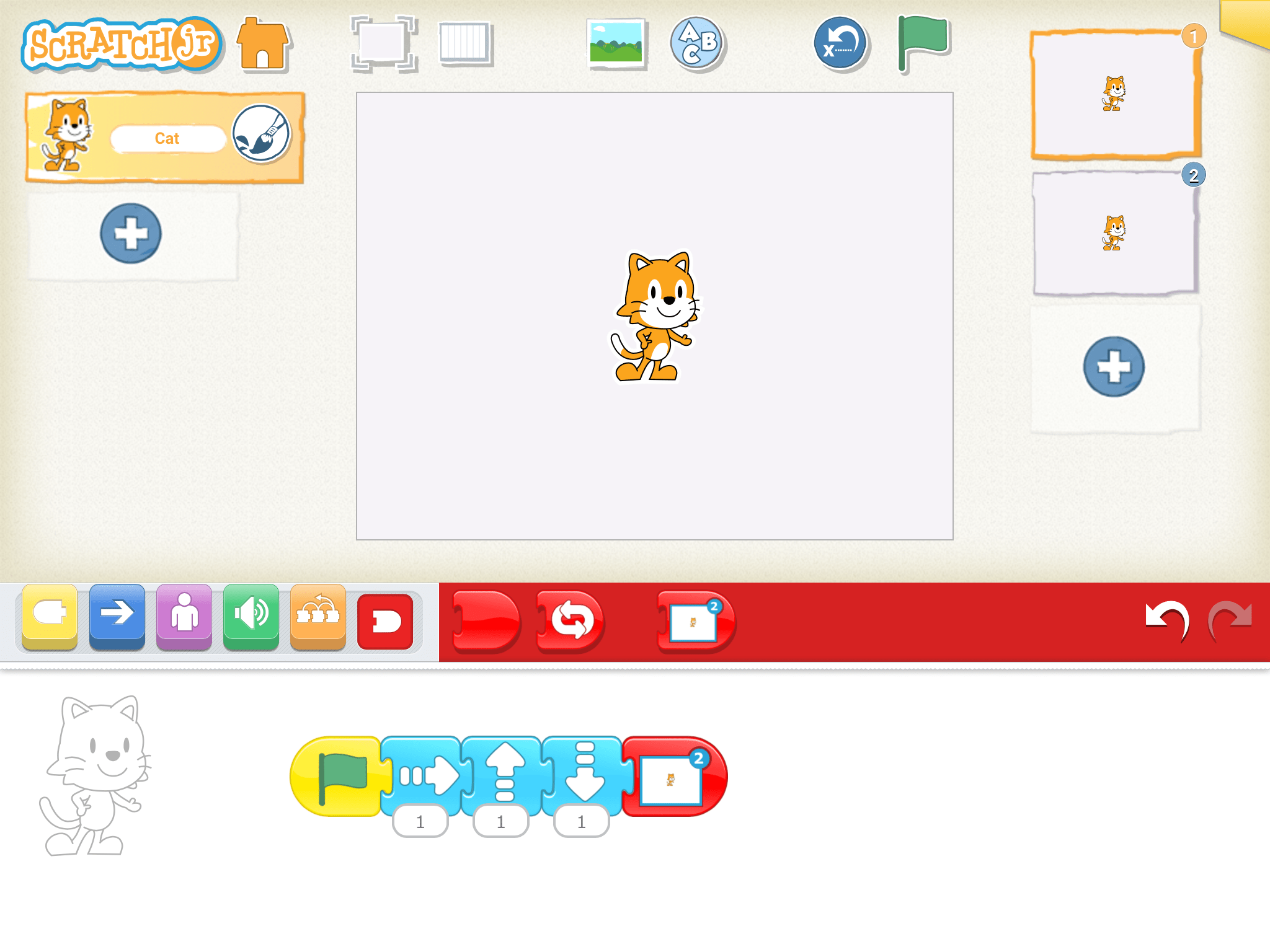
3. Add the Go to Page block at the end of your program on the first page for the pages to change after the program is done.
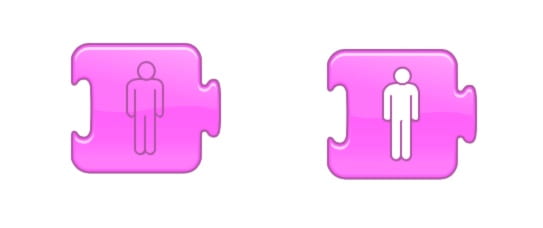
Hide/Show & Grow/Shrink (Suggested Time: 5 minutes)
- Introduce Hide/Show blocks: Demonstrate that adding a Hide block to a character’s code will make them disappear! You can make them reappear using a Show block.
- Then use the Grow/Shrink blocks to show how a character can look as it grows during its life.
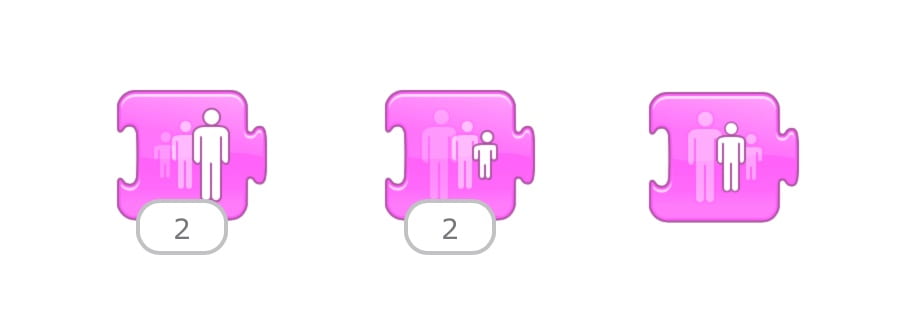
- Parameters on Size Blocks: Tell children that the size blocks also have parameters, just like the motion blocks. Instead of counting ScratchJr steps, these parameters tell you how many times to get bigger.
- Introduce the Reset Size block: Demonstrate that by adding a Reset Size block to a character’s code will have your character return back to its original size.
- Now bring it back to the story! Say that we can use these blocks to add pages to our story and show Ada growing on our new page. Tell children that they will be programming a new part of their Ada stories – when Ada is young!
Expressive Explorations
Add a New Page with Purple Blocks (Suggested Time: 10 minutes)
- Have children add a new page to their story from Lesson 9 to create another scene in Ada’s life.
- Remind them that the story is about Ada growing up, so they may add something before or after what they have already created.
- Encourage them to add purple blocks (Hide/Show, Grow/Shrink, Reset Size) to show that she’s younger in the first part of the story!
- Ask them to show their new programs to another child.
Word Time
Lesson 10 Design Journal (Suggested Time: 10 minutes)
- In their Design Journals, children will answer these prompts about more changes to their Ada story:
- Is there anything you’d want to change or add?
- What are more details you can add to your story to make it better?
Closing Tech Circle
Design Journals Share (Suggested Time: 5 minutes)
- Children share what they have written in their Design Journals.
Example Projects
Example Projects
Here is a brief selection of example projects. We’ve included examples from first graders, college students, and adults to show the range of possibilities that this project offers.
Anchor

Powerful Ideas of Computer Science
Design Process, Debugging
Powerful Ideas of Literacy
Writing Process, Editing and Audience Awareness
Children will be able to:
- Define and celebrate the process of debugging.
- Identify strategies for debugging and editing.
- Locate errors or “bugs” in ScratchJr code.
Vocabulary covered:
- Debugging
Necessary Materials: Anchor Chart for Design Process, Anchor Chart for Strategy List, Teacher Project to be Debugged
Warm Up
Design Process Song (Suggested Time: 5 minutes)
- Anchor Chart for Design Process displayed in classroom or on screen
- Highlight on Test and Improve
(sing to the tune of “Twinkle, Twinkle”)
Ask and imagine, plan and create,
Test and improve and share what we make.
(Repeat)
Opening Tech Circle
Test, Debug, and Improve (Suggested Time: 10 minutes)
- Show the design process chart again and remind children of the steps for making a ScratchJr Project: Ask, Imagine, Plan, Create, Test and Improve, Share! Today we will be learning about how to Test and Improve!
- Tell children that we need to test our programs to see if they follow our plan, and if they don’t… we need to improve!
What is Debugging?
- Debugging is a word used in computer science to describe when people find errors in their computer programs and try to solve them in different ways. While the word “bug” was used in other scientific fields, the word “debugging” is attributed to Admiral Grace Hopper, who back in the 1940s found a moth stuck inside the computer (computers used to be that big!), which caused an error in the system. She was able to resolve the error by taking out the bug, hence the word “debugging!”
- Discuss with children about encountering problems while programming and how perseverance, forgiveness, and patience might help to solve them. Introduce the I am a CODER pneumonic to help children move through frustrating moments during the debugging process. Remind children that programmers go through the repetitive process of debugging to find and fix problems.
- As a class, create a list of strategies for finding bugs in programs Strategy List Anchor Chart. Return back to the list to add more strategies when needed.
ScratchJr Time
Structure Challenge
Debug the Teacher’s Project (Suggested Time: 10 minutes)
- Pull up your buggy project and explain to children what your plan was (e.g., I wanted Cat to jump twice, and then move over to Dog). Then, show the children the project and let them figure out what is not working.
- Have children take turns raising their hand and debugging things in your projects. Make sure to stop and play the program after each change. Tell children that you are testing. Remind them that testing was part of our design process!
Expressive Explorations
Edit Your Project (Suggested Time: 10 minutes)
- Have children revisit their projects. They’ve edited their story in their Design Journal by writing or drawing about things they would change or add. Now, it’s time for the children to edit their projects.
- Have children look back at their Design Journals and their programs.
- What parts of your program don’t match the story you’ve written now? Try and fix your program to better match your changed story.
- Go into pairs or small groups to discuss if anyone found errors in their ScratchJr project.
Closing Tech Circle
Debugging Reflection (Suggested Time: 10 minutes)
- Revisit Design Process – debugging is a part of the creation process.
- Introduce the idea of adding strategies for debugging and editing to the Strategy List Anchor Chart
Anchor

Powerful Ideas of Computer Science
Debugging
Powerful Ideas of Literacy
Editing and Audience Awareness, Phonological Awareness
Children will be able to:
- Define and celebrate the process of debugging
- Identify strategies for debugging and editing.
- Locate errors or “bugs” in ScratchJr code.
- Troubleshoot bugs in ScratchJr
- Locate errors in English text (e.g., spelling errors, letters written incorrectly).
Vocabulary covered:
Necessary Materials: Error Examples, Buggy Projects, Design Journal L12
Warm Up
Error Examples (Suggested Time: 5 minutes)
- Show Error Examples in ScratchJr programming language and English language to class.
- Ask children what’s wrong with these programs/words/sentences?
- How can we fix them?
Opening Tech Circle
Test & Improve (Suggested Time: 5 minutes)
- Discuss examples of testing & improving.
- In coding, a computer comes across an error and it doesn’t work.
- In literacy, a person comes across an error and they can sometimes read it anyway, but sometimes it’s too hard and can’t be read.
- Explain the difference between changing for looks as opposed to debugging.
- E.g., Changing for looks – changing Cat from orange to blue.
- E.g., Debugging – Changing the program so that Cat moves in the correct direction
ScratchJr Time
Structure Challenge
Buggy Projects (Suggested Time: 15 minutes)
- These ScratchJr projects have some errors in them. Recreate these projects or make your own to share with the class. Each project contains a prompt with what the programmer wanted to have happen and with what is actually happening. These projects need to be debugged to work:
- I want Cat and Bunny to jump to collect apples from the trees, but only Cat is jumping to collect apples and bunny is moving to the right.
- I want Cat to disappear and then get bigger and reappear but Cat disappears, reappears, and then gets smaller.
- When children find bugs engage in the celebration of the debugging process
- Classroom – high fives and encouragement
- Virtual – Applause and thumbs ups
Word Time
Lesson 12 Design Journal (Suggested Time: 10 minutes)
- Have children open up their Design Journals to Lesson 12 and practice finding and fixing errors on their own! Tell them to circle every time they find an error, and then write their fix in the box next to it.
Closing Tech Circle
Debugging Reflection (Suggested Time: 10 minutes)
- Brainstorm strategies for debugging writing.
- E.g., Rereading your writing to find errors, having a friend look at your writing.
Anchor


Powerful Ideas of Computer Science
Hardware/Software
Powerful Ideas of Literacy
Tools of Communication and Language
Children will be able to:
- Identify different means of expressing emotions (e.g., facial expressions, body movements, noises, words, etc.).
- Use the Say block in ScratchJr
- Record a sound clip successfully using the Sound Recorder in ScratchJr.
- Use Recorded Sound Blocks in a ScratchJr program.
Vocabulary covered:
- Record
- Sound
Necessary Materials: Smiley Faces, Tools of Communication
Warm Up
Tell Me How You Really Feel! (Suggested Time: 5 minutes)
- Share pictures of 3 feeling faces (smiling, crying, angry) then ask children what these smiley faces are telling us?
Opening Tech Circle
Tools of Communication (Suggested Time: 5 minutes)
- Display the Tools of Communication Anchor Chart and talk about all the ways we can communicate our thoughts and feelings.
- Words
- Voices
- Discuss the difference between words and voices, talk about how the way voices sound tell you something!
- Faces
- Bodies
- Ask if they can think of any other ways! ScratchJr? Numbers? Drawings?
Unplugged Time
Express Yourself Activity (Suggested Time: 10 minutes)
- Play a game of charades, where children act out a feeling and other children guess what the child is trying to express (e.g., child has a frown, arms crossed, eyebrows flexed = mad/upset).
- Give the child a message when it is their turn (e.g., “Show the class that you are happy with your body,” “Show the class that you are sad with your voice (but you can’t say ‘I’m sad,’” “Show the class you’re silly with your face.”)
- Give each child a turn to be the expressive character!
ScratchJr Time
Structure Challenge
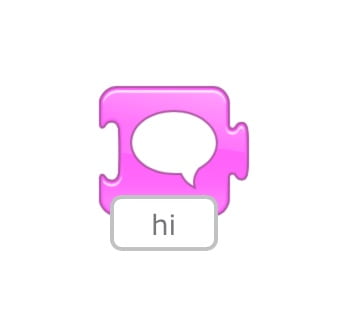
Introduce the “Say” Block (Suggested Time: 5 minutes)
- Children can use the “Say” block to have their character say something. Tap on the “Say” block to use the device keyboard to add in text.
Play Recorded Sound (Suggested Time: 5 minutes)
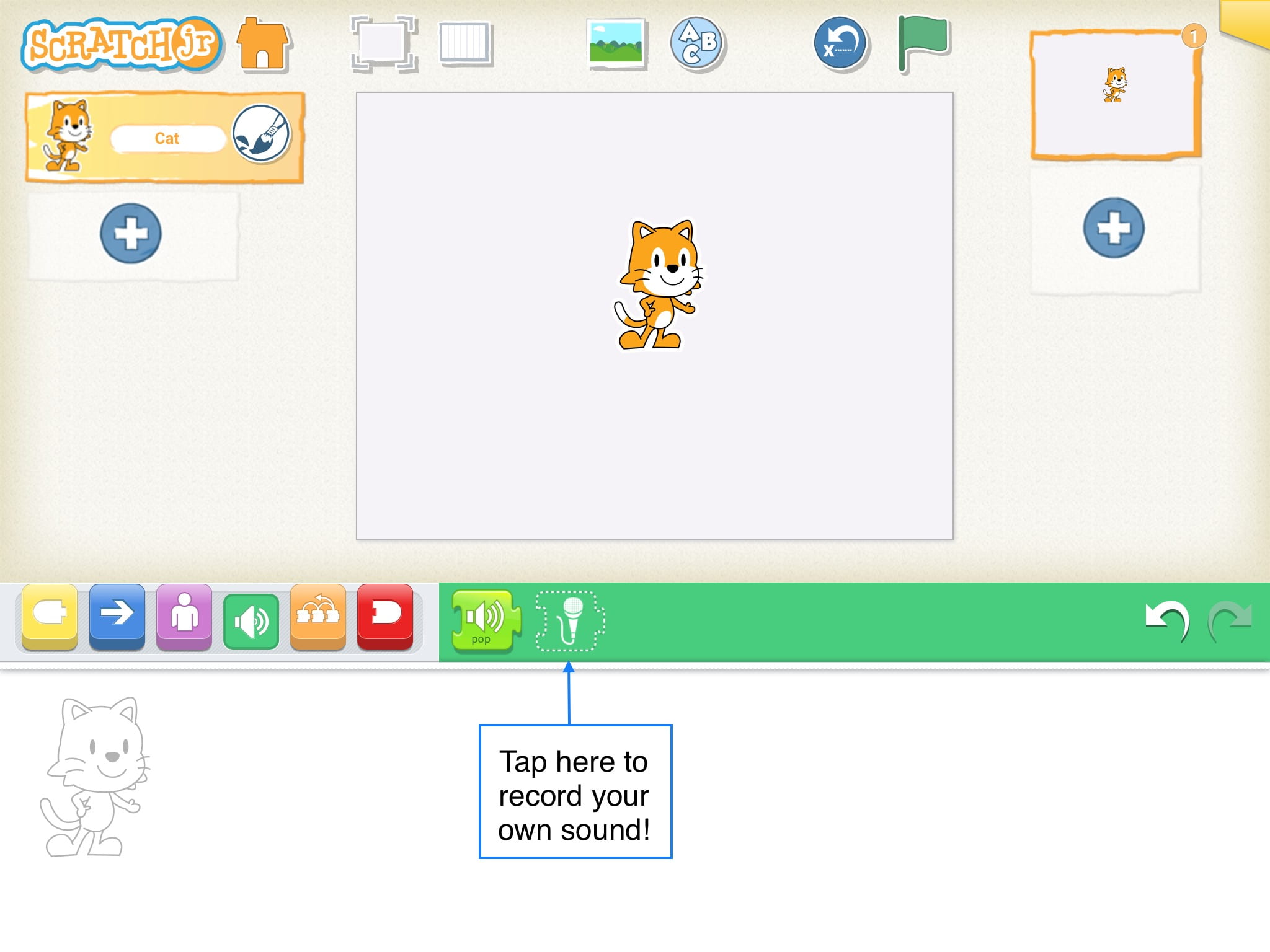
- Using the Play Sound Recorder Block:
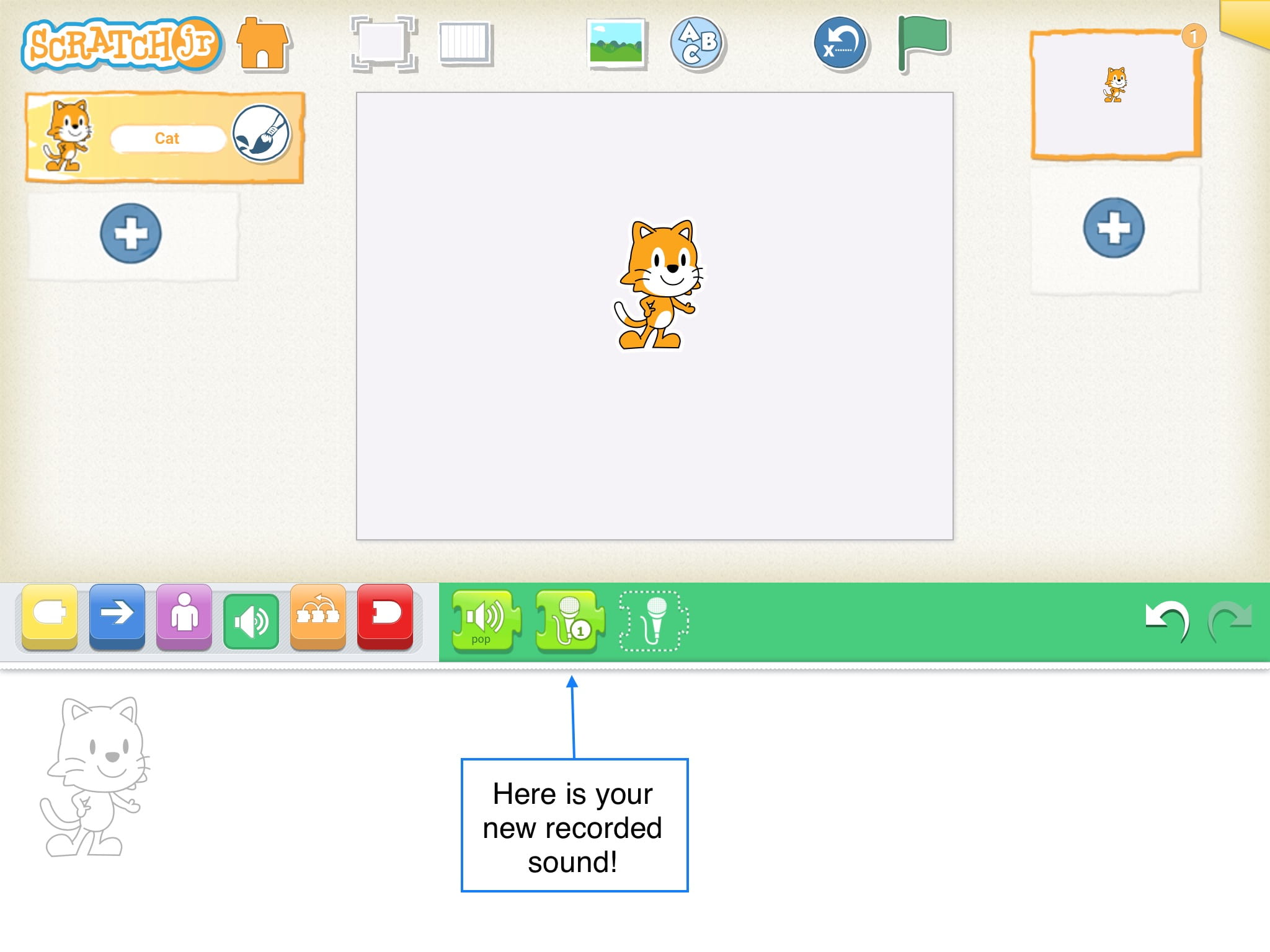
- In the programming area, click on the green Sound symbol. Within that menu, click on the microphone block with the dotted edge to record sound.
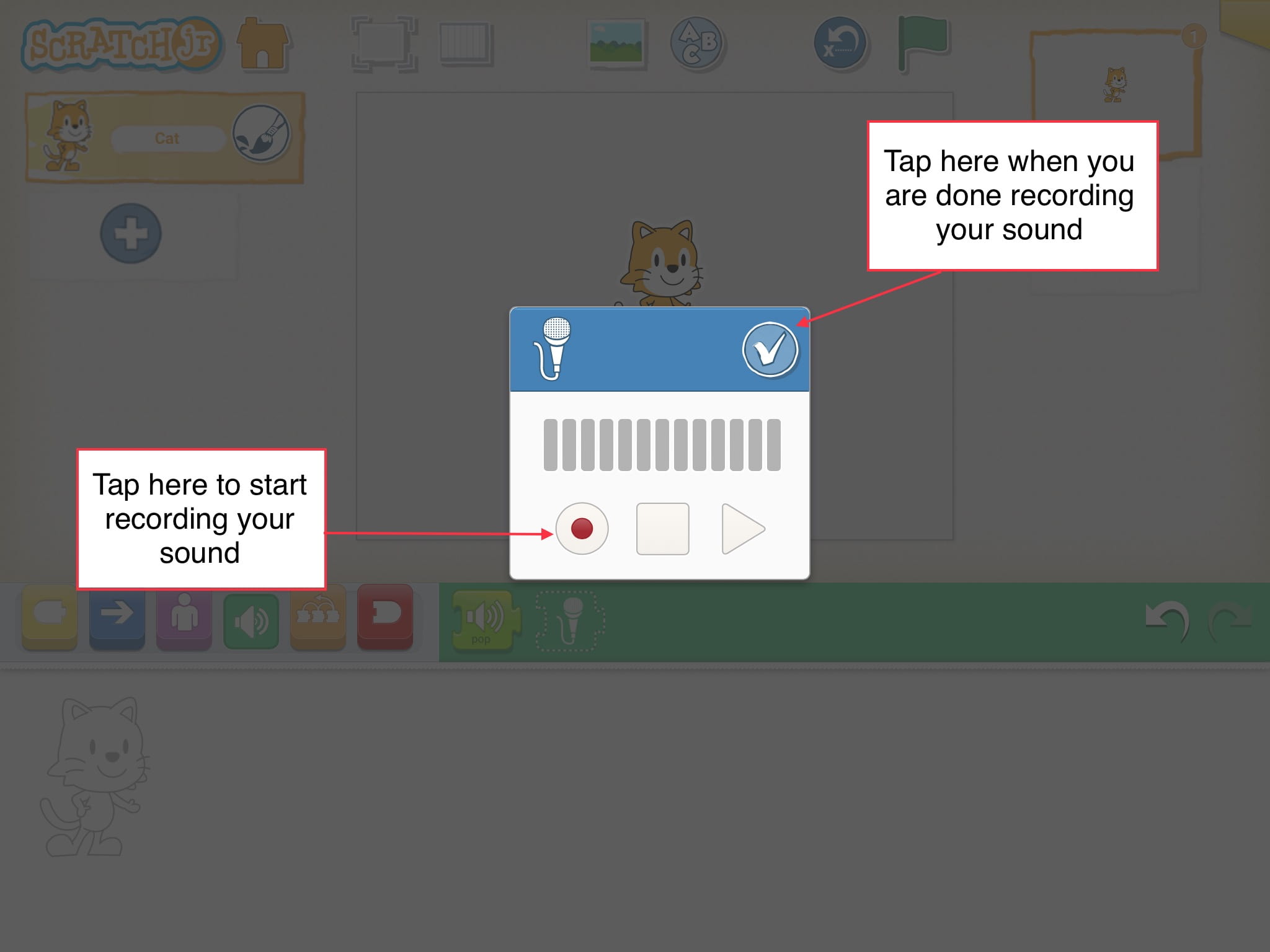
- Tap on the red dot to record your sound. When you’re done recording, push the same dot to stop recording. Then, tap on the check mark.
- Now you have your own recorded sound to use in your program! Drag the new block that appeared on the palette (the microphone with a number next to it) into the programming area. Tap on it and let children listen to themselves.
Expressive Explorations
Let Me Hear How You Feel? (Suggested Time: 10 minutes)
- Have child program an expressive character using the Cat in ScratchJr.
- Have children practice using the Sound Recorder block and “Say” block
- Ask them to record a kind message to a friend.
Closing Tech Circle
Share Creations (Suggested Time: 5 minutes)
- A few children share their ScratchJr programs using the Sound Recorder block.
- Ask them to share what they did, how they did it, and what was the most exciting part of doing it (encourage them to think about the design process when talking about their projects).
Opportunities for Differentiation
Extra Challenge
- For children that need more of a challenge or scaffolding, give them the following prompts:
- How many ways can you create a program expressing the same idea?
- Try using tools of communications including sounds, words, motions, or the paintbrush tool.
Anchor

Powerful Ideas of Computer Science
Control Structures
Powerful Ideas of Literacy
Literary Devices
Children will be able to:
- Identify conditional situations in everyday life
- Use the Start on Bump and Start on Tap blocks in ScratchJr
- Use the Stop block in ScratchJr
Vocabulary covered:
- Conditional
Necessary Materials: Check for Understanding L14, Check for Understanding L14 Slides
Warm Up
Four Corners (Suggested Time: 10 minutes)
- Designate either four corners of either the classroom, a carpet, or an open space as the game space.
- One child (or the teacher) stands in the center of the room and closes their eyes. Each child has to go to one of the four corners. When everyone is in a corner, the person in the center points in a random direction and opens their eyes. Everybody in that corner is out. This repeats, with the person in the center closing their eyes, everybody picking a corner, the person in the center choosing a corner, and everyone in that corner being out. Continue until there is either one winner or 2-3 kids left.
- If time permits, the winner of the previous game can be in the center for a second round.
Opening Tech Circle
What is a Conditional? (Suggested Time: 5 minutes)
- Reflect on the four corners game. If your corner was pointed to, you were out. In order to determine if you were safe or out, you had to check where the person in the center was pointing. This is called a conditional.
- Conditionals are when one thing has to happen before the next things can happen. Discuss the following examples:
- What do you check for before you put on a jacket? (If it is cold or raining)
- What has to happen before you speak in class? (The teacher calls on you)
- What has to happen before you eat? (Wash your hands)
- What do you check at the stoplight before the car can go? (The light is green)
ScratchJr Time
Structure Challenge
Start on Tap/Bump & Stop (Suggested Time: 5-10 minutes)
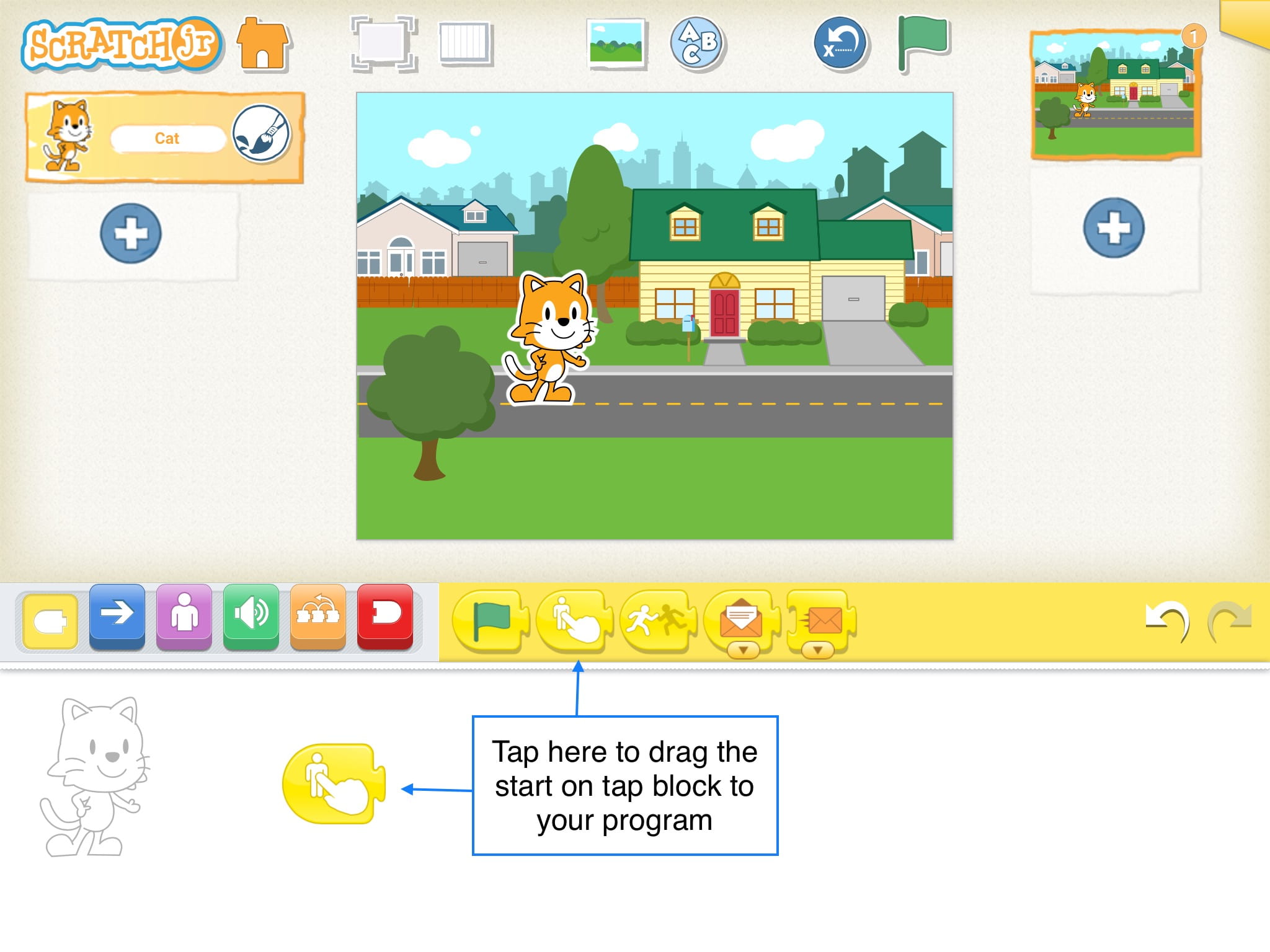
- Introduce Start on Tap block:
- Demonstrate that using this block at the beginning of a program makes a character act out its program only after you’ve tapped the character on the screen. Show this in presentation mode to clearly demonstrate the difference between Start on Tap and Start on Green Flag.
- Introduce The Stop Block and Start On Bump Block
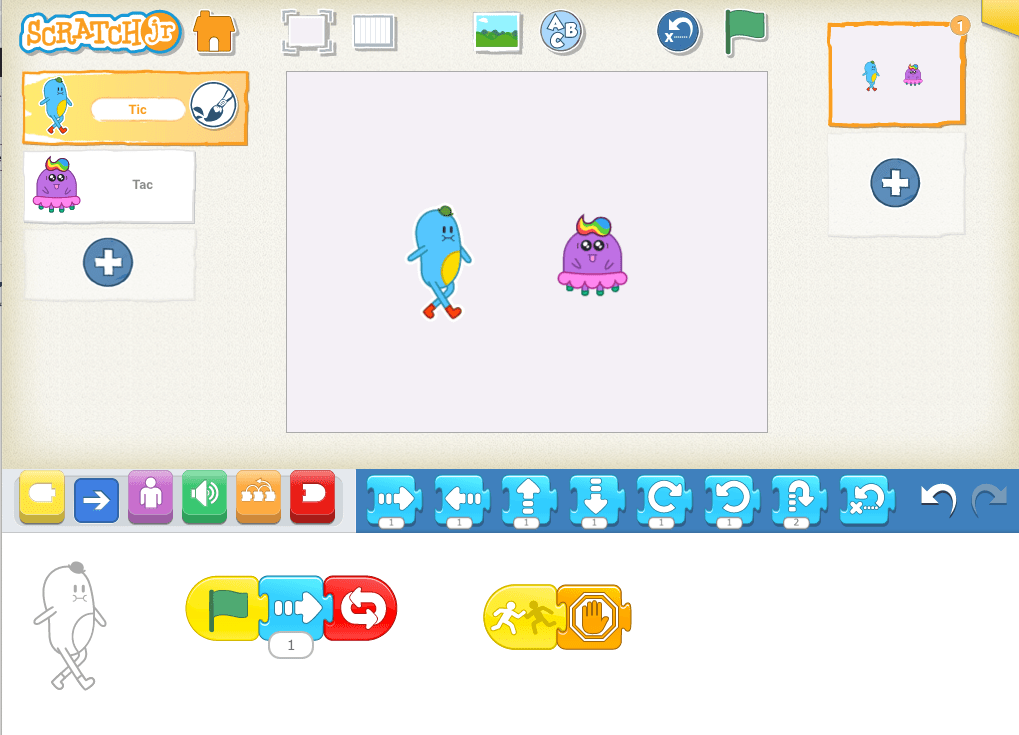
- Demonstrate how to use the Stop block and the Start on Bump block in ScratchJr. The Stop block is used to end all programs running for a particular character except the program that contains the Stop Block itself. The Start on Bump block is used to make a character’s program start after another character bumps into the character. To teach these blocks, the teacher should have two characters. The first character has two programs: one that repeats forever and a second one that stops when it’s bumped. The second character should have a sequence that repeats forever. For example:
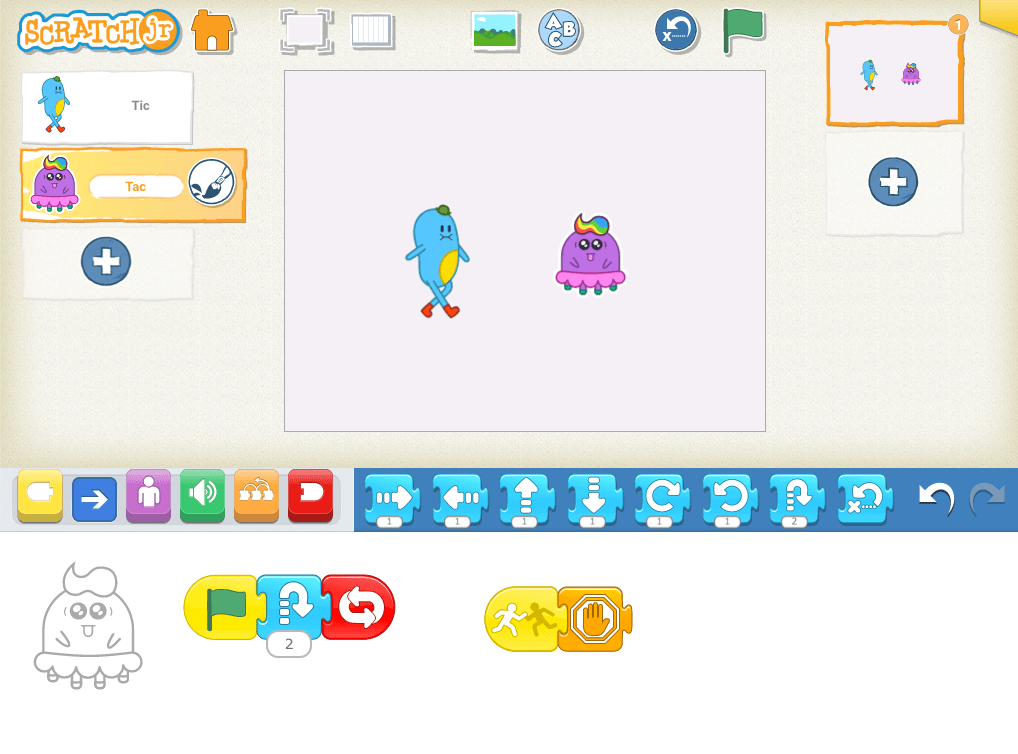
Lesson 14 Check for Understanding: Before starting a project, check children’s understanding of the new concepts they’ve just learned. Read each question to the children and have the children respond with a thumbs up for “yes” or a thumbs down for “no.” Stop and re-explain concepts as needed.
Expressive Explorations
Free Play (Suggested Time: 15 minutes)
- Children can explore with Start on Bump, Stop, and Start on Tap block.
- Reinforce the debugging process of trial and error while using the Start on Bump block.
Closing Tech Circle
Share Creations (Suggested Time: 5 minutes)
- Children share their projects with the class. If time doesn’t allow, choose 1 or 2 pairs of children to do it.
- Encourage other children to ask questions about how they used the Start on Tap, Stop, and Start on Bump blocks.
- Ask children if they had to debug while exploring.
Anchor

Powerful Ideas of Computer Science
Control Structures
Powerful Ideas of Literacy
Literary Devices
Children will be able to:
- Use the Set Speed Block in ScratchJr.
- Use the Go to Start Block in ScratchJr.
Vocabulary covered:
- Slow
- Fast
- Return
Necessary Material: Large Graph Paper
Warm Up
Changing the Speed (Suggested Time: 5 minutes)
- Have children clap at different speeds (fast/slow). Then have children try to say the tongue twister, “she sells seashells by the seashore” both slow and fast.
Opening Tech Circle
What Makes a Race a Race? (Suggested Time: 5 minutes)
- Discuss with children the rules and elements of a race.
- What are the core elements in a race (e.g., starting point, race distance, etc.)?
ScratchJr Time
Structure Challenge:
Speed Block (Suggested Time: 5-10 minutes)
- Introduce the Speed block
- Using the Speed block, characters in ScratchJr can be made to move at different speeds (fast, regular, slow, also called “run, walk, crawl”). You can introduce the speed programming block and demonstrate how to use it on the ScratchJr program.
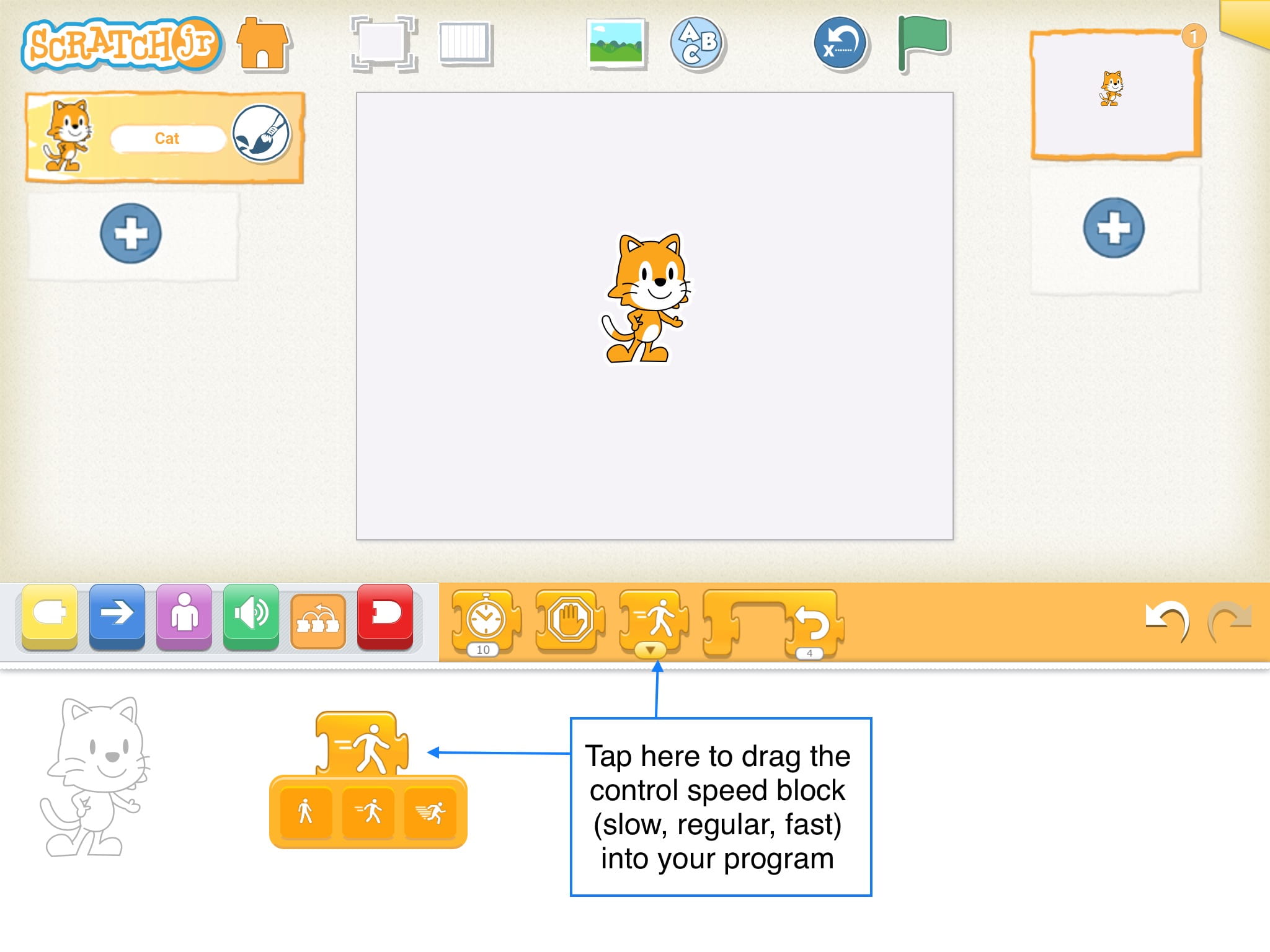
Go to Start (Suggested Time: 5 minutes)
- Introduce the Go to Start block. This block will be helpful for children as their racers will need to return to the starting point after the race.
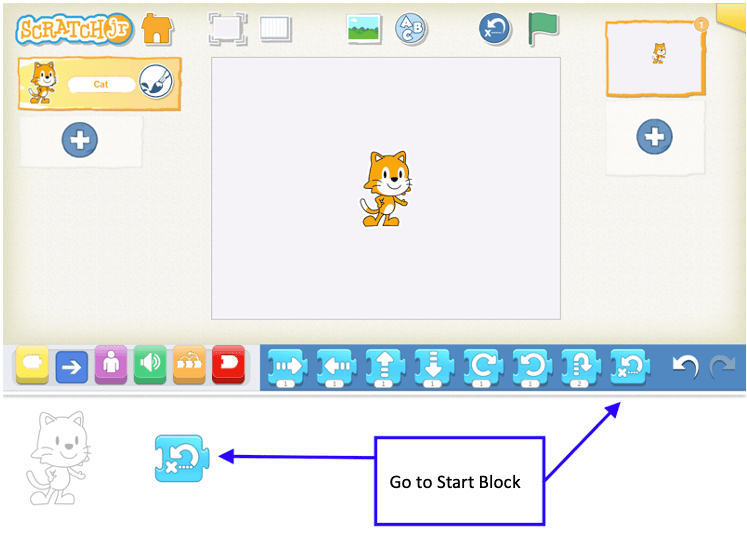
Expressive Explorations
It’s a Race (Suggested Time: 10 minutes)
- Tell children that they will be programming their own race. Before they start programming, decide on the same three characters they will use for their race. Tell the children at the end, they are going to count up which character won each race and see how many wins each character got!
- Children should use the grid to make sure all characters are starting at the same spot. Review the rules of a race:
- To be fair – All racers start on the same spot and travel the same distance to the finish line.
- Racers should return to start (use the Go to Start Block) when they finish the race.
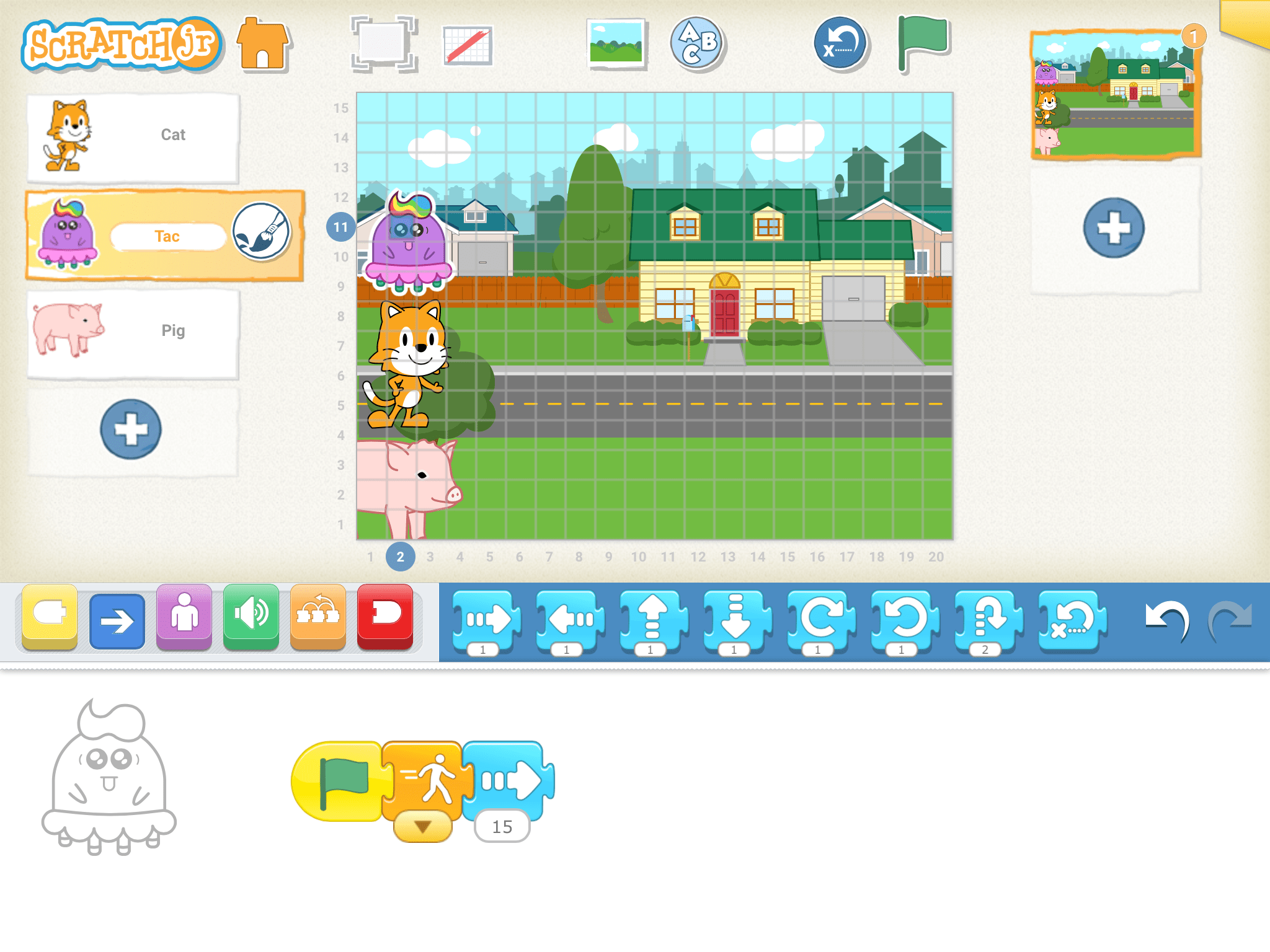
Unplugged Time
Comparing Winners (Suggested Time: 10 minutes)
- Show children a simple bar graph with a “Wins” label on the Y axis (vertical) and a “Characters” label on the X axis (horizontal). Write in the three characters that the class decided on for their races along the X axis (horizontal) as well.
- Have each child, in pairs, or in small groups play their race for the class. After each share, record the win on the bar graph.
- Once everyone has shared, examine the bar graph and explain that this is a way we can compare how many times each character won!
Closing Tech Circle
What Else Can We Compare? (Suggested Time: 5 minutes)
- Tell children that a graph, like the one we just made, can be used to count and compare lots of things! Give a few examples (e.g., counting and comparing the colors of m&ms, how many kids have pets at home, how many days are sunny and how many days are rainy this week) and then ask a few volunteers to share something they could count and compare!
Opportunities for Differentiation
Extra Challenge
- If children are done with their race program, have them practice being a sportscaster announcing the race so they are ready to share the story of their program (practice in pairs if others are done as well)
- In groups, ask children to put their devices side-by-side to make a relay race. Who wins now?
Anchor

Powerful Ideas of Computer Science
Control Structures
Powerful Ideas of Literacy
Literary Devices
Children will be able to:
- Use and adjust the Wait Block in ScratchJr
- Reflect on previous work
- Create parallel programs in ScratchJr
Vocabulary covered:
- Wait
- Pause
- Parallel Programming
Necessary Materials: Freeze Dance Music, Scratch Jr Block Cut Outs, Check for Understanding L16, Check for Understanding L16 Slides
Warm Up
Freeze Dance (Suggested Time: 5 minutes)
- Using Freeze Dance Music or your preferred classroom music, play Freeze Dance. Freeze Dance is a great game to get children moving and engage their creativity.
- When music plays, children dance and when the music pauses, they must freeze immediately. As the teacher, control the music and press pause periodically to make children freeze. Remember to reinforce class norms around safety and being cautious with bodies.
- Optional: You can mix it up by having some fast music and slow music to incorporate the ideas from the blocks introduced during the last lesson.
Opening Tech Circle
What is a Freeze Dance? (Suggested Time: 5 minutes)
- Discuss how to make a ScratchJr character dance like we were dancing. When we dance we make lots of different movements at the same time! For example, we can jump and move forward at the same time, or we can spin and move our hands at the same time!
- In ScratchJr, how can we program our characters to make different movements at the same time? Give the children a chance to brainstorm some ideas.
- Then discuss the rules and elements of a freeze dance (dancing while music plays, freezing when music stops)
- In ScratchJr, how could we program the characters to wait when the music stops?
ScratchJr Time
Structure Challenge
Parallel Programming (Suggested Time: 5 minutes)
- Introduce Parallel Programming – It means that two programs are happening at one time. An example of a parallel program would be as follows:
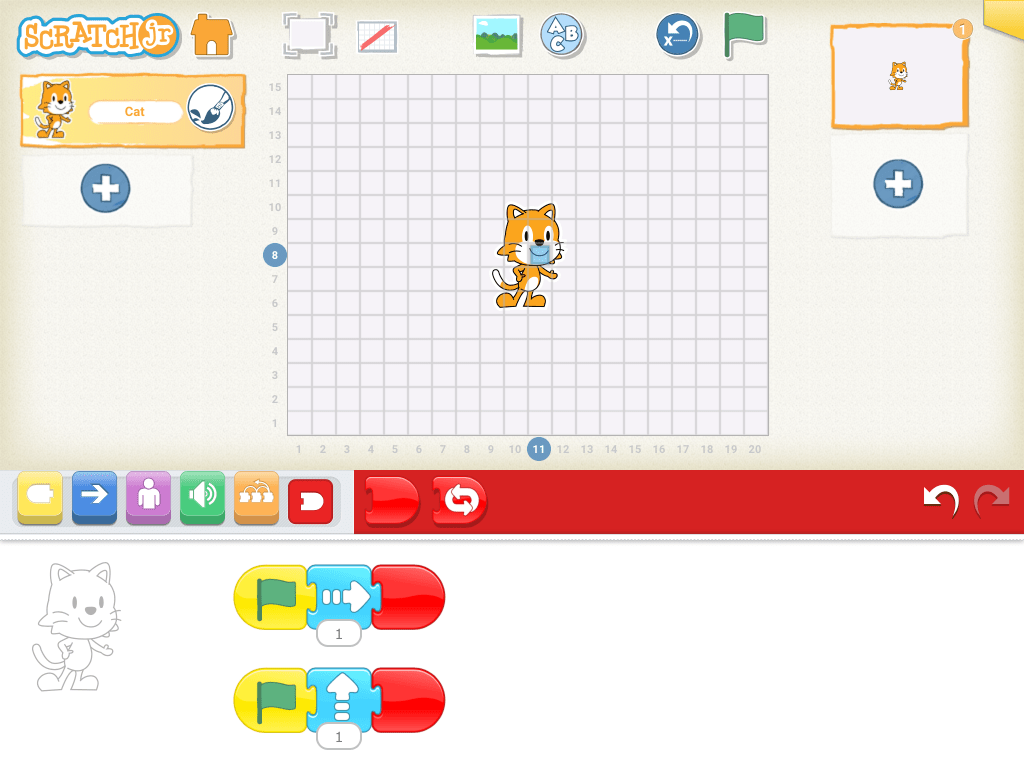
- The above parallel programs allow for the Cat to move right at the same time that the Cat is moving up, so the Cat will move diagonally.
Wait Block (Suggested Time: 5 minutes)
- Introduce Wait block.
- The Wait block programs your character to take a break or pause within the program. The number refers to TENTHS (1/10) of a second, not seconds. So a Wait block with a 10 number parameter will pause the program for 1 second.
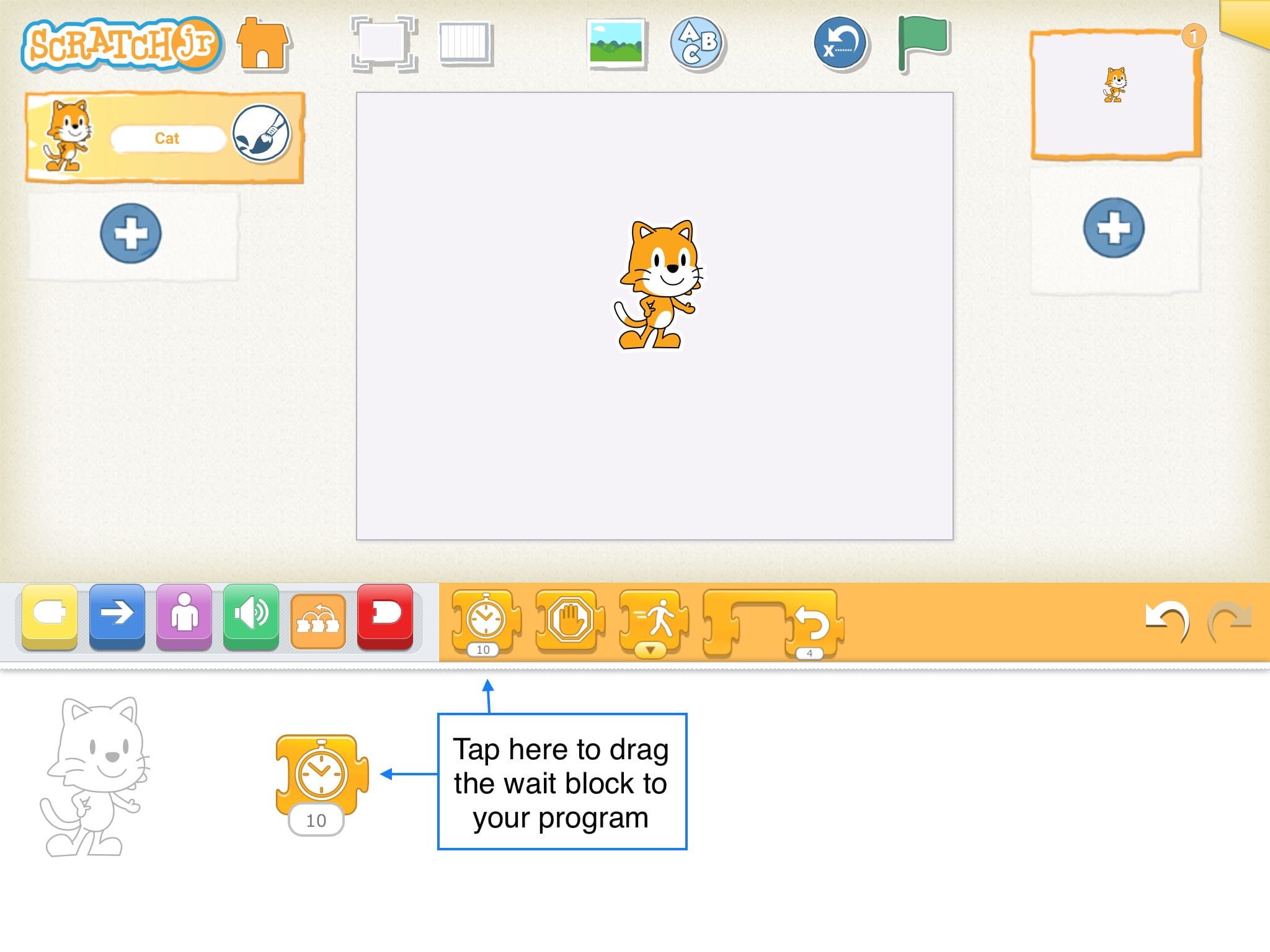
Lesson 16 Check for Understanding: Before starting a project, check your children’s understanding of the new concepts they’ve just learned. Read each question to the children and have the children respond with a thumbs up for “yes” or a thumbs down for “no.” Stop and re-explain concepts as needed.
Expressive Explorations
Program Your Own Freeze Dance (Suggested Time: 15 minutes)
- In pairs or small groups, have children program their own freeze dance.
- Encourage children to use parallel programming to make characters dance in different directions.
- Remind children that the wait block can make characters freeze and then continue dancing.
- Remind children that it is important that all characters freeze at the same time.
- Freeze Dance Party: Let children create a program that allows all their characters to dance and stop simultaneously. Promote their creativity and independence, letting them choose music, and the blocks, and fix their bugs.
Closing Tech Circle
Share Creations (Suggested Time: 10 minutes)
- Children share their creations. Prompts:
- What was difficult or easy about this project?
- If your program was set to music, would it be fast or slow music?
- What would you do differently if you could go back and edit?
Opportunities for Differentiation
Extra Challenge
- For children that need more of a challenge or scaffolding, ask them how they can include the Start on Bump, Start on Tap, and Speed blocks in their programs?
Anchor

Powerful Ideas of Computer Science
Algorithms, Control Structures
Powerful Ideas of Literacy
Literary Devices, Tools of Communication and Language
Children will be able to:
- Identify repeating patterns
- Use the Repeat Block in ScratchJr.
- Recognize one program can be represented using multiple approaches
Vocabulary covered:
- Repeat
- Loop
- Pattern
Necessary Materials: Repeat Activity, Check for Understanding L17, Check for Understanding L17 Slides
Warm Up
The Wheels on the Bus (Suggested Time: 5 minutes)
- Sing and dance the Wheels on the Bus as a class.
The wheels on the bus go round and round,
round and round,
round and round.
The wheels on the bus go round and round,
all through the town.
The wipers on the bus go Swish, swish, swish;
Swish, swish, swish;
Swish, swish, swish.
The wipers on the bus go Swish, swish, swish,
all through the town.
- After singing two verses of the song, discuss with the class the repetitions they observed in the song.
- What line did we repeat several times?
- Ask the children to imagine they’re teaching their friend the words to the song. Is there an easier way to tell them all the words without repeating the same words so many times?
- Tell the children that there is! You can tell your friend to “‘Repeat “round and round” 3 times!”’
Opening Tech Circle
Patterns & Repeat Loops (Suggested Time: 5 minutes)
- Create a clapping pattern (fast and slow), which also consists of repetition and rhythm.
- Ask children to follow the clapping rhythm that was just demonstrated.
- For more challenge: ask the children to volunteer creating their own pattern for the rest of the class to follow.
ScratchJr Time
Structure Challenge
Repeat Block (Suggested Time: 15 minutes)
- A Repeat block can make our codes more efficient, which can save us time and room. For example if we want a character to hide and show 20 times, imagine how long that will take us to drag each block 20 times! Instead, we can use a Repeat block, which will repeat the hide and show code for us 20 times.
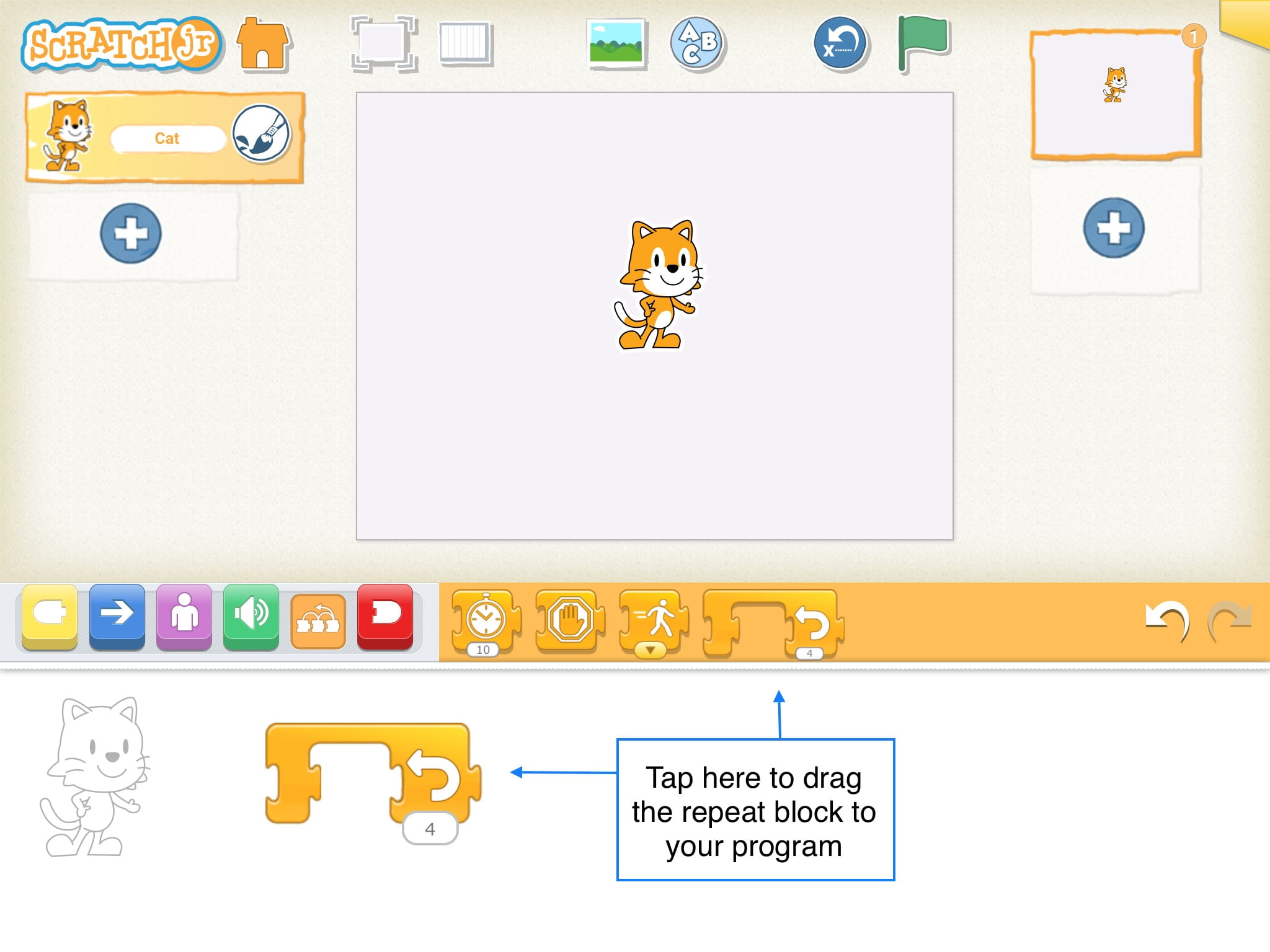
- Repeat Loops allows all blocks within the loop to repeat. They repeat as many times as the number parameter (in the picture above the blocks will repeat 4 times).
- Repeat Activity
- Make a connection to literacy: there are different ways of communicating the same message such as making a call, texting, and sending letters.
- Show a series of programs like the ones below, and ask the children to all make a new program that does the same thing, but using a Repeat block.
- Discuss the different ways each program handles the repeat.
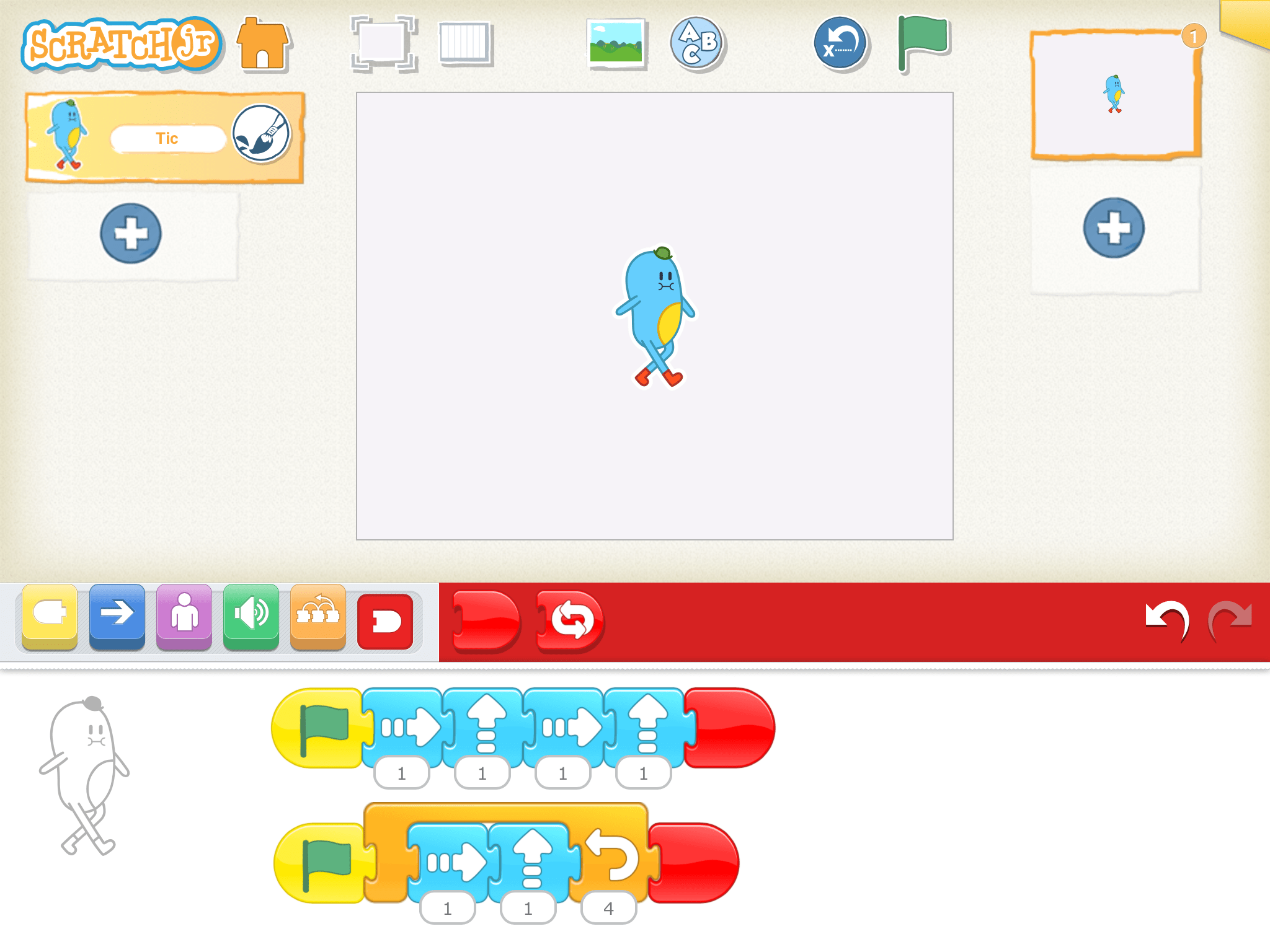
Lesson 17 Check for Understanding: Before starting a project, check your children’s understanding of the new concepts they’ve just learned. Read each question to the children and have the children respond with a thumbs up for “yes” or a thumbs down for “no.” Stop and re-explain concepts as needed.
Expressive Explorations
- Free Play with Repeat Blocks (Suggested Time: 15 minutes)
- Have the children think of different patterns that they can use Repeat blocks for! Let them explore on their own, checking in periodically to make sure they are using the Repeat blocks.
- In pairs, ask them to create a code together to put into the Repeat block. Encourage them to predict what will happen and then see if it happens.
- After that, ask them to try out different things, like how many blocks they can fit into a repeat loop block. Does it work if they put them all together? What happens if they put blocks inside and outside of the repeat loop block?
Closing Tech Circle
Share Creations (Suggested Time: 5 minutes)
- Children share about their free play experience. Use these guided prompts:
- How did you use the Repeat block in your program?
- Did you experience any challenges?
Anchor

Powerful Ideas of Computer Science
Control Structures
Powerful Ideas of Literacy
Literary Devices
Children will be able to:
- Identify uses for Send Message and Start on Message blocks in ScratchJr projects
- Use the Send Message and Start on Message blocks in ScratchJr
Vocabulary covered:
- Message
Necessary Materials: Relay Race Video, Check for Understanding L18, Check for Understanding L18 Slides
Warm Up
Pass the Baton! (Suggested Time: 5 minutes)
- Play the Relay Race Video and explain to the children that when runners race as a team, they pass a stick called a baton to each other to signal that they can stop and the next person can go and start racing.
Opening Tech Circle
The Dancing Stick! (Suggested Time: 10 minutes)
- Choose an object in the class to be the Dancing Stick! Explain to children that the dancing stick will be like the baton from the relay race, only it will tell them when to start dancing instead of racing! Have children stand up and get silly! Each child will get a turn to dance and make funny movements but ONLY when they get the dancing stick.
- Emphasize that children can only start to dance once someone else hands them the dancing stick!
ScratchJr Time
Structure Challenge
Send Message (Suggested Time: 10 minutes)
- Just like the batons for racing, and our dancing stick, ScratchJr has a tool that lets us pass something on from one program to tell another program to start! It’s called the message blocks!
- Send Messages: In ScratchJr, characters can send messages to one another to signal when to start their programs. The Start on Message block can be used in place of the Green Flag block. See example program below:

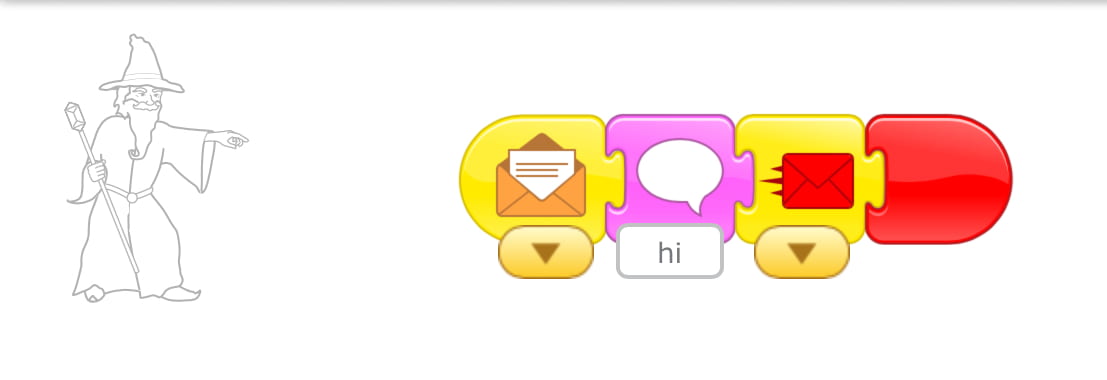
Lesson 18 Check for Understanding: Before starting a project, check your children’s understanding of the new concepts they’ve just learned. Read each question to the children and have the children respond with a thumbs up for “yes” or a thumbs down for “no.” Stop and re-explain concepts as needed.
Expressive Explorations
Make a Message (Suggested Time: 10 minutes)
- In groups of three or more, children do a project using message blocks.
- On one device, have each child choose a character and create a program using the message blocks. Each character will send and/or receive a message.
- Encourage them to predict what will happen and see if it happens.
Closing Tech Circle
Share Creations (Suggested Time: 10 minutes)
- Children share creations with the class.
Opportunities for Differentiation
Virtual Learning
- Rather than an object that gets passed, choose a fun word! The children will dance and then say the fun word and another child’s name to pass it on to that child.
Anchor

Powerful Ideas of Computer Science
Algorithms, Design Process
Powerful Ideas of Literacy
Sequencing, Writing Process
Children will be able to:
- Identify the beginning, middle, and end scenes of Where the WIld Things Are
- Plan final projects using Design Journal prompts
- Begin programming final projects
Vocabulary covered:
- Scenes
Necessary Material: Design Journal L19, Where the Wild Things Are
Warm Up
Where the Wild Things Are (Suggested Time: 10 minutes)
- Read Where the Wild Things Are aloud to the class.
Opening Tech Circle
Where the Wild Things Are Events (Suggested Time: 5 minutes)
- Review Where the Wild Things Are.
- Recall the order of events in the story, Where the Wild Things Are. Show examples from the book.
- Using 3 scenes from the story, ask children where each event belongs in the story.
- “What happens in the beginning, middle, and end?”
Word Time
Planning Where the Wild Things Are Story (Suggested Time: 10 minutes)
- In their Design Journals, children will plan their story. The planning sheet has three sections for the beginning, middle, and end of the story with lines for writing and space for drawing.
ScratchJr Time
Expressive Explorations
Program Where the Wild Things Are Story (Suggested Time: 15 minutes)
- Children will program a scene from the beginning, middle, and end of the story, Where the Wild Things Are to create a 3-page ScratchJr project using the Go to Page block.
- In pairs, children can share a challenge they may have while programming and seek solutions together.
- *Note: Encourage them to talk about their challenges rather than having someone else program for them. Teachers can suggest the “I am a CODER” pneumonic during moments of frustration when they encounter challenges. This activity also promotes perseverance and patience
Closing Tech Circle
Any Challenges? (Suggested Time: 5 minutes)
- With the whole group, ask pairs to share the challenges in their projects and how they worked with others to debug and revise.
- If children have questions they couldn’t find solutions for in pairs, encourage them to bring their questions to the class.
- Ask a few students to share with the class a moment in which they felt gratitude towards their partner.
- Remind children that feeling gratitude means to appreciate or feel thankful for the person who did something good for you or made you happy. One way to express gratitude is to thank someone for their help. Some examples include:
- “Thank you for helping me debug my project”
- “Thank you for helping me program my character”
- Remind children that feeling gratitude means to appreciate or feel thankful for the person who did something good for you or made you happy. One way to express gratitude is to thank someone for their help. Some examples include:
Opportunities for Differentiation
Read Along Link
- Refer to Where the Wild Things Are Read Along (English) or Where the Wild Things Are Read Along (Spanish), if the physical book cannot be accessed or if teaching in a virtual format.
Anchor

Powerful Ideas of Computer Science
Algorithms, Design Process, Modularity
Powerful Ideas of Literacy
Sequencing, Phonological Awareness
Children will be able to:
- Create synchronized programs
- Copy a script from one character to another in ScratchJr
- Plan alternate endings for a story
Vocabulary covered:
- Synchronization
Necessary Material: Video of Synchronized Dancing
Warm Up
One-Two Step (Suggested Time: 5 minutes)
- Children will watch a video of synchronized dancing robots.
Opening Tech Circle
What is a Synchronized Dance? (Suggested Time: 5 minutes)
- Talk about how dancers have to learn all the steps and do the exact same steps to make their dances look synchronized, almost like if they had the same blocks in their program!
- Discuss using the following prompts:
- How can we make all the characters have the same program?
- Is there any part of Where the Wild Things Are that we could fit in a synchronized dance?
ScratchJr Time
Structure Challenge
Copying Scripts (Suggested Time: 5 minutes)
- Introduce copying scripts in ScratchJr.
- Children can drag a script from one character over to another character. Then both characters will have the same script!
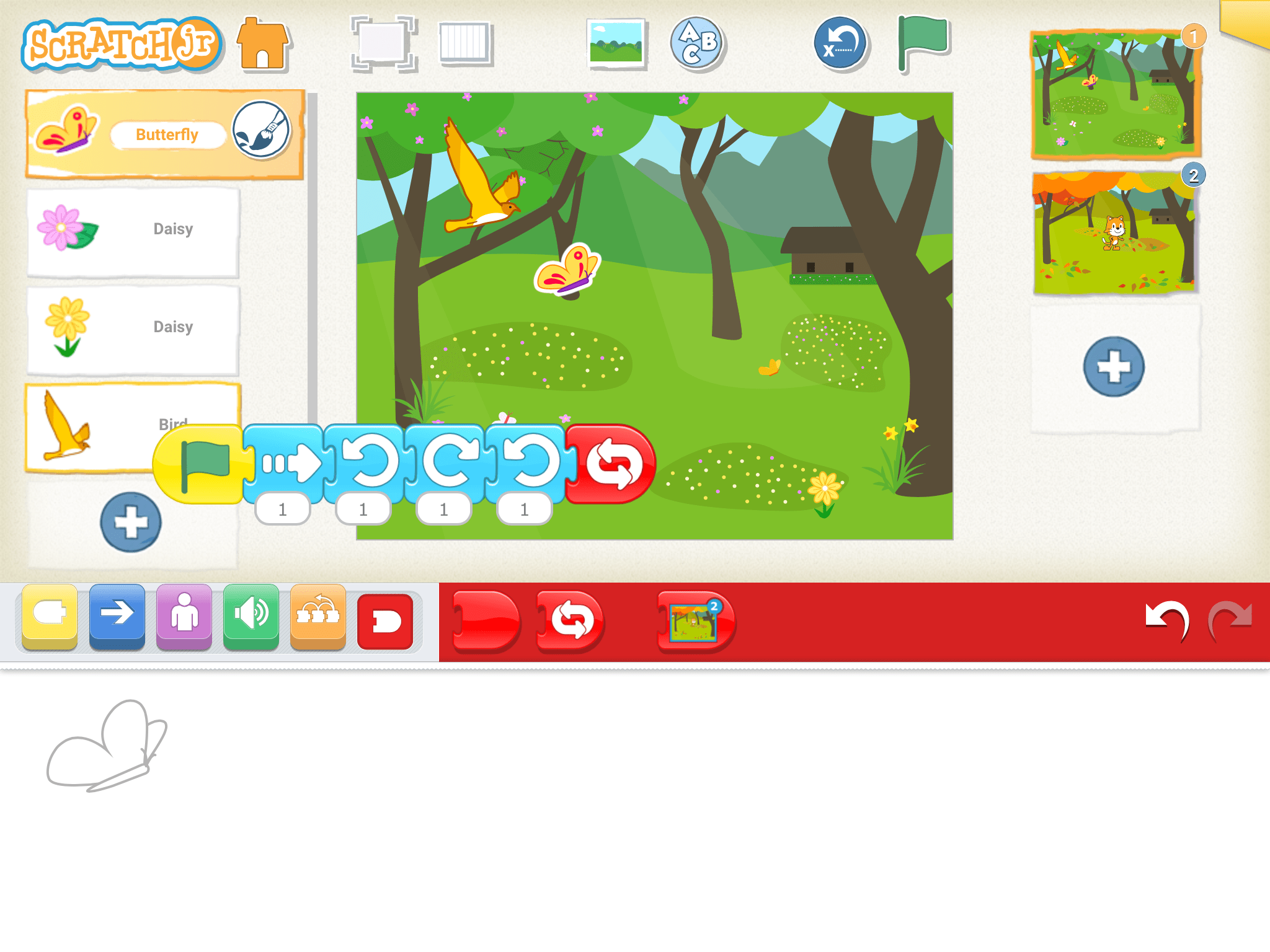
Expressive Explorations
Program the Wild Rumpus into your Story Where the Wild Things Are (Suggested Time: 20 minutes)
- For the final project, children will use the Go to Page block and have 3 pages for their story.
- For a more guided final project, have the children program a Wild Rumpus as their ending and have all the characters dance the same dance using the copying scripts.
Closing Tech Circle
What If…? (Suggested Time: 10 minutes)
- As a class, discuss the possibility of alternative stories or endings. For example, What if the story ended differently? What if Max didn’t go home? What if Max didn’t miss home?
Anchor

Powerful Ideas of Computer Science
Design Process, Modularity
Powerful Ideas of Literacy
Writing Process, Phonological Awareness
Children will be able to:
- Plan alternate endings to a story using Design Journal prompts
- Create an alternate ending to a story in their ScratchJr projects
Vocabulary covered:
- Alternative Ending
Necessary Materials: Design Journal L21, Mystery Character Questions
Warm Up
Guess Who? (Suggested Time: 5 minutes)
- Play a game of Guess Who?
- If you know the children well enough, then pick one in the classroom and give hints about them.
- Or use characters from one of the books or ScratchJr.
- E.g., Ada – loves flying, machines
- E.g., Cat – orange, likes to be programmed
Opening Tech Circle
Alternative Ending with Bonus Character (Suggested Time: 10 minutes)
- Revisit the discussion from last class about alternative endings. Discuss the idea of what if the story changed in these two scenarios:
- “What if there were new characters?”
- “What if the ending of the story changed?”
- Introduction to the final project.
- Children will change the last page of their projects created in lesson 19-20 to create a new ending, and add a new bonus guest to join the Wild Rumpus!
Word Time
Planning Final Project (Suggested Time: 10 minutes)
- In their Design Journals, children will plan for changes to the last page and their bonus character.
- Changes to the last page – what might you change?
- New bonus character – who should be your bonus guest?
ScratchJr Time
Expressive Explorations
Programming Final Project (Suggested Time: 10 minutes)
- Children will program to change only the last page of their story. Children will also invite a new ScratchJr character to join the Wild Rumpus using the copying script from another character.
Closing Tech Circle
Bonus Character Questions (Suggested Time: 10 minutes)
- Have children create questions to ask in order to find out who the bonus character is – use the anchor chart for Bonus Character Questions and save responses for the next lesson.
- E.g., Is your bonus character imaginary or real?
Anchor

Powerful Ideas of Computer Science
Design Process, Debugging, Algorithms
Powerful Ideas of Literacy
Writing Process
Children will be able to:
- Recall ScratchJr skills learned throughout the curriculum.
- Revise an existing ScratchJr project by adding a new character to Where the Wild Things Are
- Give and receive constructive peer feedback using the “2 Stars and a Wish” prompt.
Vocabulary covered:
Necessary Materials: Show What You Know Information, Show What You Know Student Sheet, Student Sheet for Double Sided Printing, Show What You Know Teacher Slides, Show What You Know Answer Key
Show What You Know
Show What You Know! (20 minutes)
- Start off class with a quick check-in of the children’s knowledge. This is the summative assessment for the curriculum. Hand each child a copy of the Show What You Know Student Sheet and project the teacher slides on the board. Read each question aloud and give children about 2 minutes per question. For more information, see Show What You Know Information Sheet.
Opening Tech Circle
Adding More to Your Project (Suggested time: 5 minutes)
- Whenever children are done with Show What You Know, let them return to the projects and continue adding details and revising. Tell the children that the next class will be when they share their completed projects.
ScratchJr Time
Expressive Explorations
Programming Final Project (Suggested Time: 15 minutes)
- Children will work on their projects to have everything that is required on a checklist (it can be printed or projected on the board):
- Title page
- Adding bonus character – copying script
- Adding details!
Closing Tech Circle
2 Stars and a Wish (Suggested Time: 5 minutes)
- In pairs or small groups, have children discuss their projects using the 2 Stars and a Wish feedback prompt:
- 2 Stars are two things that went well.
- 1 Wish is one thing you want to do better.
- Then, let them share their self-assessment
Anchor

Powerful Ideas of Computer Science
Design Process, Algorithms
Powerful Ideas of Literacy
Writing Process
Children will be able to:
- Recognize help they received and gave to others.
- Express gratitude through a thank you card.
Vocabulary covered:
- Gratitude
Necessary Materials: Collaboration Web, Design Journal L23
Warm Up
Our Sentence Story (Suggested Time: 10 minutes)
- Teacher starts the story with: “Once upon a time there was a programmer.”
- Children and teachers go around and each add one sentence to the story, ultimately ending with one story from the class.
Opening Tech Circle
Helping Hand (Suggested Time: 5 minutes)
- Discuss how children may have helped each other and needed help during projects or activities. Working together and supporting each other is part of being a coding community and is how programmers work together. Discuss the importance of gratitude and how it’s important to show appreciation and thank the people who help you. The warm-up story activity wouldn’t be the same if all of the children didn’t contribute to the story.
ScratchJr Time
Structure Challenge
Project Naming (Suggested Time: 5 minutes)
- Invite children to name their final projects following the steps below:
- Tap the yellow rectangle in the top right corner of the screen to name your project and see the Project Information Screen.
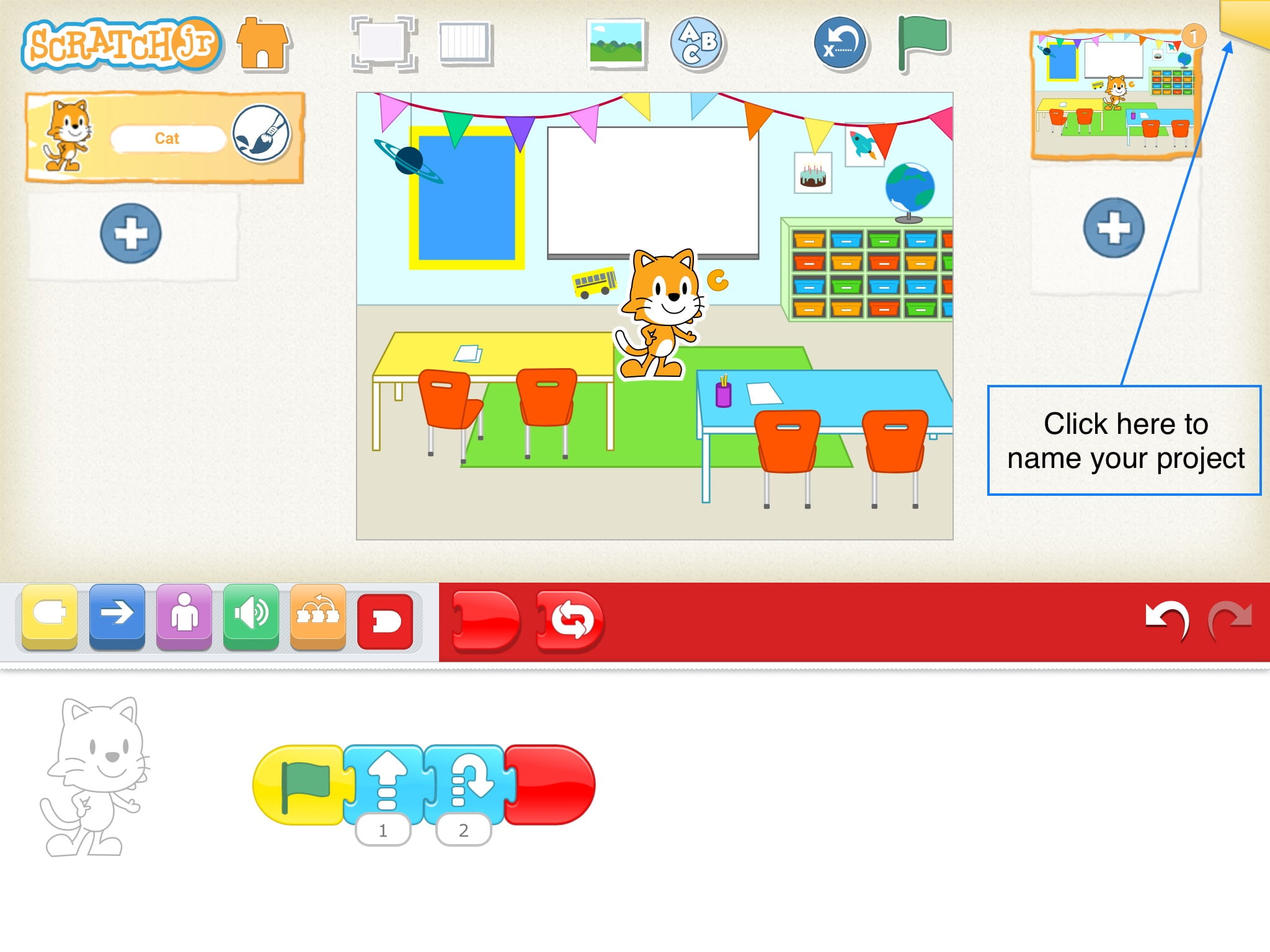
- Type a specific name for this project (e.g., “Child’s name_grade level”). See example below:
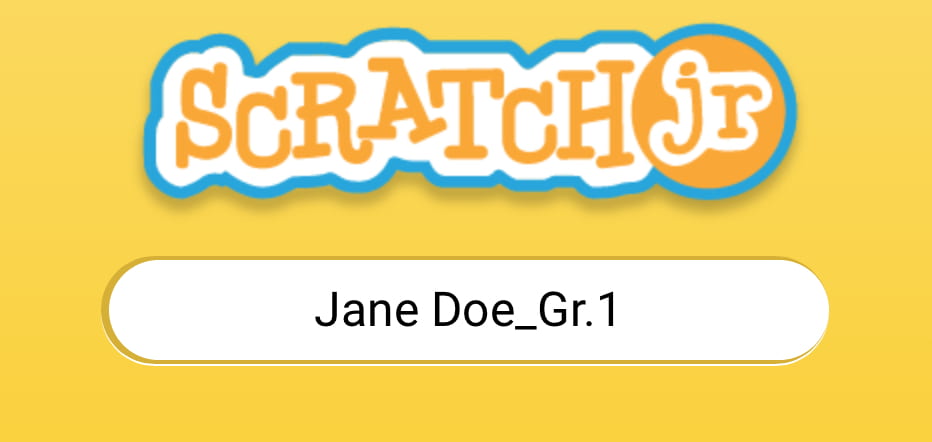
Word Time
Collaboration Web (Suggested Time: 10 minutes)
- Display a classroom collaboration web on the wall with pictures of the children and have children draw lines or attach yarn to the pictures of other children who helped them. Children should start thinking about who helped them with their projects prior to coming up to the board.
Thank you cards (Suggested Time: 10 minutes)
- Listen to the Gratitude Meditation for Kids (3m30s). Encourage children to think about two classmates who helped them with their coding projects while they listened to the meditation.
- Children will choose two classmates who helped them and write them thank you cards.
Closing Tech Circle
Sending Gratitude (Suggested Time: 5 minutes)
- Children will deliver thank you cards to classmates.
Example Projects
Example Projects
Here is a brief selection of example projects. We’ve included examples from first graders, college students, and adults to show the range of possibilities that this project offers.
Anchor





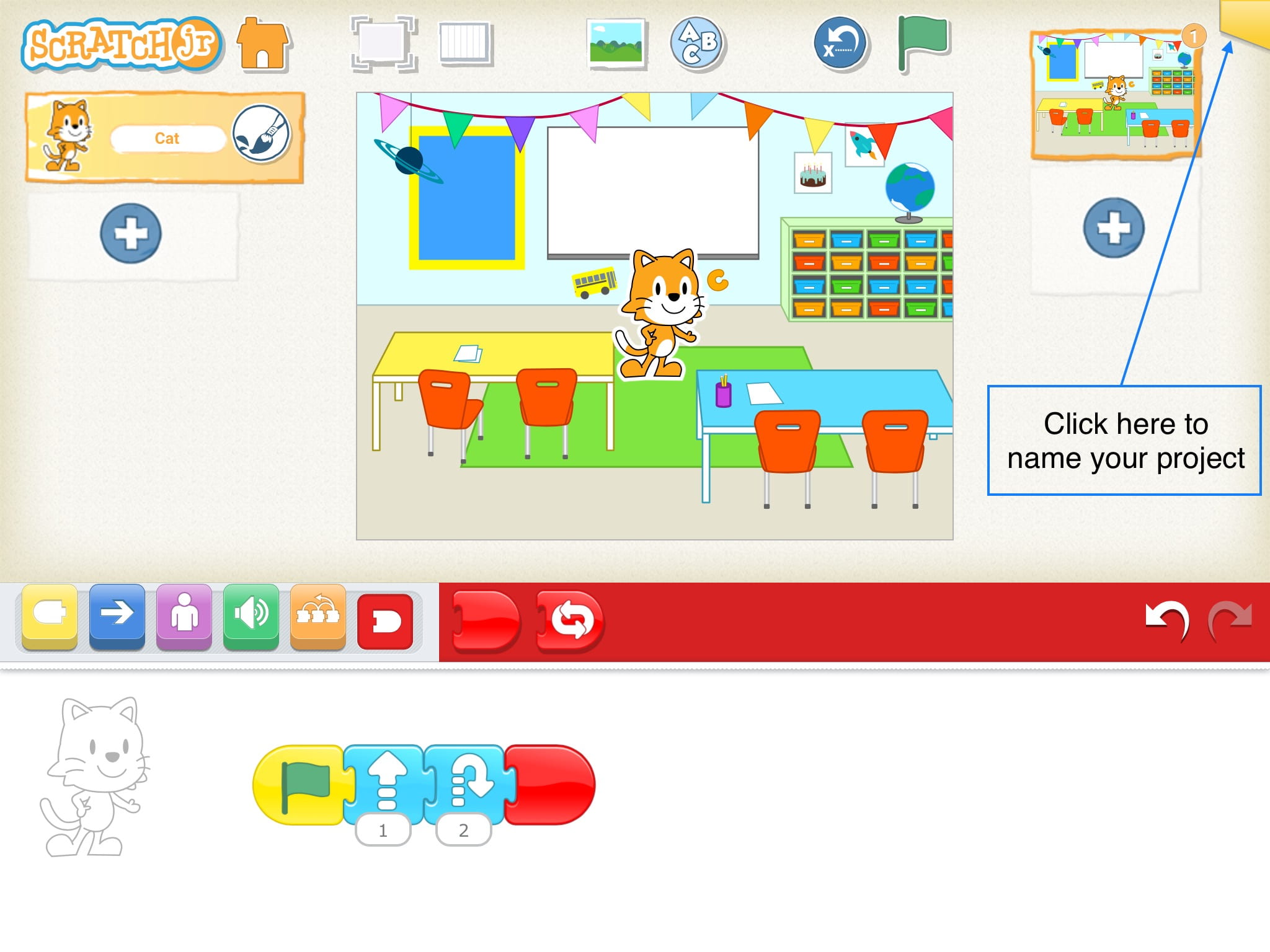
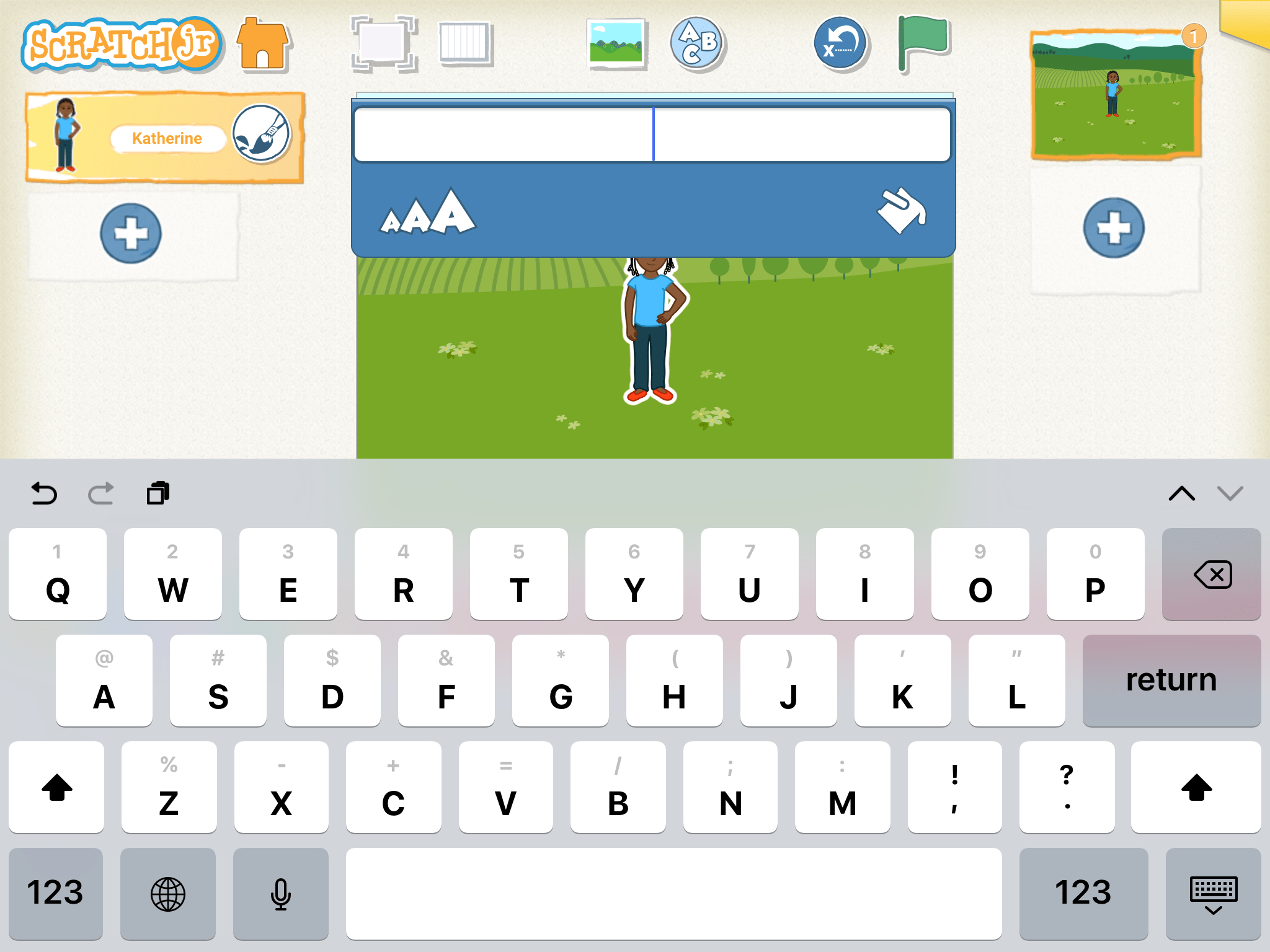
Powerful Ideas of Computer Science
Design Process, Algorithms
Powerful Ideas of Literacy
Writing Process, Sequencing
Children will be able to:
- Speak and express themselves in front of the class through guided questions from a teacher.
- Share their final ScratchJr creations.
Vocabulary covered:
Necessary Material: Design Journal L24
Warm Up
Dance a Wild Rumpus (Suggested Time: 5 minutes)
- As a class, dance as if you were in the Wild Rumpus from the book, Where the Wild Things Are.
Final Project Showcase
Final Showcase (Suggested Time: 20 minutes)
- Have children pretend they are in a museum displaying their final projects.
- Split the class in half. One half will exhibit their projects while the other half of the children walk around looking at the projects. Set a 10-minute timer.
- Encourage them to ask questions.
- Use the guided questions:
- Who is your bonus guest?
- How did you change the end of the story?
- What are some of the blocks you used in your program?
- While walking, ask them to complete a scavenger hunt looking for different elements in other friends’ projects. Give them a list of things to look for.
- After the timer goes off, the groups will switch (i.e., children who exhibited their projects will now walk around, and children who walked around will now exhibit their projects).
Word Time
Lesson 24 Design Journal (Suggested Time: 10 minutes)
- In their Design Journals, children will write a reflection to answer the prompts:
- Write or draw about something you learned…
- Write or draw about your favorite part of ScratchJr…
Closing Tech Circle
The Future of Programming (Suggested Time: 10 minutes)
- Applaud and compliment children for all their great work on both their final projects, as well as throughout this class.
- Discuss the future of programming with the whole class using these guided questions:
- What is their favorite thing that they have learned in ScratchJr?
- What project would they like to work on next? Or what skill would they want to learn next?
- Looking bigger than ScratchJr, what piece of technology would they want to help invent or program?
- Explain that now that they have finished taking this class, they are the future of programming! As they grow up, they will continue to learn how to take their ideas in their brains and make them real!
- Ask children to sing and dance to a clean up song one last time.
(to the tune of the Itsy Bitsy Spider)
We’re turning off our tablets and putting them away
We had so much fun but we’re finished for the day